Back up your Fear the Night configuration before changing settings. The panel stores dated archives, so you can select the copy you want to restore.
- Stop your Fear the Night server and wait for Stopped.
- Click Backup Server and confirm with OK.
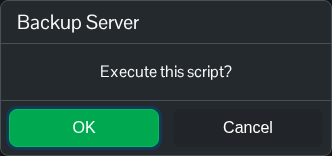
- Wait for the script to finish successfully. Open Restore Backup to check that the new dated archive appears.
To restore a backup, stop the server first. Restoration replaces the files held in that archive, so keep a separate copy of anything newer that you want to retain.
- Open Restore Backup and select the required dated ZIP from Select a backup to restore.
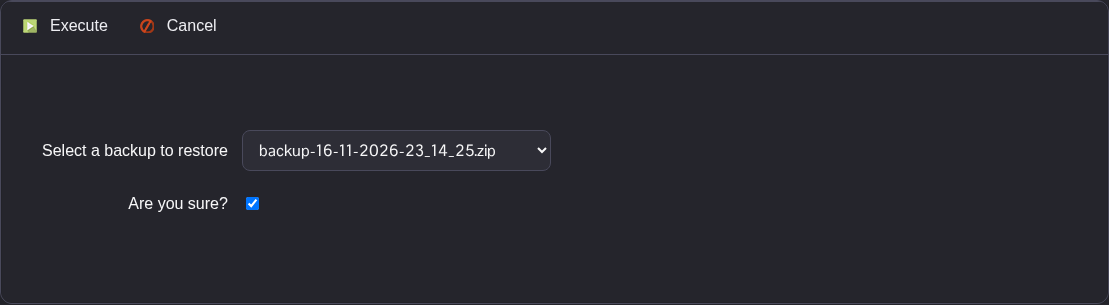
- Tick Are you sure? and click Execute. Wait for the script to report that it has executed successfully.
- Check
GameUserSettings.inibefore you start the server. Start the server when the restored settings are correct.
For an independent copy, use File Manager to download your configuration before editing, or use FTP. World data is under Saved/SavedMoons; configuration is under Saved/Config/WindowsServer. Download the world folder separately before a rollback, and check that the files you need are present in your backup.
