You can control Karagon's join and leave notifications separately. Turn both off if you do not want those announcements.
- Stop your Karagon server in the game control panel and wait for Stopped.
- Open Configuration Files and click Config Editor beside
Settings.ini.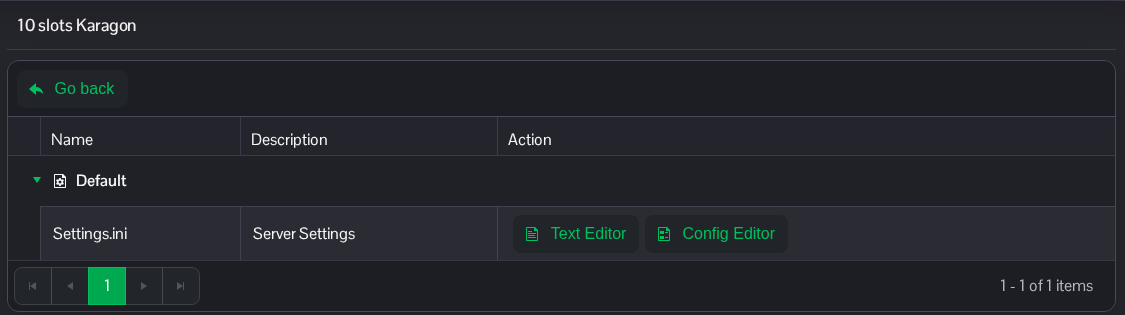
- Tick or untick Join Notifications and Leave Notifications as required. Each checkbox controls its own event.
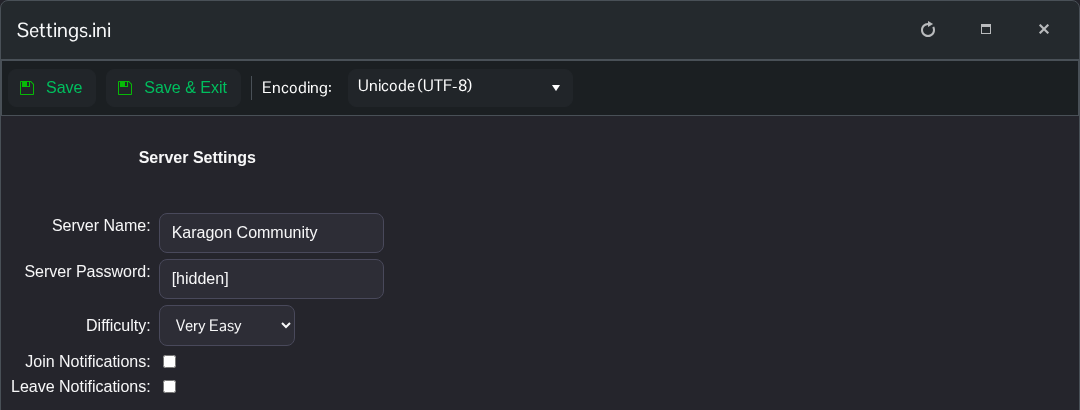
- Click Save & Exit, return to the service page and start the server.
Use true for either entry to enable that notification again.
If you prefer to edit the file directly, choose Text Editor beside Settings.ini and change the following entries under the existing [Settings] heading.
[Settings]
Server.JoinNotifications=false
Server.LeaveNotifications=false
The file is NewKaragon/Saved/Config/WindowsServer/Settings.ini in File Manager. You can also transfer a local copy using FTP. Keep the other settings in place.
