Outpost Zero stores its autosave frequency under the SurvivalSaveManager section. Keep a separate backup when changing save settings.
- Stop your Outpost Zero server and wait for Stopped.
- Open Configuration Files and click Text Editor beside Game.ini.
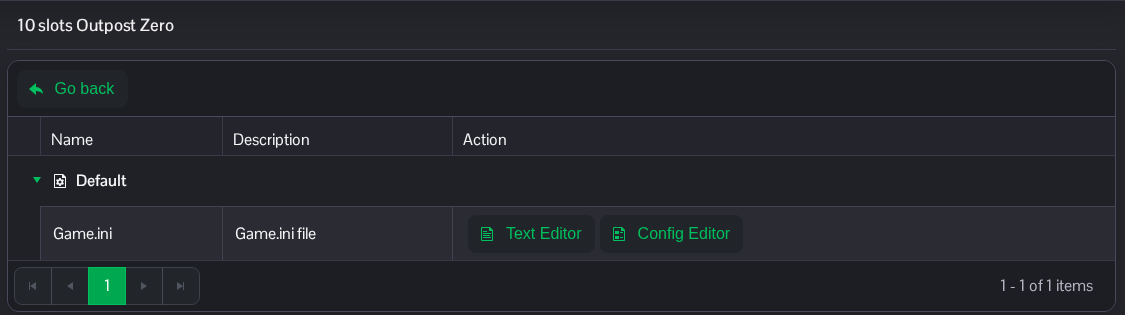
- Under the heading below, change
AutoSaveFrequency. The installed default is900.0; the example uses60.0. Keep other settings in place. If the section is missing, add it once at the end of the file.[/Script/SurvivalGame.SurvivalSaveManager] AutoSaveFrequency=60.0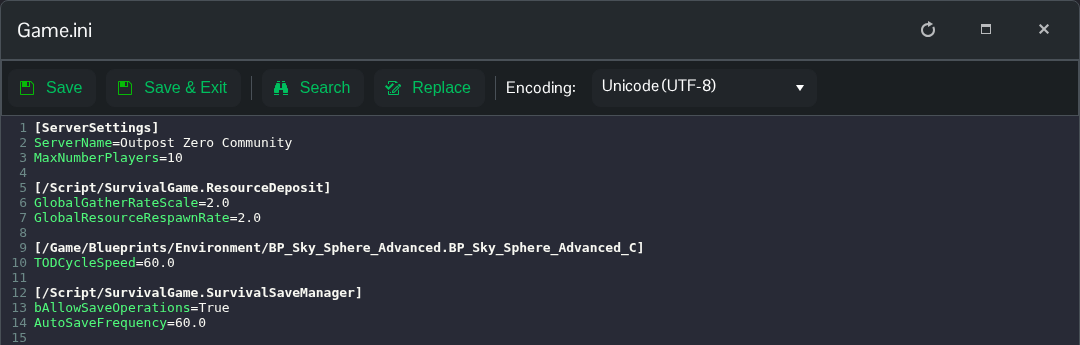
- Click Save & Exit, then start the server.
To restore the installed default, return the value to 900.0 and restart. Changing this setting does not create a separate backup archive.
You can also open the same file in File Manager at Saved/Config/WindowsServer/Game.ini. FTP is an alternative for transferring a local copy.
