The Outpost Zero panel backup includes the service files, including game binaries and content as well as configuration. Allow the full job to finish before making further changes.
- Stop the server and wait for Stopped.
- Click Backup Server, then confirm with OK.
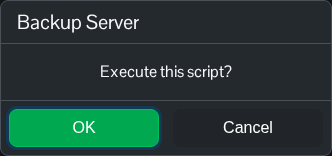
- Wait for the backup job to finish successfully. It can take time to enumerate and compress the installed game files.
- Open Restore Backup and check that the new dated ZIP is listed.
For an independent settings copy, open File Manager, go to Saved/Config/WindowsServer, right-click Game.ini and choose Download. FTP is an alternative for file transfers. Played save files, when present, are under Saved/SaveGames; retain those separately if you need a local world copy.
