We recommend using FileZilla for SFTP, which can be downloaded here: https://filezilla-project.org/
If you are connecting to a Ptero server, you can find the SFTP server address and username here: How to access SFTP on our Ptero control panel.
Connect using Site Manager
- Open FileZilla.
- Go to File > Site Manager at the top of the window.
- Click New Site.
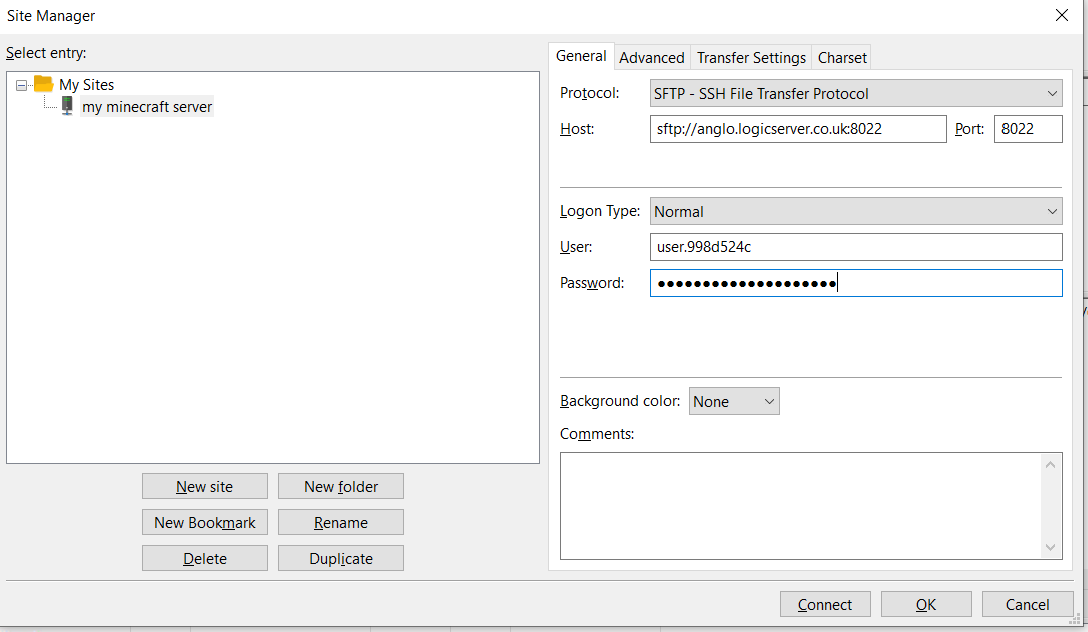
- Set Protocol to SFTP.
- Enter the host and port from your control panel's SFTP details.
- Select Normal in the Logon Type dropdown.
- Enter your SFTP username.
- Enter your control panel password.
- Click Connect, and your server files should appear.
Site Manager example:
Use Quickconnect
For a faster connection, you can use Quickconnect by entering the host, username, password, and port into the Quickconnect bar.

