You can upload Minecraft files from the control panel File Manager. This is best for smaller files such as config files, plugins, datapacks, resource packs, and server icons.

For larger uploads, use FileZilla instead: How to connect to SFTP using FileZilla.

Upload using File Manager

  1. Open your Minecraft server in the control panel, then stop the server if you are replacing files Minecraft is already using.
  2. Open Files and go to the folder where the files need to be uploaded.
  3. Drag and drop the files into the File Manager upload area.
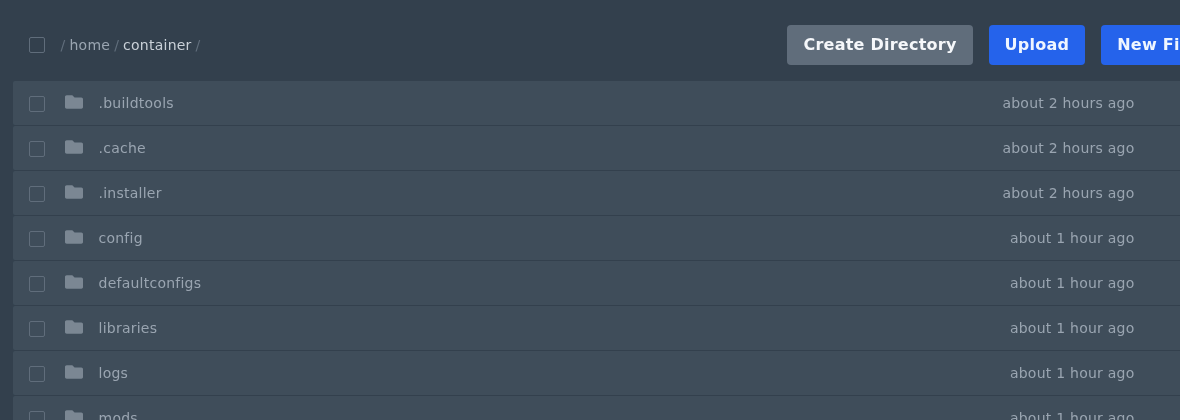
    Uploading Minecraft files using the file manager

  4. Start or restart the server after the upload if Minecraft needs to load the new files.

If you uploaded a zip file, open the file menu and use Unarchive before starting the server.

  • 0 Users Found This Useful
Was this answer helpful?

Related Articles

Colour Codes for Minecraft Multiplayer and Vanilla

This article lists all of the codes you can use with many plugins in Minecraft using Spigot or...

What is the difference between Fabric, Quilt and Forge in Minecraft Modding

Exploring the Distinctions Between Fabric and Forge When diving into the exciting world of...

What is a Grindstone and how is it used?

In this guide, we will teach you what the Grindstone in Minecraft does, and how to use it...

How to Convert Java and Bedrock Edition Worlds

In this guide, we’ll be teaching you how to convert your world from a Java Edition world to a...

How to install Pixelmon on your Minecraft Server

Pixelmon is installed as a Minecraft modpack, so the server and anyone joining it need to use the...