Aloft world saves are stored in the server file manager under AppData/Data06/Saves. Upload the save into that folder, then set the server to load the correct map name.
- Open your Aloft server in the control panel and stop the server.
- Click File Manager.
- Open
AppData, thenData06, thenSaves.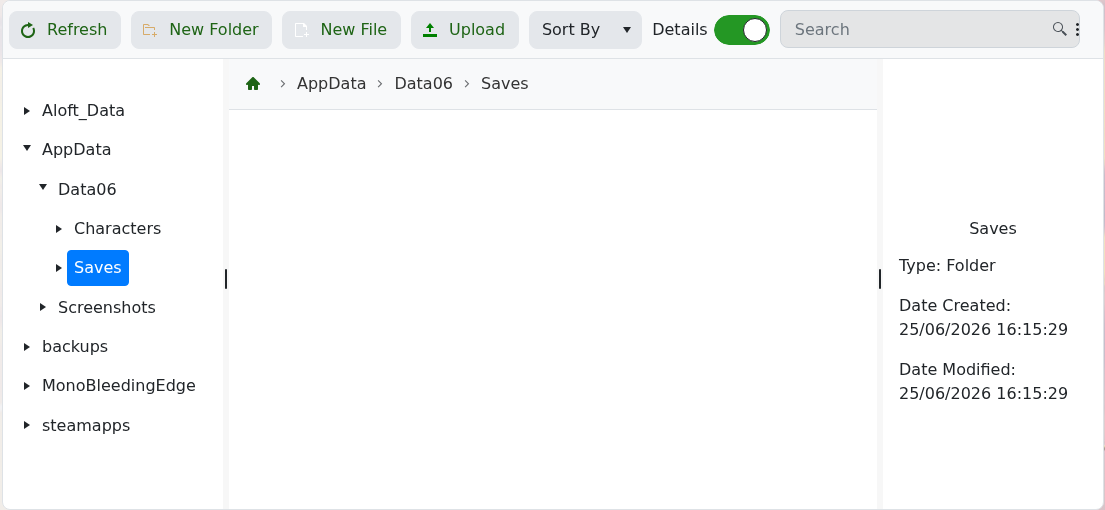
- Click Upload and upload your Aloft save files or save folder.
- Go back to Configuration Files, then open
AloftServer.ps1with Config Editor. - Set Map Name to the world/save name you want the server to load, then click Save & Exit.
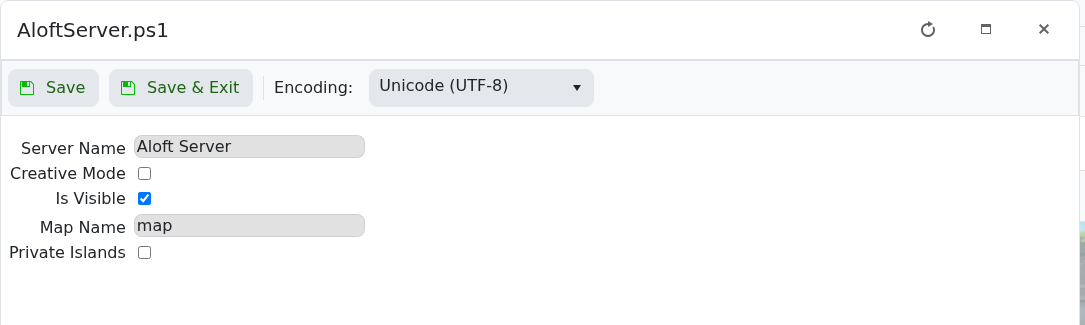
- Start the server and check that it loads the uploaded world.
If you want to start fresh instead, use How to create a new world on your Aloft Server.
Before changing settings
Create a backup before changing world, map, security, or gameplay settings on an active Aloft server. Some settings only apply after a restart, and some only affect newly generated worlds.
Verify the change
After saving, restart the server and check the console for errors. Join the server or ask a player to test the changed behaviour before making further edits.
