A manual backup saves a copy of your Aloft server files before you make changes. Use one before editing settings, uploading a world, creating a new world, or running a Steam update. The backup is stored remotely, with a small entry left in the server backups folder so the restore script knows which backups are available.
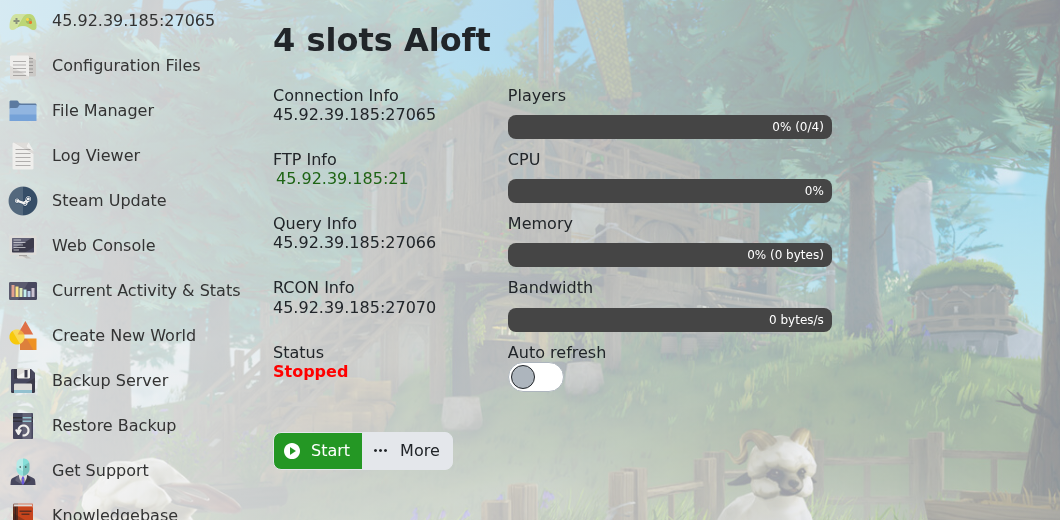
- Open your Aloft server in the control panel.
- Stop the server if you want the cleanest backup.
- Click Backup Server on the left side menu.
- The panel opens a console-style backup window. Wait for the backup process to finish before making more changes.
Need to roll back later? Use How to restore a backup to your Aloft Server.
Before you continue
Wait for the backup task to finish before making changes. If the backup was taken before a risky edit, keep a note of the time so you can identify the correct restore point later.
If the backup fails
Refresh the control panel and check whether another task is already running. If it fails again, stop before changing files and submit a support ticket with your server name and the backup error shown in the panel.
