Aloft server settings are edited from AloftServer.ps1 in the Config Editor.
- Open your Aloft server in the control panel, then click Configuration Files.
- Click Config Editor next to
AloftServer.ps1.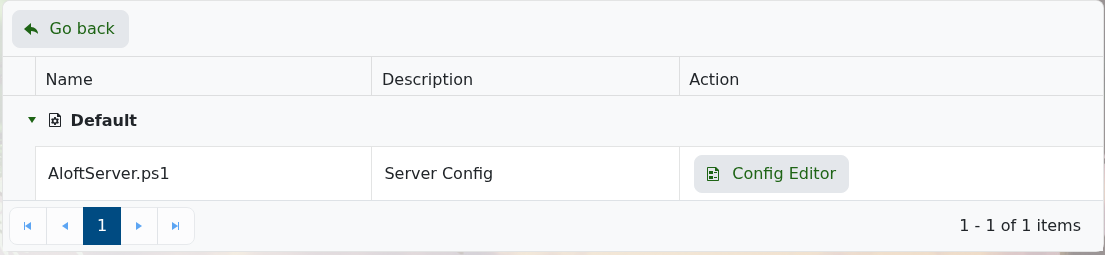
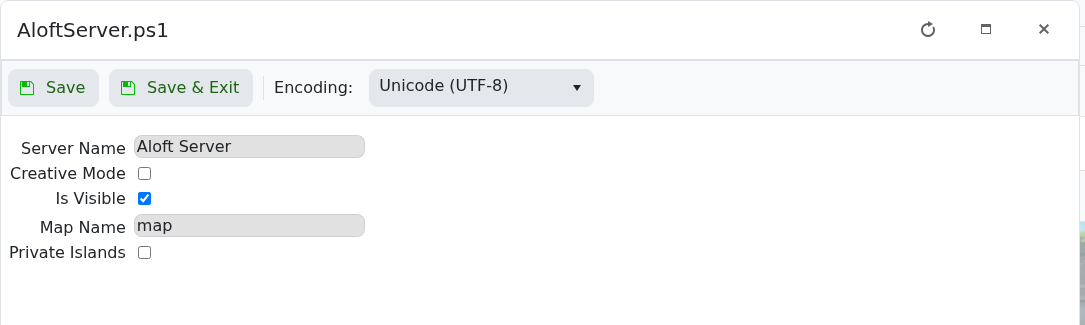
- Change the settings you need, then click Save & Exit.
- Restart the server.
| Setting | What it does |
|---|---|
| Server Name | The name players see for your server. |
| Creative Mode | Enables creative mode for the server. |
| Is Visible | Controls whether the server is shown publicly in the server list. |
| Map Name | The map/save name the server loads. |
| Private Islands | Enables private-island behaviour for the server. |
If you are changing the world the server loads, see How to upload a world to your Aloft Server.
Before changing settings
Create a backup before changing world, map, security, or gameplay settings on an active Aloft server. Some settings only apply after a restart, and some only affect newly generated worlds.
Verify the change
After saving, restart the server and check the console for errors. Join the server or ask a player to test the changed behaviour before making further edits.
