Rust servers often run regular wipe schedules, especially around community wipe cycles and force-wipe weeks. Use Scheduled Tasks when you want the control panel to run the wipe for you at a fixed time instead of wiping the server manually.
- Open your Rust server in the control panel.
- Take a manual backup first if you are testing a new wipe schedule: How to backup your Rust server. A wipe removes saved world data.
- Click Scheduled Tasks on the left side menu.
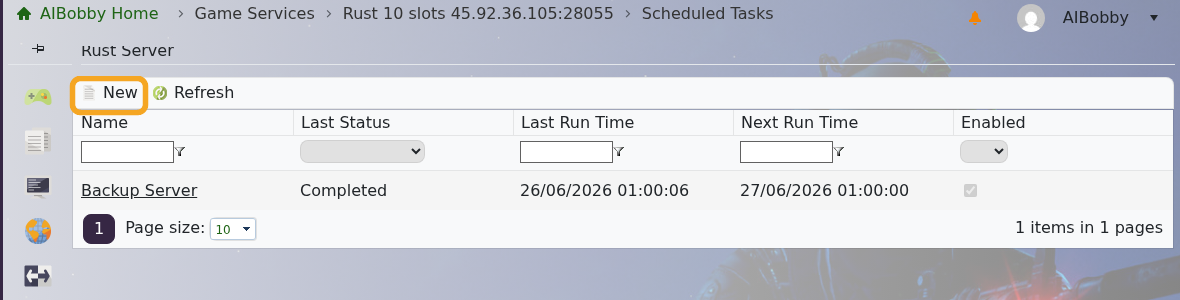
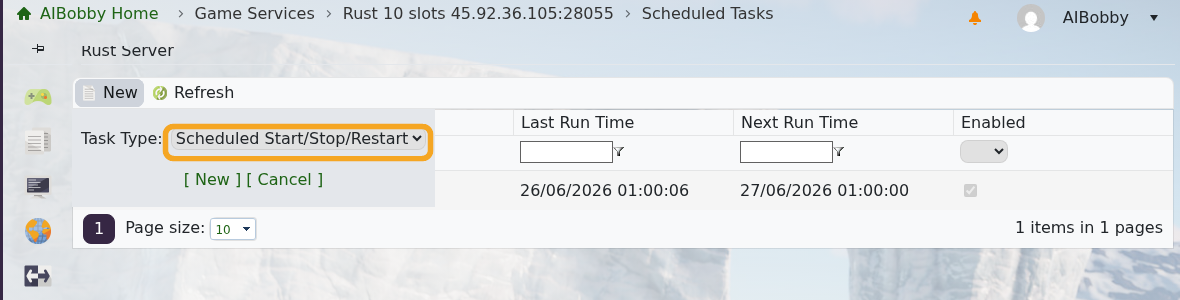
- Set Task Type to Wipe Server, then click New.
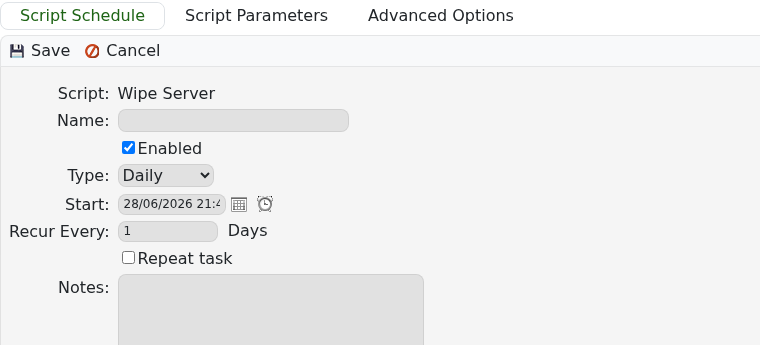
- Set the first run date and time. Pick a time when your players expect downtime, because the wipe task can stop or restart the server while it runs.
- For a daily wipe, set Type to Daily and set Recur Every to 1 day.
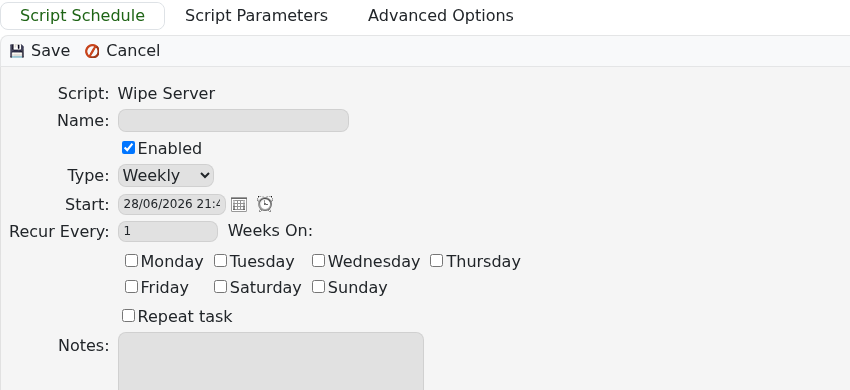
- For a two-week wipe cycle, set Type to Weekly, set Recur Every to 2 weeks, and choose the day you want the wipe to run.
- Tick the wipe options you want the task to run. For a normal map wipe, wipe the map/world data only. Only include player state, identities, tokens, or blueprints if you want that progress reset as well.
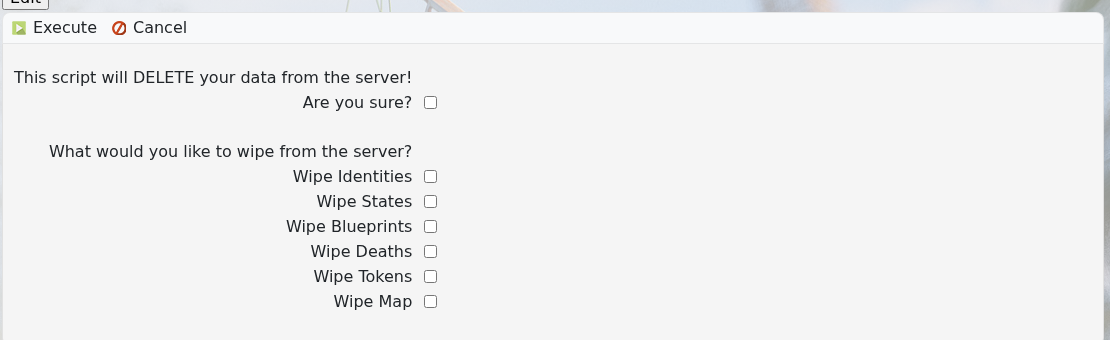
- Enable the task, then save it.
- Return to Scheduled Tasks and check the Next Run Time so you know exactly when the wipe will run.
- After the first scheduled wipe, open Web Console and check that the server restarted and generated the expected fresh map.
If you are changing map seed or world size at the same time, update those settings before the scheduled wipe runs. For one-off wipes, use Wiping the world of your Rust server.
