The VPS control panel shows resource usage so you can check whether the server is running out of disk space, using too much CPU, or approaching its bandwidth allowance.
This is useful when a game server starts lagging, updates fail, uploads stop, or the operating system becomes slow.
Open the resource overview
- Open your VPS service from the client area.
- Open the VPS control panel.
- Open the VPS you want to check.
- Use the Overview and Graphs areas to review usage.
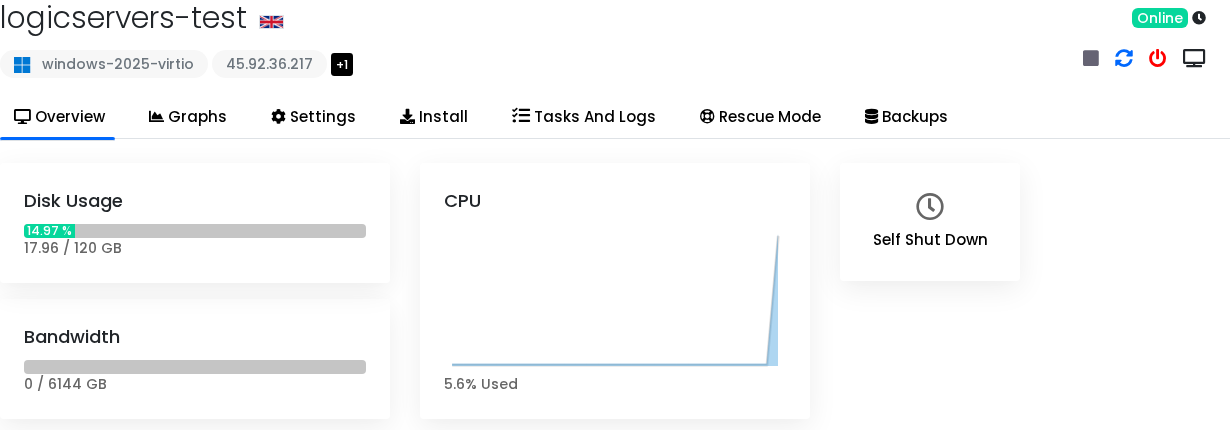
What to look for
| Resource | What it means |
|---|---|
| CPU | High CPU for short bursts is normal. Constant high CPU can cause lag or slow responses. |
| RAM | If memory is full, services may crash, swap heavily, or stop responding. |
| Disk | If disk space is full, updates, logs, databases, and game saves can fail. |
| Bandwidth | Shows how much network transfer has been used in the billing period. |
If disk usage is high, check logs, old backups, unused downloads, and large game save folders.
If CPU or RAM is constantly high, consider stopping unused services, reducing player slots, changing game settings, or upgrading to a larger VPS plan.
