High CPU or RAM usage can cause lag, slow command responses, failed updates, or game servers being killed by the operating system. Use Linux process tools to find what is using resources before restarting or killing anything.
Start with the built-in commands first. Install htop if you want a cleaner live view of processes, CPU cores, memory, and swap.
Check usage with top
- Connect to the VPS with SSH.
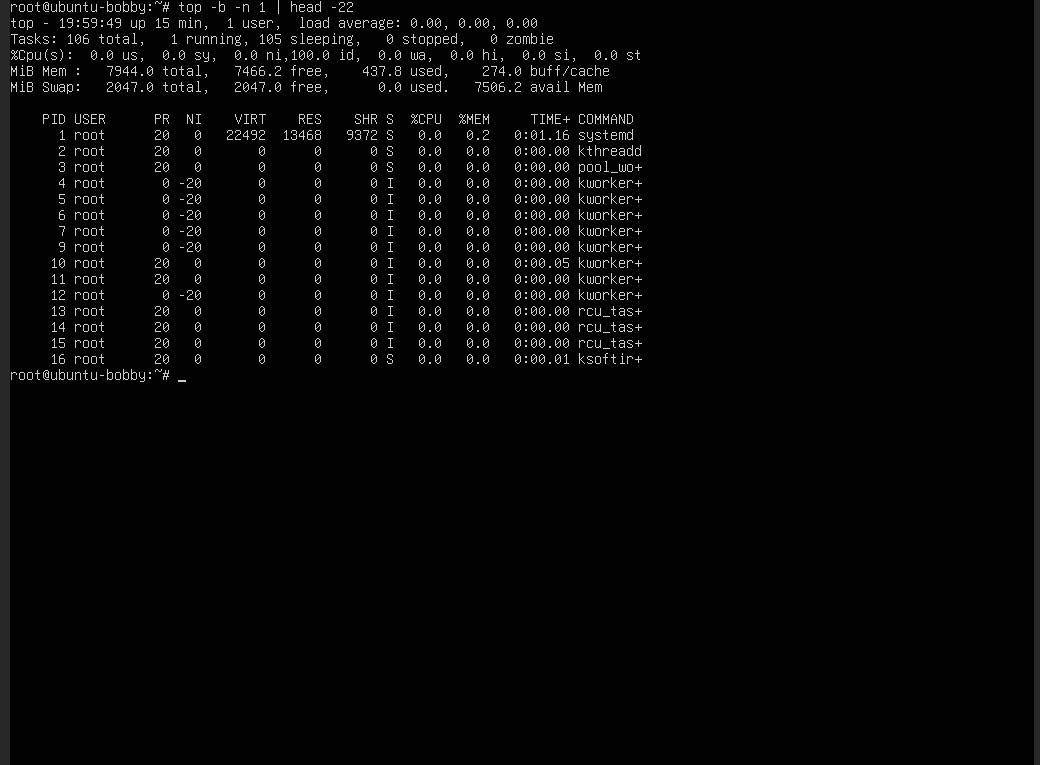
- Check the current CPU and memory view with
top. This is available on most Linux installs without adding anything:top
Install htop
htop is not always installed by default. Install it first if the htop command is missing.
- On Ubuntu or Debian, run:
sudo apt update
sudo apt install htop
On AlmaLinux, Rocky Linux, Oracle Linux, or CentOS-style systems, run:
sudo dnf install htop
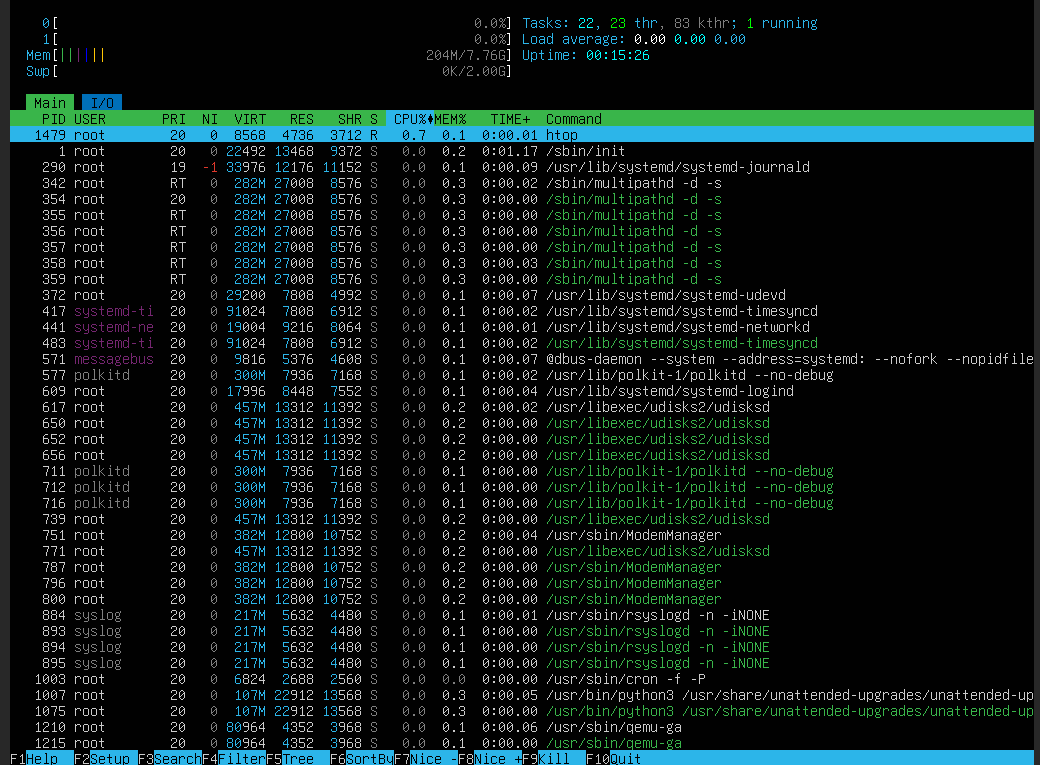
- Open
htopfor an easier live view:htop
Check memory and swap
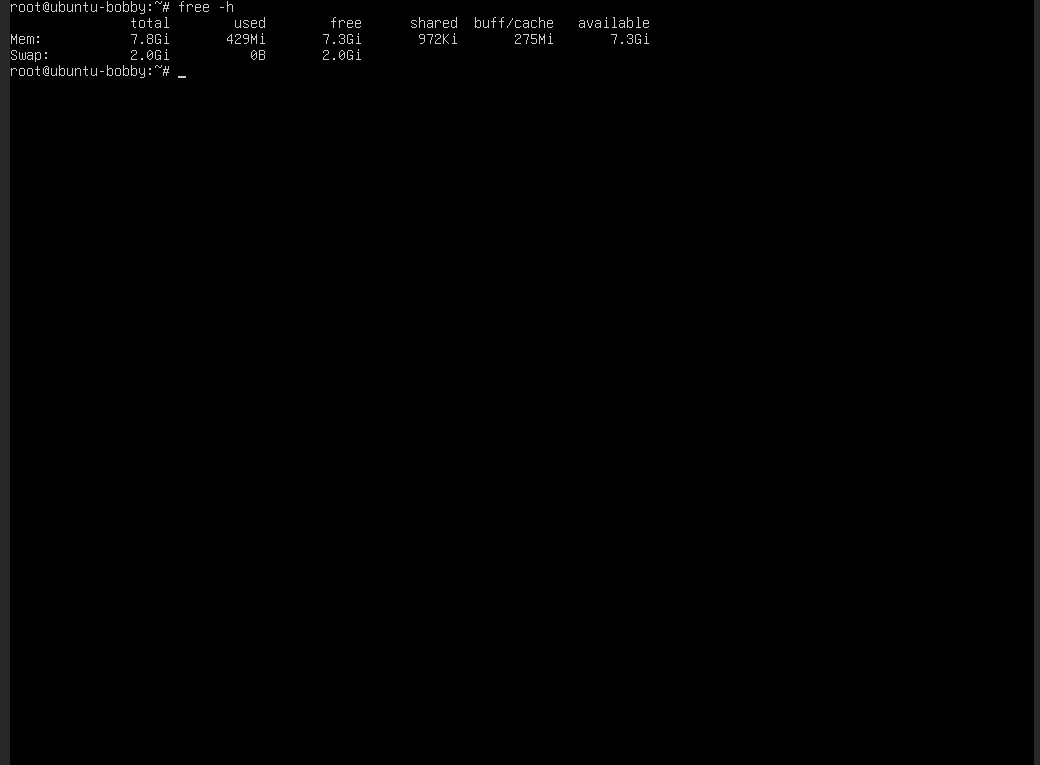
- Check memory and swap usage separately:
free -h
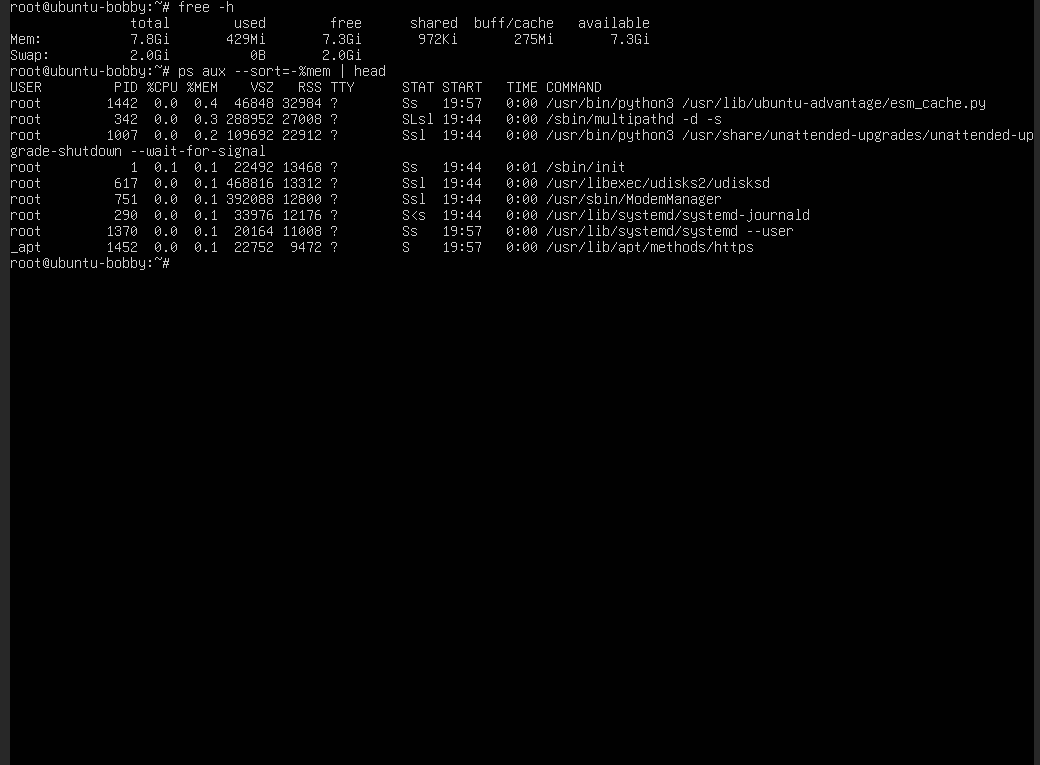
- List the highest memory processes if you need a quick non-interactive view:
ps aux --sort=-%mem | head
If a game server uses all memory during startup, reduce settings, remove unused services, add swap as a short-term safety net, or upgrade RAM. If CPU is high only during updates, map generation, world saving, or first launch, wait for that task to finish before changing anything.
How to read the output
| Metric | What it means |
|---|---|
| Load average | How busy the VPS has been recently. Compare it with the number of CPU cores. |
| Used memory | Memory currently used by processes and cache. |
| Swap used | Disk-backed emergency memory. Constant swap usage usually means the VPS needs more RAM. |
| CPU% | Processes using CPU time. Sort by CPU in top or htop to find the cause. |
If a process is using high resources, identify what it is before killing it. Stopping a database, game server, or panel process without saving can cause data loss.
