SSH is the normal way to manage a Linux VPS. It gives you a terminal on the server so you can install software, edit files, check logs, restart services, and run game server commands.
You need the VPS IP address, the SSH username, and either the password or an SSH key. On a fresh Linux VPS the username is often root, but some images use a normal user such as ubuntu, debian, or alma.
- Open your VPS service from the client area.
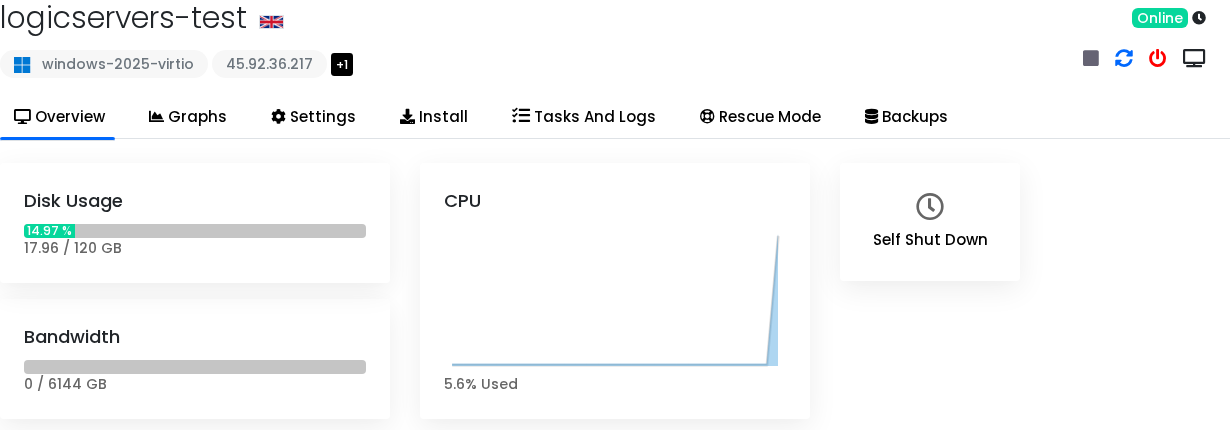
- Open the VPS control panel and copy the public IP address from the overview page.
- Open Terminal, Windows Terminal, or PowerShell on your own computer.
- Run the SSH command, replacing the IP address with your VPS IP:
ssh root@45.92.36.217
If the VPS uses a different username, replace
rootwith that username.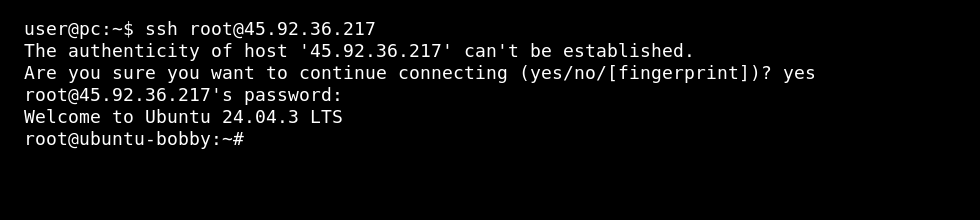
- If SSH asks whether you trust the server fingerprint, type
yesif the IP is correct. - Enter the VPS password. Linux does not show password characters while you type; this is normal.
If you added an SSH key, connect with the key path instead:
ssh -i ~/.ssh/mykey root@45.92.36.217
Add the key first if you have not done that yet: How to add an SSH key to your VPS.
Using PuTTY
- Open PuTTY.
- Enter the VPS IP address in Host Name.
- Leave Port as
22unless you changed SSH to a custom port. - Set Connection type to SSH.
- If you use a PuTTY private key, open Connection > SSH > Auth > Credentials, then select your
.ppkprivate key. - Click Open, accept the host key prompt if the IP is correct, then log in with the VPS username.
Using Termius
- Create a new host in Termius.
- Enter the VPS IP address, SSH username, and port
22. - Choose password authentication or select the SSH key you imported into Termius.
- Save the host and connect.
Keep any saved passwords or private keys protected with Termius app security and your device lock.
If SSH does not connect
| Problem | What to check |
|---|---|
| Connection timed out | The VPS may be offline, the IP may be wrong, or a firewall may be blocking port 22. |
| Permission denied | The username, password, or SSH key is wrong. |
| Host key warning | The server may have been reinstalled. Check the IP is correct before removing the old known-host entry. |
| SSH was disabled by firewall | Use the VPS console to fix the firewall or SSH config. |
If SSH is unavailable, use the console guide: How to use the VPS console or VNC.
