systemctl is the main tool for managing services on most modern Linux VPS distributions. It controls services managed by systemd, including web servers, databases, bots, game-server daemons, monitoring tools, and custom services you create yourself.
In the examples below, replace nginx with the service you are managing. Common service names include nginx, apache2, mariadb, mysql, docker, sshd, and custom names such as arkserver or discordbot.
Check a service
Use status before restarting a service. It shows whether the service is running, whether it is enabled on boot, and recent error output.
sudo systemctl status nginx
The screenshot below uses the SSH service as an example; the same output layout applies to other systemd services.
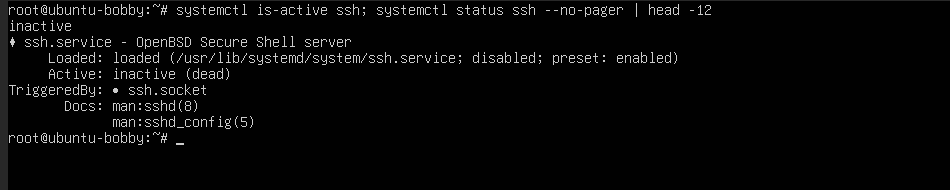
If the output says failed, read the error lines before repeatedly restarting it.
You can also view logs with journalctl:
sudo journalctl -u nginx --since "30 minutes ago"
Follow live logs while you restart or test the service:
sudo journalctl -u nginx -f
Start, stop, restart, and reload
| Command | What it does |
|---|---|
sudo systemctl start nginx | Starts a stopped service. |
sudo systemctl stop nginx | Stops a running service. |
sudo systemctl restart nginx | Stops and starts the service again. |
sudo systemctl reload nginx | Reloads config without a full restart, if the service supports reloads. |
sudo systemctl reload-or-restart nginx | Reloads if possible, otherwise restarts. |
Use reload when you only changed a config file and the service supports it. Use restart when the application needs a full stop/start to pick up changes.
Enable or disable startup on boot
Starting a service now and enabling it on boot are different actions. If you want a service to come back after a VPS reboot, enable it.
sudo systemctl enable nginx
sudo systemctl start nginx
To enable and start it in one command:
sudo systemctl enable --now nginx
To stop it starting automatically on boot:
sudo systemctl disable nginx
Restart multiple services
You can pass more than one service name to many systemctl commands:
sudo systemctl restart nginx php8.2-fpm mariadb
This is useful after changing a stack where multiple services depend on each other, such as a web server, PHP-FPM, and database.
Using wildcards
systemctl can match service names with wildcards. This is useful, but use it carefully because it can affect more services than you intended.
For example, this shows all matching PHP-FPM services:
systemctl list-units 'php*-fpm.service'
After checking the matches, you can restart matching services:
sudo systemctl restart 'php*-fpm.service'
Always list the matches first before using a wildcard with restart, stop, or disable.
Create a custom service
You can create a custom systemd service for a game server, bot, or script so it starts on boot and can be managed with systemctl.
Create a unit file in /etc/systemd/system/:
sudo nano /etc/systemd/system/myserver.service
A simple service file looks like this:
[Unit]
Description=My custom server
After=network.target

[Service]
Type=simple
User=myuser
WorkingDirectory=/home/myuser/myserver
ExecStart=/home/myuser/myserver/start.sh
Restart=on-failure
RestartSec=10

[Install]
WantedBy=multi-user.target
After creating or changing a service file, reload systemd so it sees the new unit:
sudo systemctl daemon-reload
Then enable and start it:
sudo systemctl enable --now myserver
Check it with:
sudo systemctl status myserver
sudo journalctl -u myserver -f
If the service fails, check the path in ExecStart, the User, file permissions, and whether the startup script runs manually before trying to run it through systemd.
