SteamCMD is Valve's command-line tool for downloading and updating Steam dedicated server files. Use it on a Linux VPS when the game provides a Linux dedicated server build.
Connect with SSH first, then install SteamCMD using the method that matches your Linux distribution. If the game only provides a Windows server build, use a Windows VPS instead.
- Connect to the VPS over SSH: How to connect to a Linux VPS with SSH.
- On Ubuntu or Debian, enable 32-bit package support and install SteamCMD:
sudo dpkg --add-architecture i386
sudo apt update
sudo apt install steamcmd
- If Ubuntu says the package cannot be found, enable
multiverse, update the package list, then install again:sudo add-apt-repository multiverse sudo apt update sudo apt install steamcmd
- On Debian, make sure the repository line includes
contribandnon-freeornon-free-firmware, then runsudo apt updateagain. - On AlmaLinux, Rocky Linux, Oracle Linux, or CentOS-style images, use the manual Valve archive method because SteamCMD is usually not available from the default
dnfrepositories.
Manual install method
- Install the basic tools:
sudo mkdir -p /opt/steamcmd
cd /opt/steamcmd
- Download and extract SteamCMD:
sudo curl -o steamcmd_linux.tar.gz https://steamcdn-a.akamaihd.net/client/installer/steamcmd_linux.tar.gz
sudo tar -xvzf steamcmd_linux.tar.gz
- Run SteamCMD from the folder:
cd /opt/steamcmd
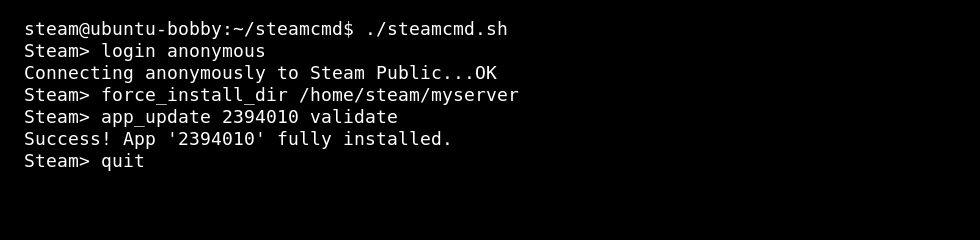
./steamcmd.sh
- Install a dedicated server by replacing
APPIDwith the game server app ID:login anonymous force_install_dir /home/steam/myserver app_update APPID validate quit
Some games require a Steam account instead of anonymous login. Check the game-specific dedicated server documentation before assuming anonymous login will work.
