Task Manager helps you find what is using CPU, RAM, disk, and network on a Windows VPS. Use it when the VPS feels slow, a game server is lagging, or an installer appears stuck.
- Connect to the Windows VPS with Remote Desktop or the VPS console.
- Right-click the taskbar and click Task Manager, or press CTRL + SHIFT + ESC.
- Open the Processes tab.
- Click the CPU, Memory, Disk, or Network column to sort by usage.
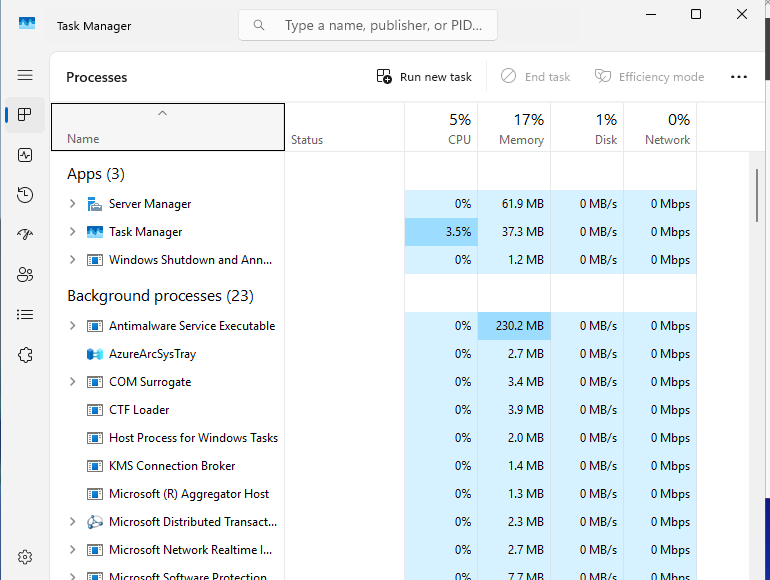
- Identify the process before ending it. Stopping the wrong process can close a game server, interrupt an update, or disconnect Remote Desktop.
For the VPS panel usage view, use How to check VPS CPU, RAM, disk, and bandwidth usage.
What to check first
| Column | What it tells you |
|---|---|
| CPU | Whether a process is actively using processor time. |
| Memory | Whether a process is using most of the VPS RAM. |
| Disk | Whether installs, updates, logs, or backups are saturating disk writes. |
| Network | Whether a download, update, or service is using bandwidth. |
If Task Manager shows constant high memory usage, check whether the VPS plan has enough RAM for the game or application you are running.
