Resetting player data removes individual character progress from the Palworld server without wiping the full world. Use this only when a player is stuck, corrupted, or needs to start again while the world stays in place.
Take a backup first. Player data deletion is difficult to undo without restoring from backup.
- Take a backup: How to Backup your Palworld Server.
- Stop the server.
- Open File Manager.
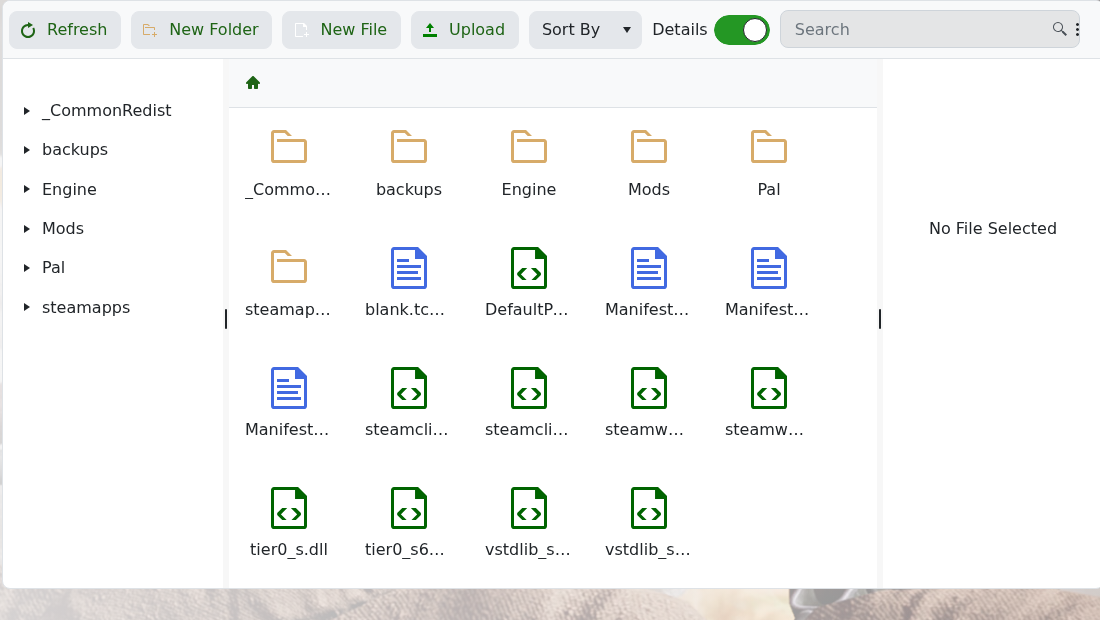
- Open
Pal, thenSaved, thenSaveGames.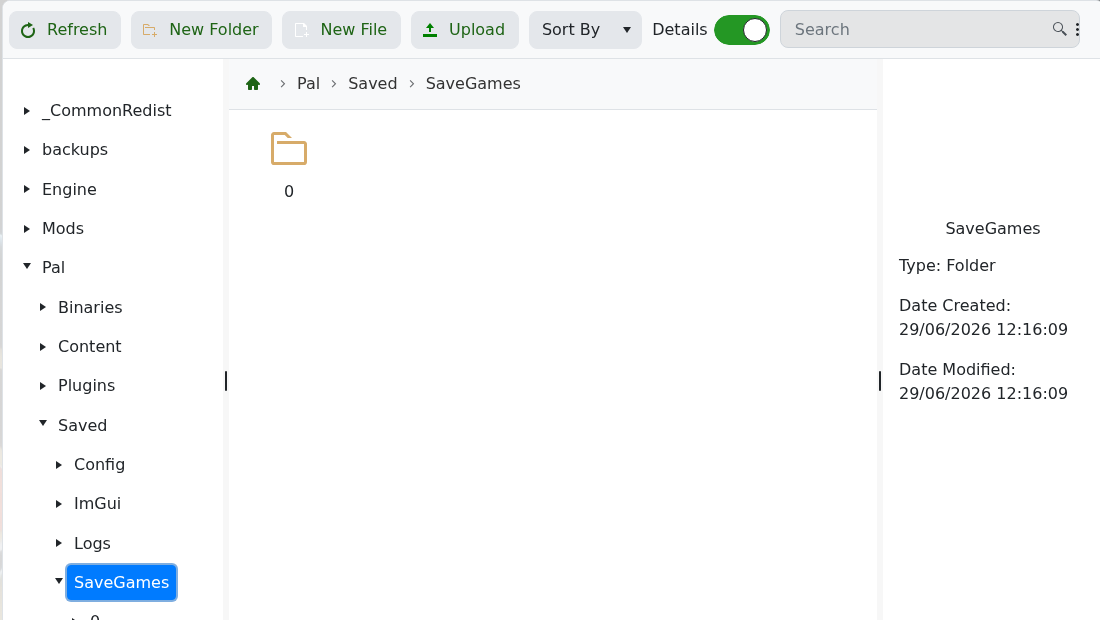
- Open the save folder for the active world. In many Palworld saves this is inside the numbered folder shown in
SaveGames. - Find the affected player file. The exact file name depends on the player identifier stored by Palworld.
- Delete only the affected player file, then start the server.
- Ask the player to join and test.
If you are not sure which file belongs to the player, do not guess. submit a support ticket with the player name, SteamID if known, and the reason for the reset.
