ATLAS Workshop mods are added with their numeric Steam Workshop IDs. Copy the number after ?id= in each mod's Workshop URL, then add the IDs to the file used by your map.
- Open your ATLAS server in the control panel, take a backup and stop it.
- Click Configuration Files. The Ocean Grid configuration is stored in
ServerGrid.json; Blackwood usesGameUserSettings.ini.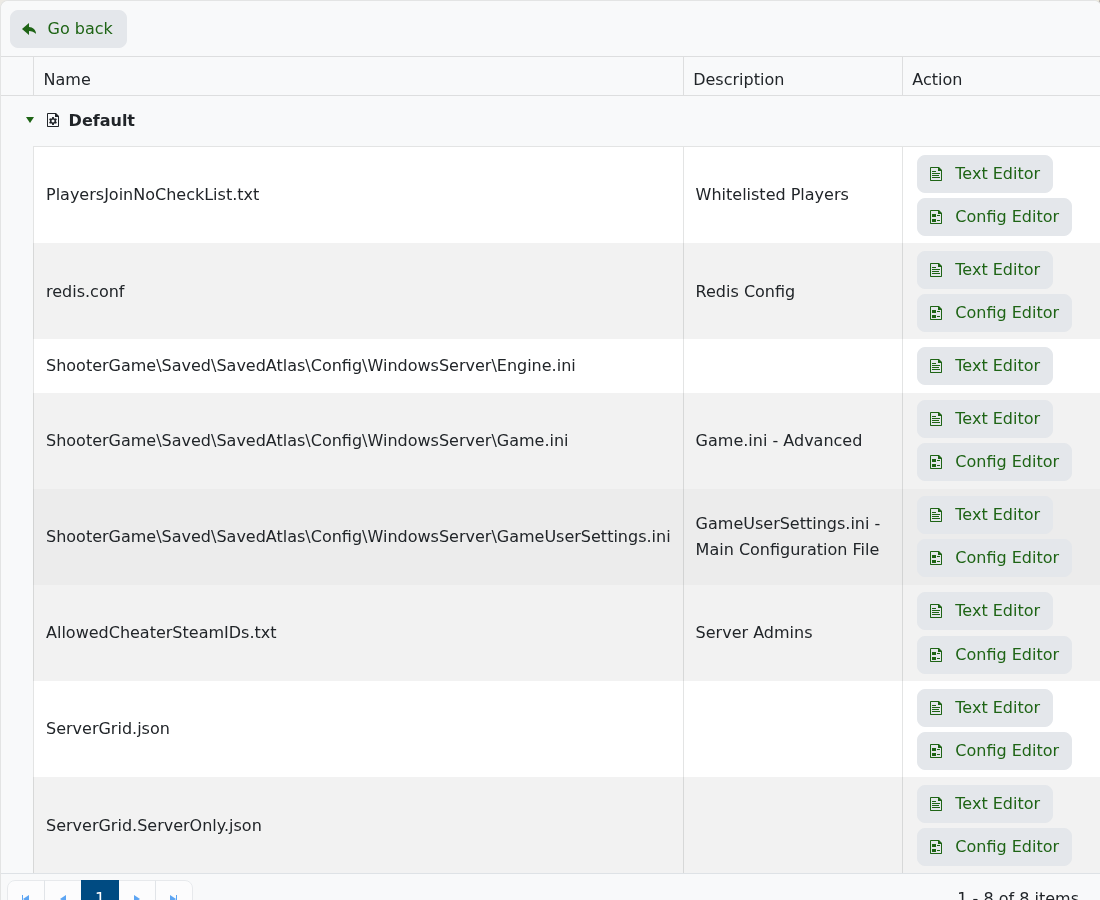
- For an Ocean Grid server, open
ServerGrid.jsonwith Text Editor, find"ModIDs": ""and enter the IDs as a comma-separated list, for example"ModIDs": "2502182917,1234567890". - For a Blackwood server, open
GameUserSettings.iniwith Text Editor and addActiveMods=2502182917,1234567890beneath[ServerSettings]. - Click Save & Exit, then start the server. Allow extra time on the first start while the server downloads the mods.
If the server stops loading, remove the most recently added ID and start it again. Also check that every mod is for ATLAS, remains available on the Workshop and supports the current server build.
