How to block a player from your Return to Moria server

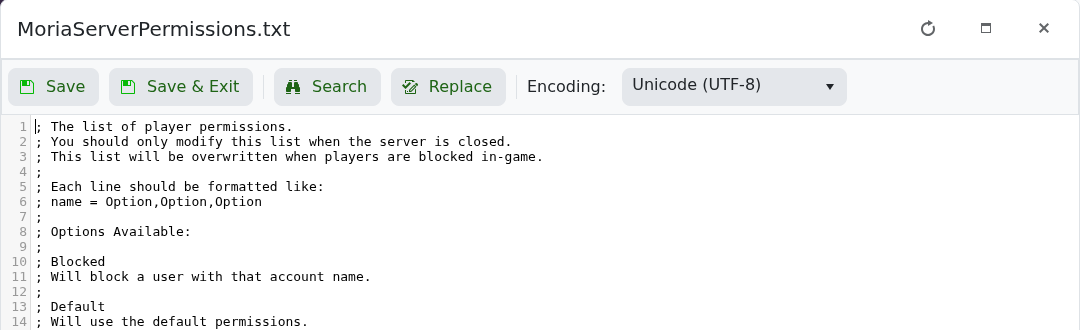
Return to Moria stores player access rules in MoriaServerPermissions.txt. Edit this file only while the server is stopped, then add the player's in-game account name with the Blocked permission.

  1. Open your Return to Moria server in the control panel.
  2. Stop the server and wait until it is fully offline.
  3. Click Configuration Files.
  4. Click Text Editor beside MoriaServerPermissions.txt.
  5. Add a new line using ACCOUNT_NAME = Blocked, replacing ACCOUNT_NAME with the player's exact account name.

    Return to Moria permissions file showing the Blocked player permission format

  6. Click Save & Exit, then start the server.

The game can overwrite this file when players are blocked in-game, so do not edit it while the server is running. To allow the player back in, stop the server, remove their Blocked line, save and start the server again.

  • 0 Users Found This Useful
Was this answer helpful?

Related Articles

Changing the name of your Return to Moria Server

You can change the public name of your Return to Moria server from the configuration editor in...

How to update your Return to Moria Server

Use Steam Update when Return to Moria releases a server update or when your game client says the...

Setting a password on your Return to Moria Server

A server password helps keep your Return to Moria world private. Add or change the password from...

How to change the settings of your Return to Moria server

We allow full customization of your The Lord of the Rings: Return to Moria server hosting on our...

How to backup your Return to Moria Server

Return to Moria servers can have scheduled backups, but you should still run a manual backup...