How to upload a world to your Rising World server

You can move an existing Rising World save to your server by uploading its complete world folder, then setting the server to load that folder. Take a server backup first if the server already has a world you may want to keep.

  1. Find the world you want to upload inside the Worlds folder of your Rising World installation. Keep the complete folder and its contents together.
  2. Open your Rising World server in the control panel, stop it and click File Manager.
  3. Open the Worlds folder, then upload your world folder. For a large world, compress it first or use FTP with FileZilla.
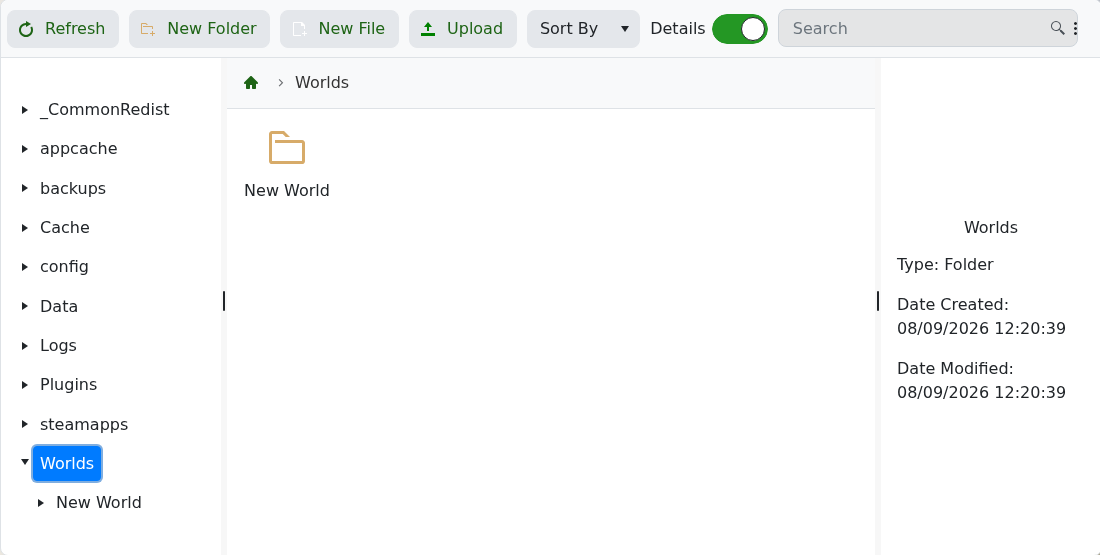
    Rising World Worlds folder in the TCAdmin file manager

  4. Return to Configuration Files and click Config Editor beside server.properties.
  5. Set Save Name to the uploaded world folder name exactly, then click Save & Exit.
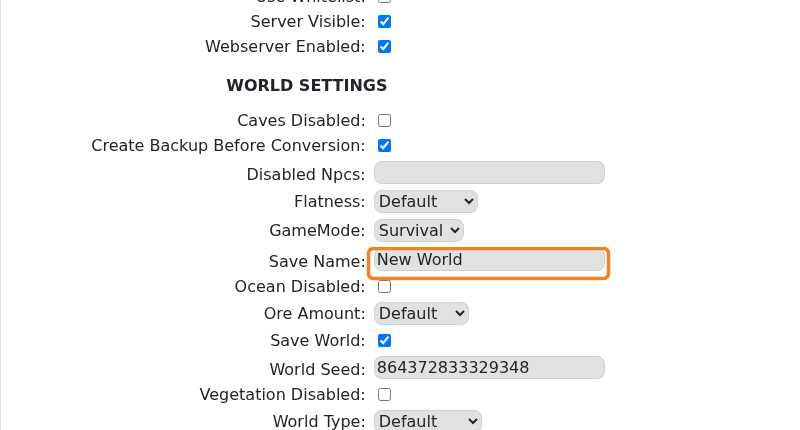
    Rising World Save Name setting highlighted in server.properties

  6. Start the server and join it to check that the expected world has loaded.

If the server creates a new world instead, stop it and check the folder name and Save Name again. They must match, including spaces and capital letters.

  • 0 Users Found This Useful
Was this answer helpful?

Related Articles

How to update the description of your Rising World Server

To update the description shown for your Rising World server, you’ll need to modify the server...

How to update your Rising World Server

An exciting new update has been released for Rising World and it's time to get your game server...

How to restore a backup to your Rising World Server

If you’ve taken a manual or automatic backup of your Rising World Server, you can restore it at...

How to backup your Rising World Server

As standard all Rising World Servers have a default scheduled task to back them up every night,...

Changing the settings of your Rising World Server

You can configure gameplay settings, permissions, and behaviour of your Rising World server...