Restore a Hytale backup when you need to roll the server back to a known good state. Restoring can overwrite current files, so check that you have selected the correct backup before confirming.
Before restoring
- Stop the server if players are online.
- Confirm the date and name of the backup you want to restore.
- If you may need the current files later, create a fresh backup before restoring an older one.
Restore a control panel backup
- Open your Hytale server in the control panel.
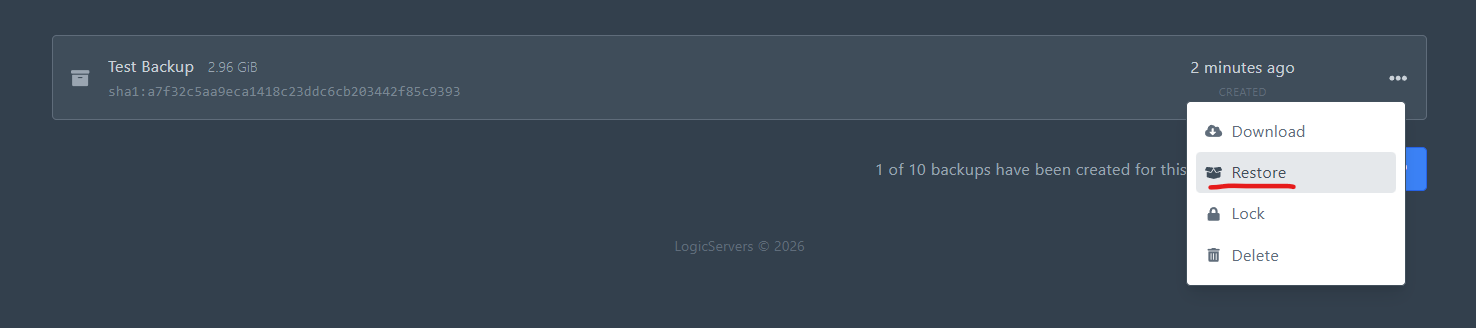
- Open the Backups tab.
- Find the backup you want to restore.
- Click the three-dot menu on the right of that backup.
- Click Restore.
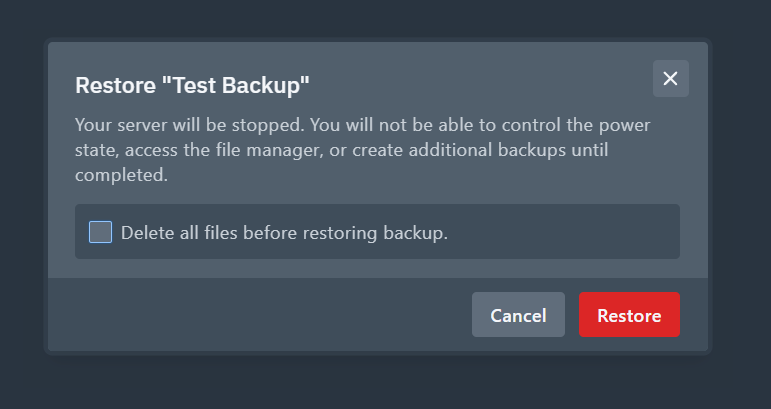
- Read the confirmation window carefully.
- Use the delete existing files option if you want the server to match the backup cleanly.
- Click Restore and wait for the task to finish.
Restore a backup uploaded from your PC
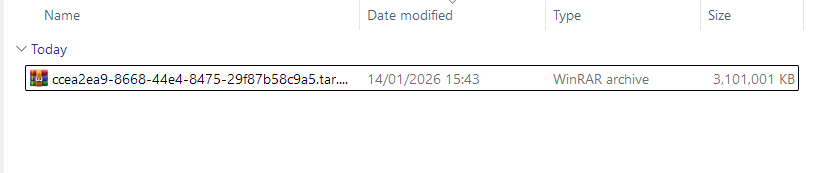
- Find the backup archive on your computer. A zip archive is normally easiest to upload through the file manager.
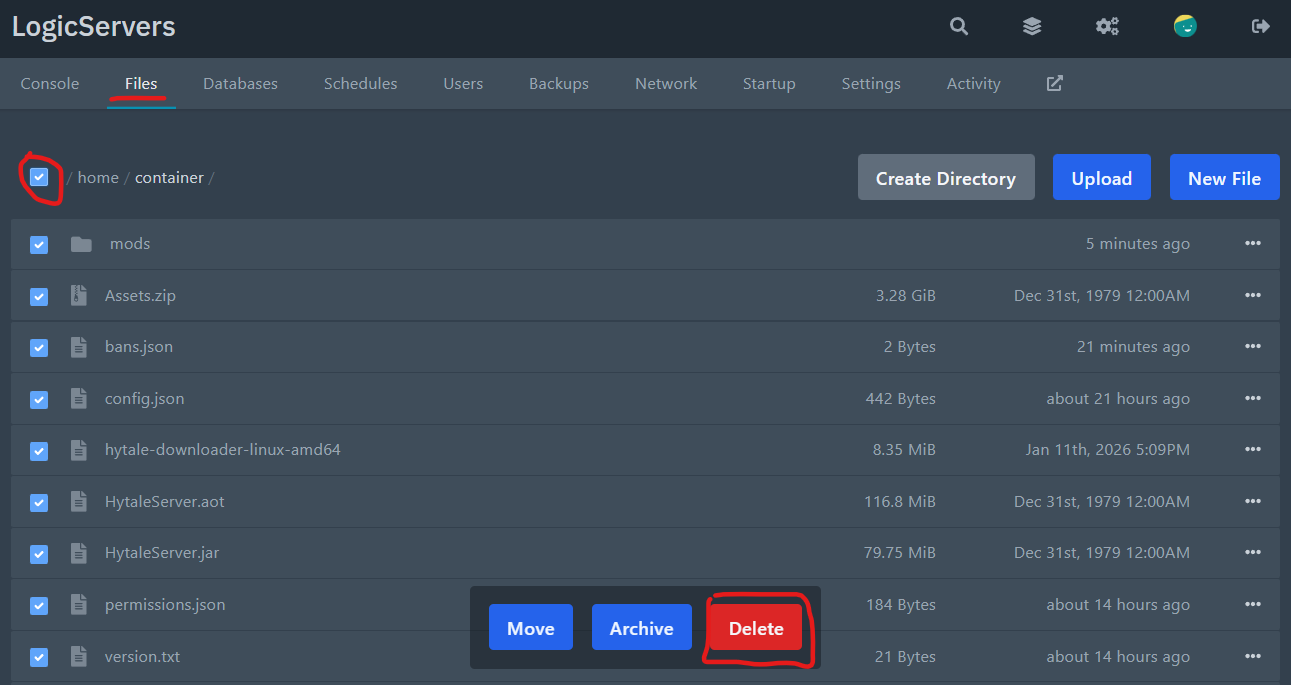
- Open Files for your Hytale server.
- If you want a clean restore, select the existing files under
/home/containerand delete them before uploading. If you only want to overwrite matching files, leave the existing files in place.
- Drag the backup archive into the file manager to upload it.
- Wait for the upload to finish. Large backups depend on your local upload speed.
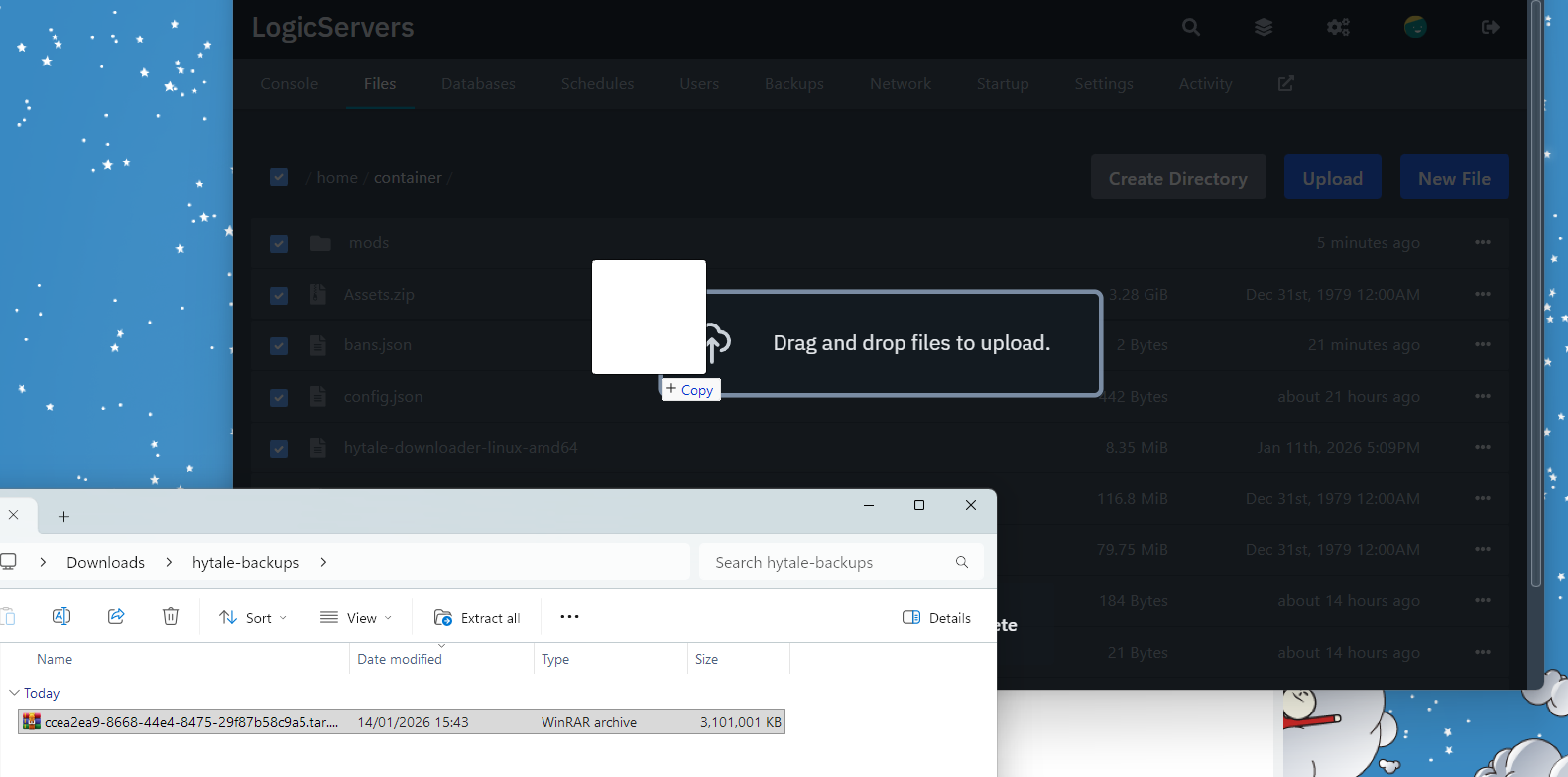
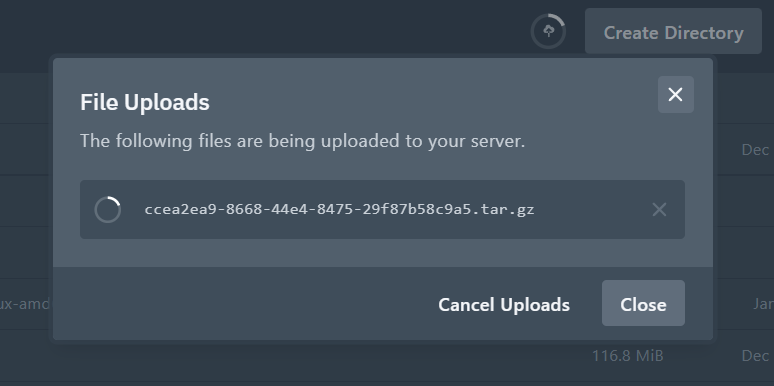
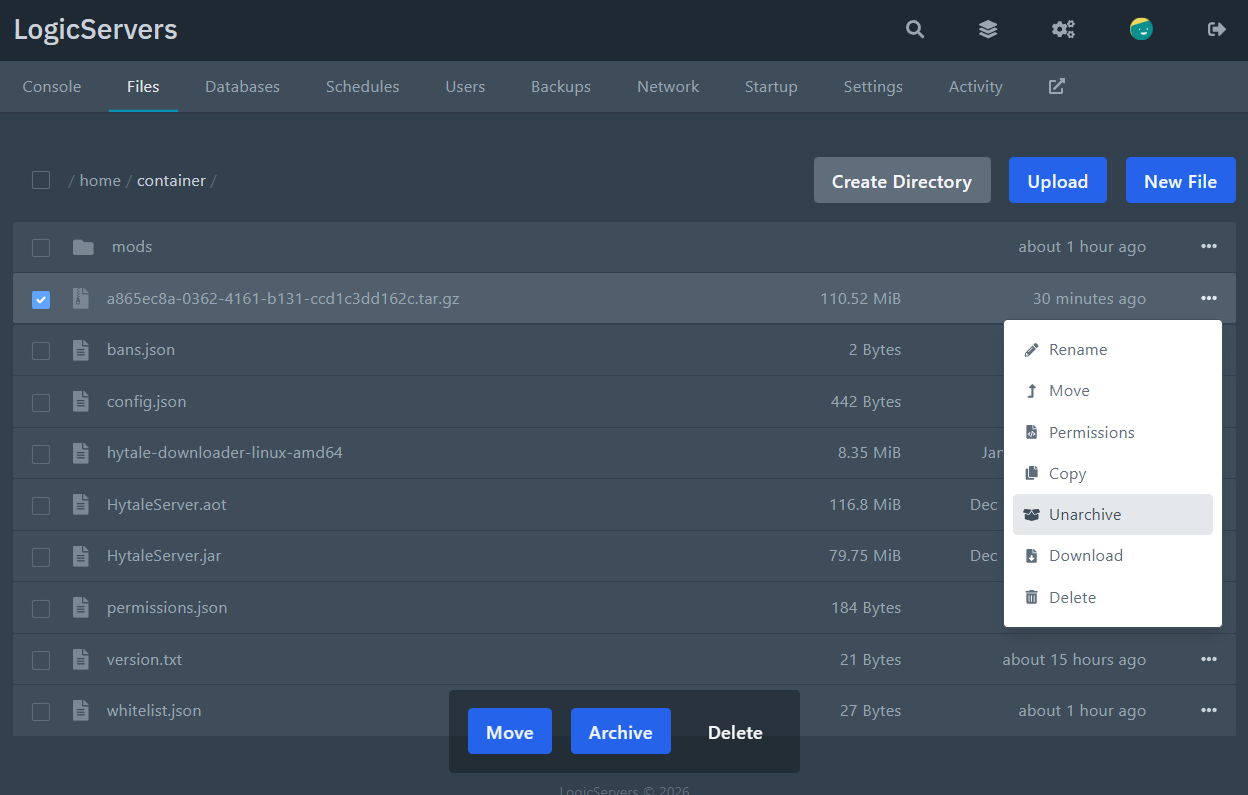
- Click the three-dot menu beside the uploaded zip archive.
- Click Unarchive.
- Start the server and check that the world and settings loaded correctly.
If the restore fails
Do not keep deleting or overwriting files if you are unsure what failed. submit a support ticket with the backup name, the time you tried the restore, and any error shown in the control panel.
