Startup parameters control how your Hytale server launches on our control panel. This is where you set things like authentication mode, auto updates, and any extra JVM arguments.
If you are trying to change gameplay rules, use the world config.json file instead. That is where settings like PvP, fall damage, NPC spawning, and world time are stored, see our guide here: Modifying the settings of your Hytale server.
- Go to your Hytale server, then click the Startup tab.
- You will see a list of variables. Update what you need, then the panel will save it automatically.
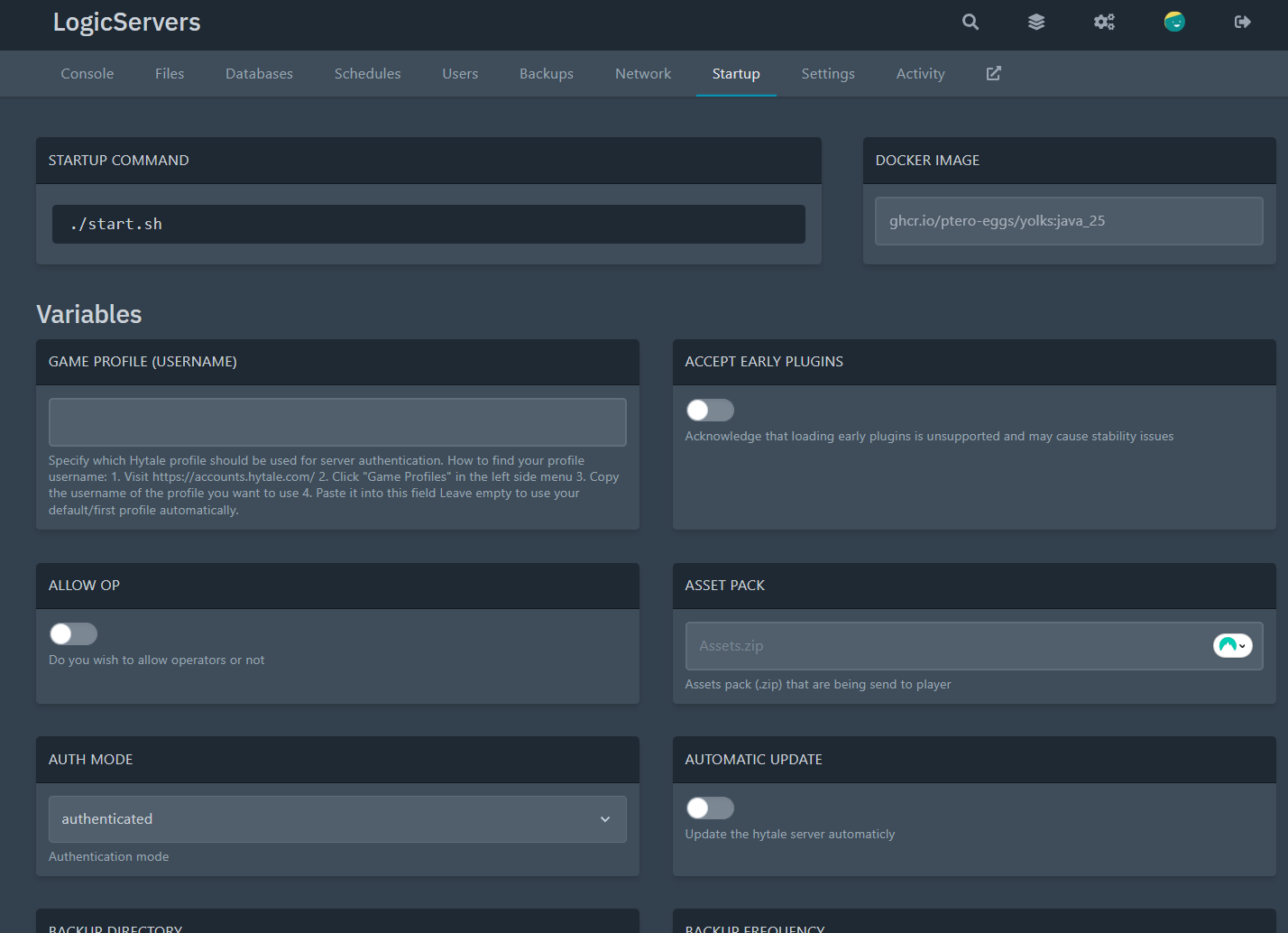
- Restart the server to apply the changes.
Common Hytale Startup Variables
| Variable | What it does | Notes |
GAME_PROFILE |
Which Hytale profile username to use for server authentication. | Leave empty to use your default profile. |
AUTH_MODE |
Sets authentication mode for the server. | Usually authenticated or offline. |
AUTOMATIC_UPDATE |
Automatically updates the Hytale server on startup. | If enabled, expect restarts to take longer. |
ALLOW_OP |
Allows operators on the server. | If disabled, /op will not work even for admins. |
ACCEPT_EARLY_PLUGINS |
Acknowledges early plugin loading. | Only enable if you are testing early plugins and accept instability. |
ASSET_PACK |
Optional assets pack zip sent to players. | Example: Assets.zip |
ENABLE_BACKUPS |
Enables automatic backups. | Backups are stored using the settings below. |
BACKUP_DIRECTORY |
Directory where backups are saved. | Example: /backup |
BACKUP_FREQUENCY |
Backup interval in minutes. | Example: 30 for every 30 minutes. |
DISABLE_SENTRY |
Disables Sentry crash reporting. | Useful during plugin development. |
JVM_ARGS |
Extra JVM arguments. | Only change this if you understand what the flags do. |
LEVERAGE_AHEAD_OF_TIME_CACHE |
Uses the shipped AOT cache to improve boot times. | Leave enabled unless you have a reason not to. |
NOTE: Startup changes affect how the server launches. If you change auth mode, JVM args, or updates and the server fails to boot, revert the last change and restart again.
