Hytale has two different config.json files. One controls the server itself, and the other controls each individual world. If you change the wrong one, nothing will happen, so it's important to know which file you need.
This guide explains the difference between the main server config.json and the per-world config.json, and which settings live where.
Main server config.json
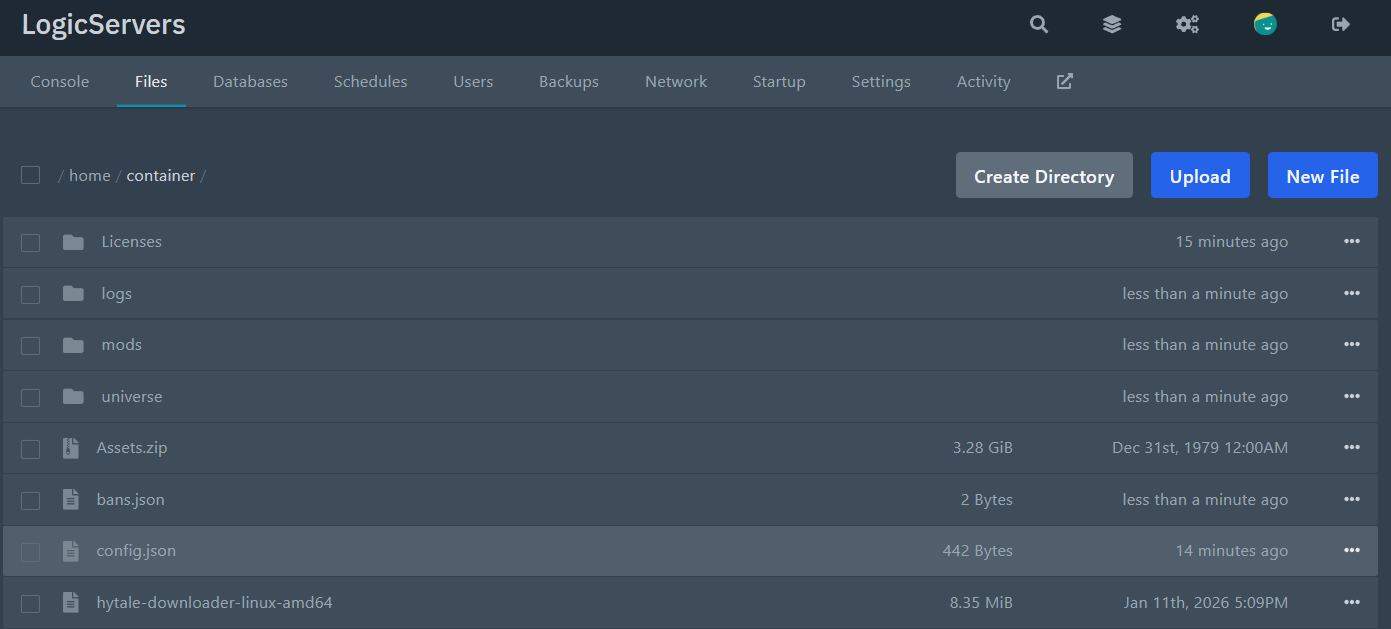
The main server config is located in the root of your server files:
/config.json
This file controls server wide settings like the name, MOTD, password, max players, view radius, and default world and gamemode.
| Setting | What it does |
ServerName |
Server name shown to players. |
MOTD |
Message of the day shown in server listings. |
Password |
Sets a join password for the server. |
MaxPlayers |
Maximum players that can join the server. |
MaxViewRadius |
Maximum view distance players can use. |
Defaults.World |
The default world folder name to load, for example default. |
Defaults.GameMode |
The default gamemode for new joins, for example Adventure. |
LocalCompressionEnabled |
Enables local compression (if supported on your build). |
World config.json
Each world has its own config file. This is the one you edit for gameplay rules like PvP, fall damage, NPC spawning, and world time.
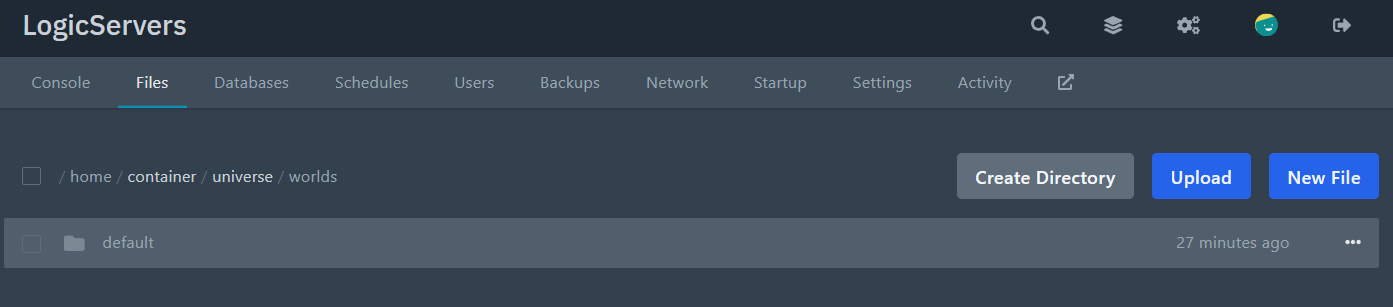
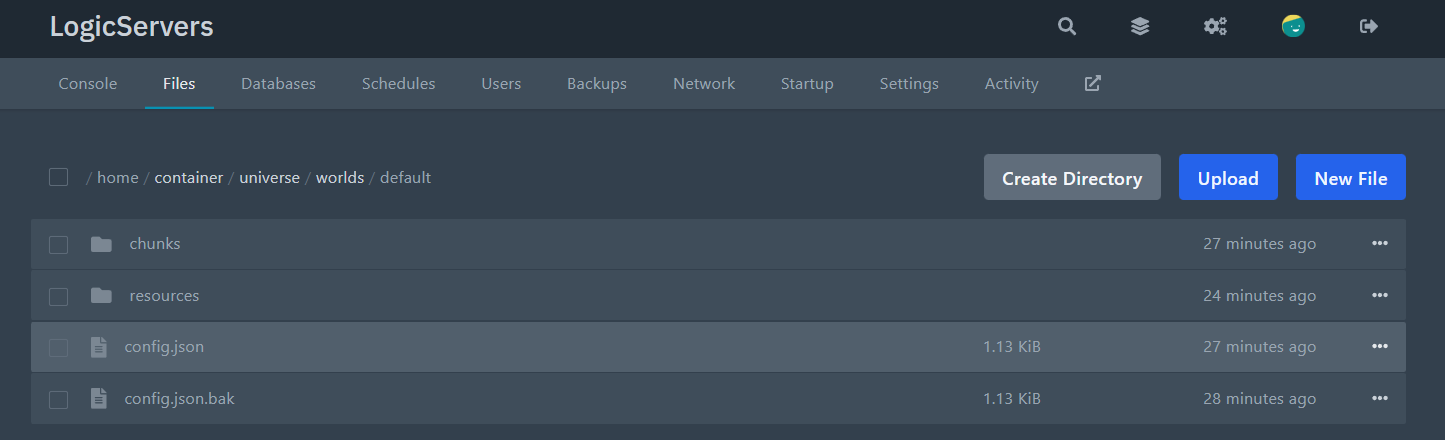
The world config is located here:
/universe/worlds/<world>/config.json
If you have multiple worlds, each one has a separate config.json, so make sure you open the correct folder.
| Setting | What it does |
Seed |
The world seed used for generation. |
IsPvpEnabled |
Enables or disables PvP in that world. |
IsFallDamageEnabled |
Enables or disables fall damage in that world. |
IsGameTimePaused |
Freezes time in that world when set to true. |
GameTime |
Stored world time value. |
IsSpawningNPC |
Enables or disables NPC spawning. |
IsAllNPCFrozen |
Freezes NPCs when set to true. |
IsSpawnMarkersEnabled |
Enables spawn markers in that world. |
GameplayConfig |
Gameplay preset name, for example Default. |
IsSavingPlayers |
Enables player saving for that world. |
IsSavingChunks |
Enables chunk saving for that world. |
SaveNewChunks |
Controls saving of newly generated chunks. |
IsUnloadingChunks |
Controls whether chunks unload when not needed. |
How to edit Hytale server settings
Editing is the same process for both files, the only difference is where the file is located.
- Open your Hytale server in the control panel, then click the Files tab.
- Browse to the file you want to edit, either
/config.jsonor/universe/worlds/<world>/config.json. - Double click the file to edit it.
- Make your changes, then save the file.
- Restart your server to apply the changes.
NOTE: Be careful with commas and quotes. If the JSON formatting is broken, your server may fail to start. If that happens, undo your change and try again.
If you are not sure which setting you need to change, or you want help tuning your server, contact support and we will point you in the right direction.
