Make a backup before changing worlds or server settings. Stop the server first so the save files are no longer being written while the backup runs.
Create a backup
- Stop your Necesse server and wait for Stopped.
- Click Backup Server and confirm with OK.
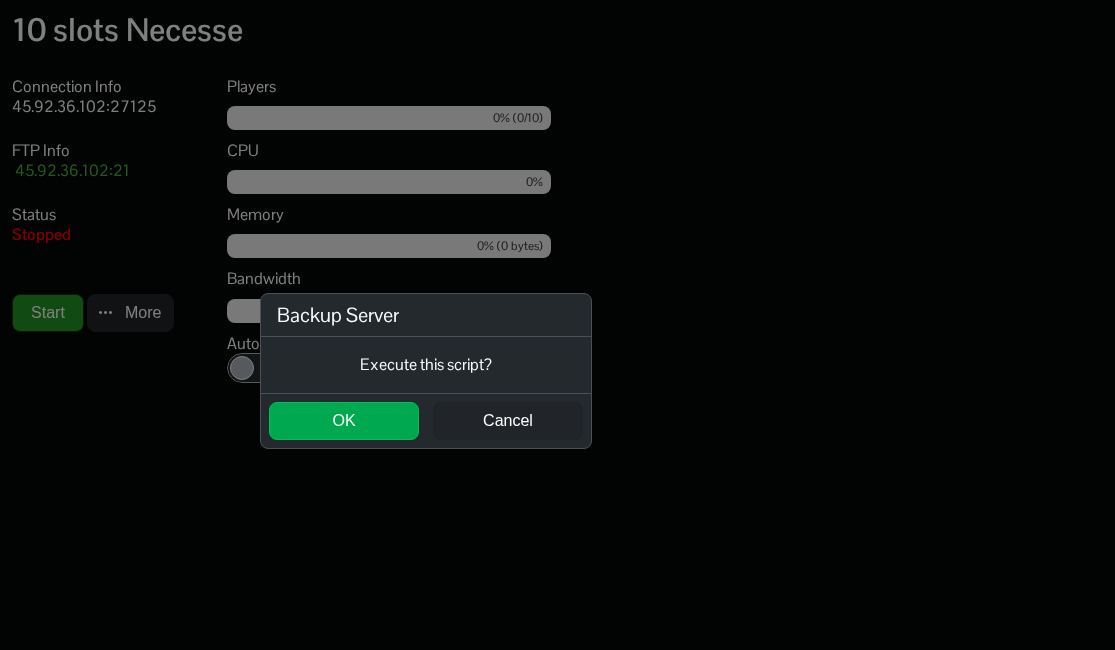
- Wait for compression and transfer to the backup node to finish. Check the final completion message before starting another task.
Restore a backup
- Stop the server. Make another backup first if you might need to return to its current state.
- Click Restore Backup and choose the archive by its date and time.
- Tick Are you sure? and click Execute.
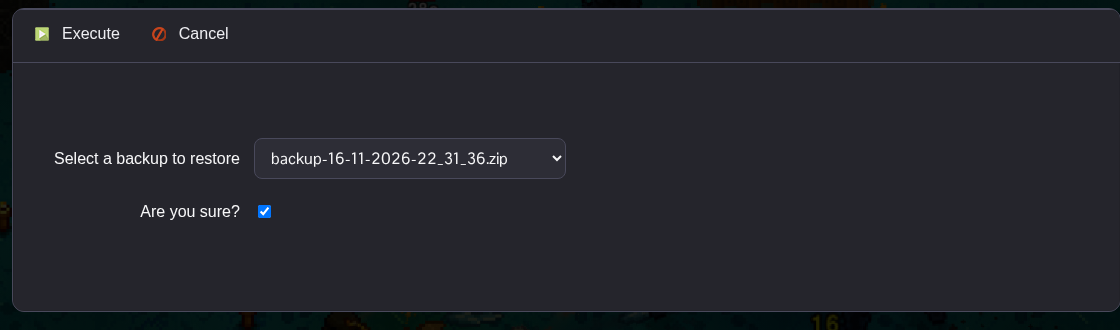
- Wait for the download and extraction to finish, then start the server and check the restored world.
For a separate copy on your computer, use File Manager to compress and download cfg and saves, or transfer them using FTP. Entries in the panel's backups folder can be placeholders for archives stored on the backup node, so use Restore Backup to restore those archives.
