Use Steam Update in TCAdmin to update the dedicated server files. Your game client and server need compatible versions before you can join.
- Ask players to leave, stop the server and create a backup.
- Open Steam Update from the service menu.
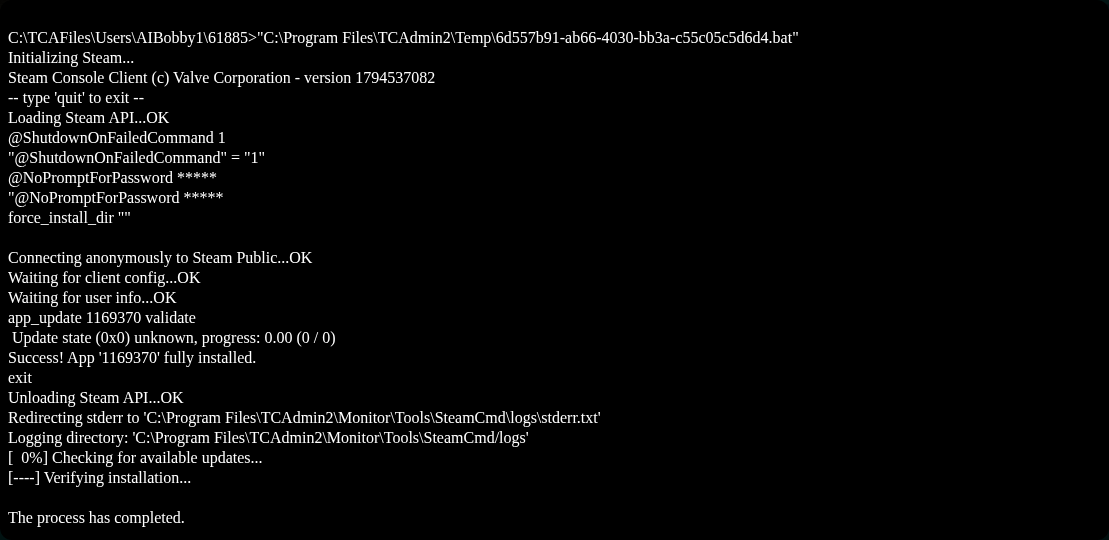
- Let SteamCMD finish. Keep the task open until it reports that the application has been installed successfully.
- Start the server. Open
latest-server-log.txtthrough File Manager and check the game version and final startup message. - Update Necesse on your computer, then reconnect.
A running update can temporarily make other panel actions unavailable. Let it complete before trying to start, restore or update the service again. If you still get a version mismatch, compare the client version with the version recorded in the newest server startup, rather than an older log.
