latest-server-log.txt records the most recent Necesse server session. It is useful for checking the loaded world, game version and startup errors.
- Open your Necesse service in TCAdmin and choose File Manager. You can also download logs using FTP.
- Open
latest-server-log.txtin the server's main folder.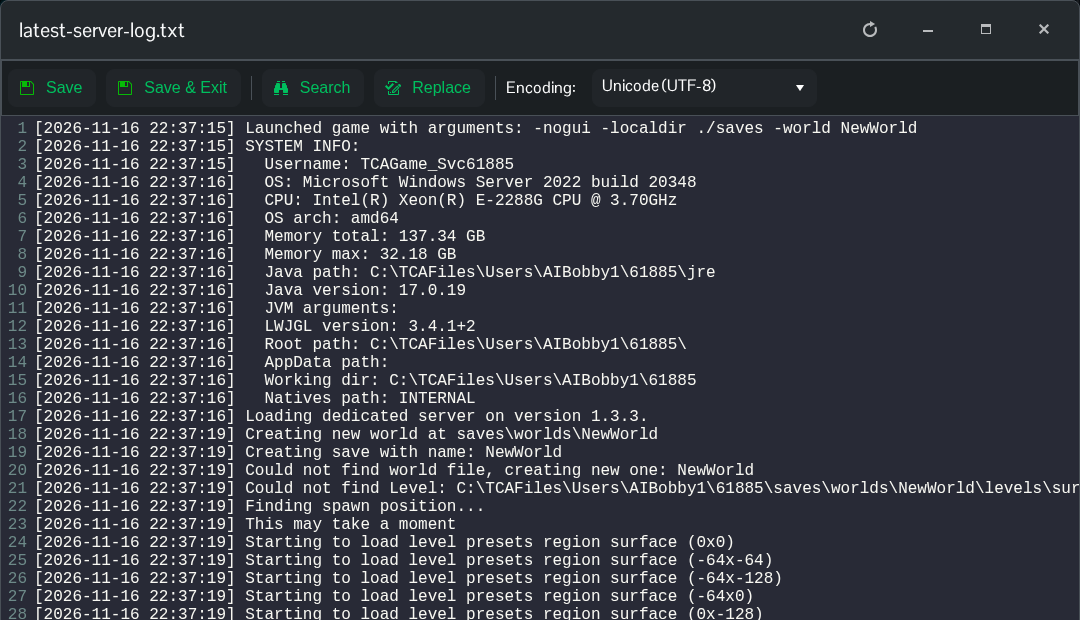
- Find the latest startup time. Look for
Loading dedicated server on versionandStarted server using port. - For a failed start, read the error and the lines immediately before it. Download the log if you need to send it with a support ticket.
Older session logs are in logs. Choose a file dated when the problem happened. A message saying the game is creating a new world is normal on the first start of an unused world; check that the folder name matches the world you meant to load.
Close the editor without saving after reading. Logs are written by the game and should not be edited to change the server.
