Use Restore Backup to recover the saved data from a dated panel backup. Keep the server stopped until the task has finished.
- Stop the server and make a backup of its current state if you might need to return to it.
- Click Restore Backup and choose the archive with the date and time you need.
- Tick Are you sure? and click Execute.
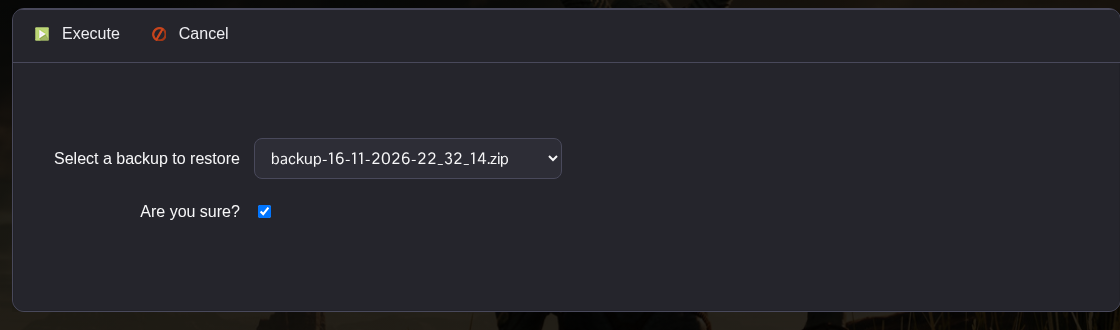
- Wait for the backup to download from the backup node and extract. Check that the task finishes successfully.
- If you also need the old passwords or starting settings, open your downloaded
ServerSettings.inion your computer. In TCAdmin, open Configuration Files and Text Editor besideServerSettings.ini, replace its contents with your saved copy and click Save & Exit. - Start the server, reconnect and check the recovered progress.
The Nightingale panel backup covers NWX/Saved. It does not restore NWX/Config/ServerSettings.ini, so leave the current settings file alone if you want to keep today's passwords and only recover the saved data.
Use a backup from the affected server and check the archive timestamp carefully. Avoid starting another restore while one is still running.
