Nightingale writes its server logs to NWX/Saved/Logs. Choose the newest file when checking a failed start or a connection problem.
- Open your Nightingale service in TCAdmin and choose File Manager. Downloading the logs over FTP also works.
- Open
NWX, thenSavedandLogs.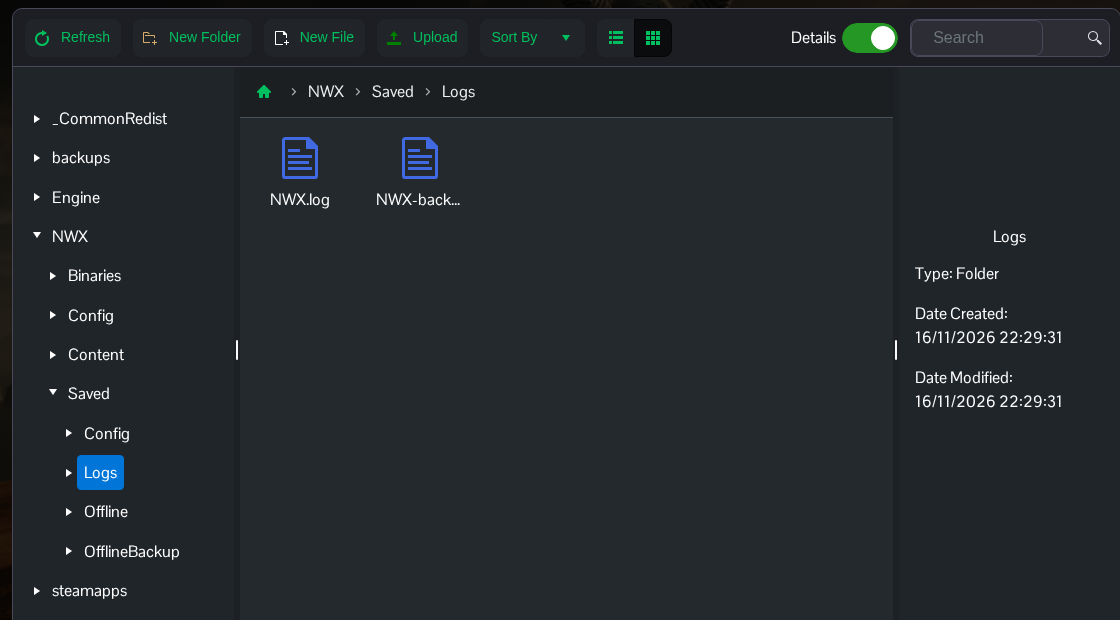
- Right-click the newest log, choose Download and open it in a text editor on your computer.
- Find the time of the problem and read the error together with the lines immediately before it. Include the full relevant log when contacting support.
A Running status in TCAdmin shows that the process has started. The game's log gives you the detail needed to find out why it has not finished loading or why a connection failed.
Keep the original downloaded file when sending it to support so the timestamps and surrounding messages stay intact.
