The Squad backup includes SquadGame/ServerConfig and selected files under SquadGame/Saved. It preserves settings such as admins, bans, rotations and server messages before you make changes.
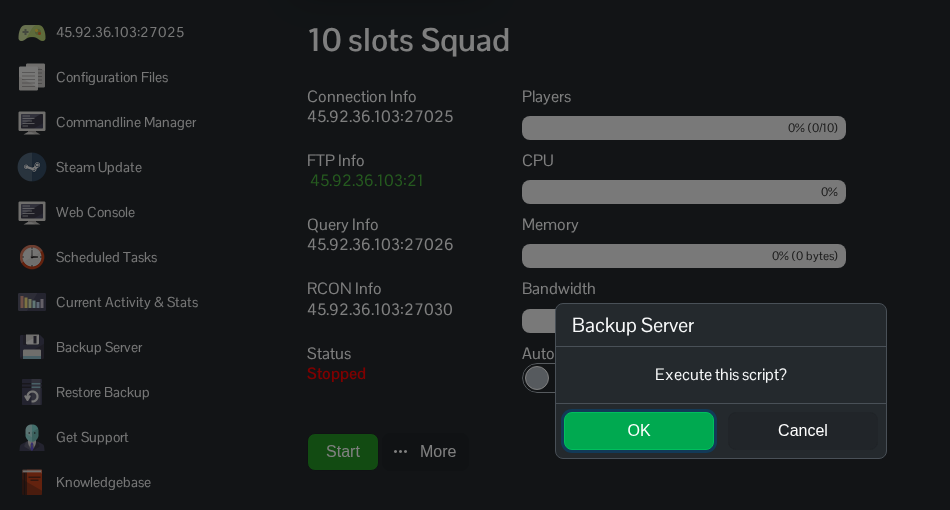
- Open your Squad service in the game control panel and stop the server.
- Click Backup Server, then confirm with OK.
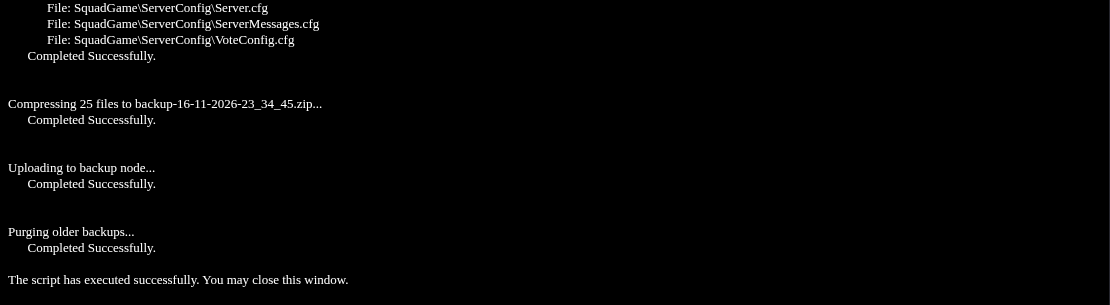
- Wait for compression and the upload to the backup node to complete. The output should end with The script has executed successfully.
- Open Restore Backup and check that the new dated archive is listed. You can cancel this page when you only want to check the backup.
The ZIP entries in the local backups folder can be zero-byte placeholders for archives stored on the backup node. Use Restore Backup for recovery. File Manager is not available on this Squad panel template. For a separate downloaded copy, connect with FTP and download SquadGame/ServerConfig and any SquadGame/Saved files you need.
