Restore an earlier Squad backup when you need to recover settings, admin lists or a map rotation. Take a fresh backup first if you may need to return to the current files.
- Open your Squad service in the game control panel and stop the server.
- Click Restore Backup. Choose the dated archive you want, then tick Are you sure?.
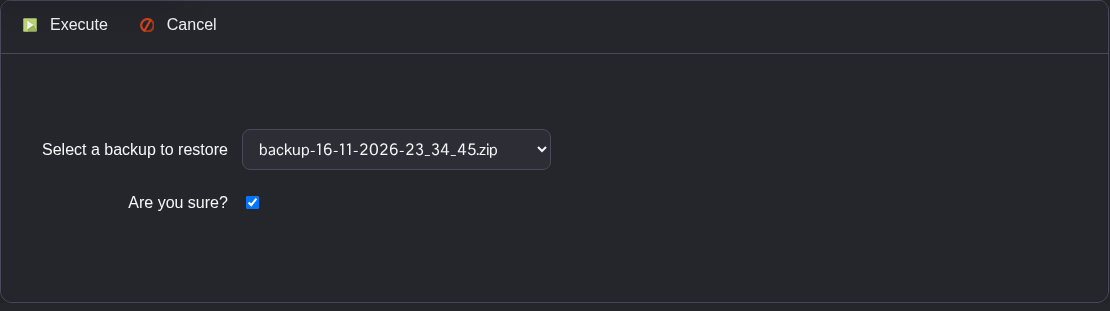
- Click Execute and wait for the restore script to finish. The panel downloads the archive from the backup node and extracts it.
- Open Configuration Files and check the files you wanted to recover before starting the server. For example, check
Server.cfg,Admins.cfgorLayerRotation.cfg. - Start the server after checking the recovered files.
