If you have a Hytale world on your PC, you can upload it to your server and set the server to load that world. This is useful if you have been playing locally and now want to continue the same world with friends.
Before you start: stop your server and take a backup. Uploading or changing worlds while the server is running can cause it to save over your changes.
- Find your local Hytale world folder on your PC. On Windows, Hytale data is usually stored in
%AppData%\Hytale\UserData. Inside that folder, look for your world/save data. You want the full world folder, not just theconfig.jsonfile inside it. - You should see the Hytale
UserDatafolder similar to this: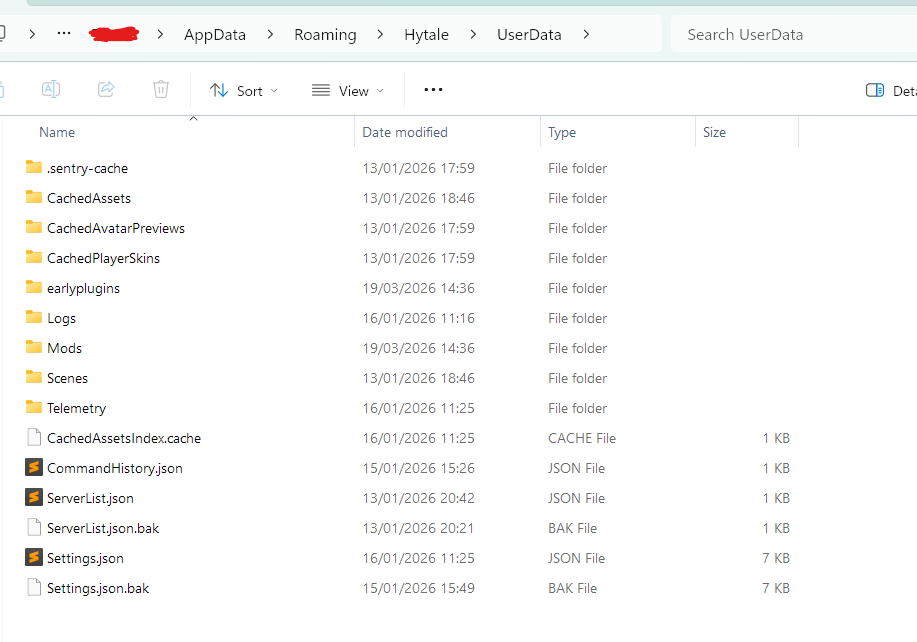
- Go to your server in the control panel, then click the Files tab.
- Open
universe/worlds/. This is where your world folders are stored.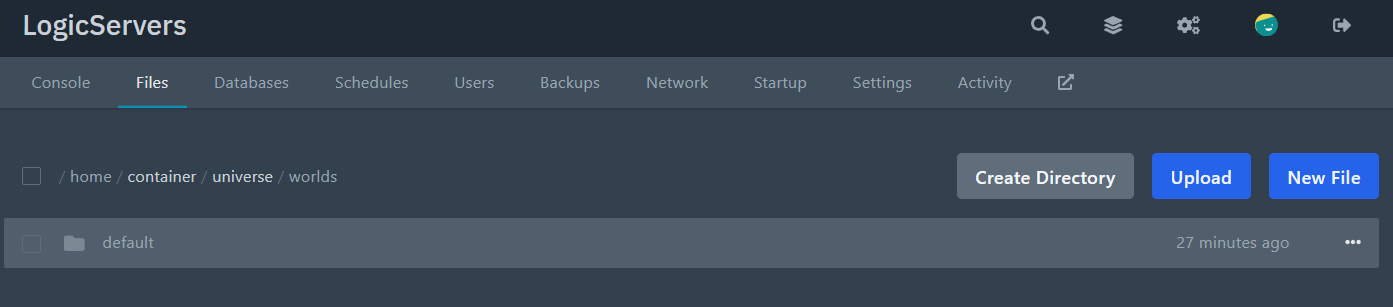
- Upload your world folder into
universe/worlds/. If your world is large, zip it first, upload the zip, then extract it using the file manager. You can also drag and drop the upload into the file manager. - Go back to the server root and open the main
config.jsonfile.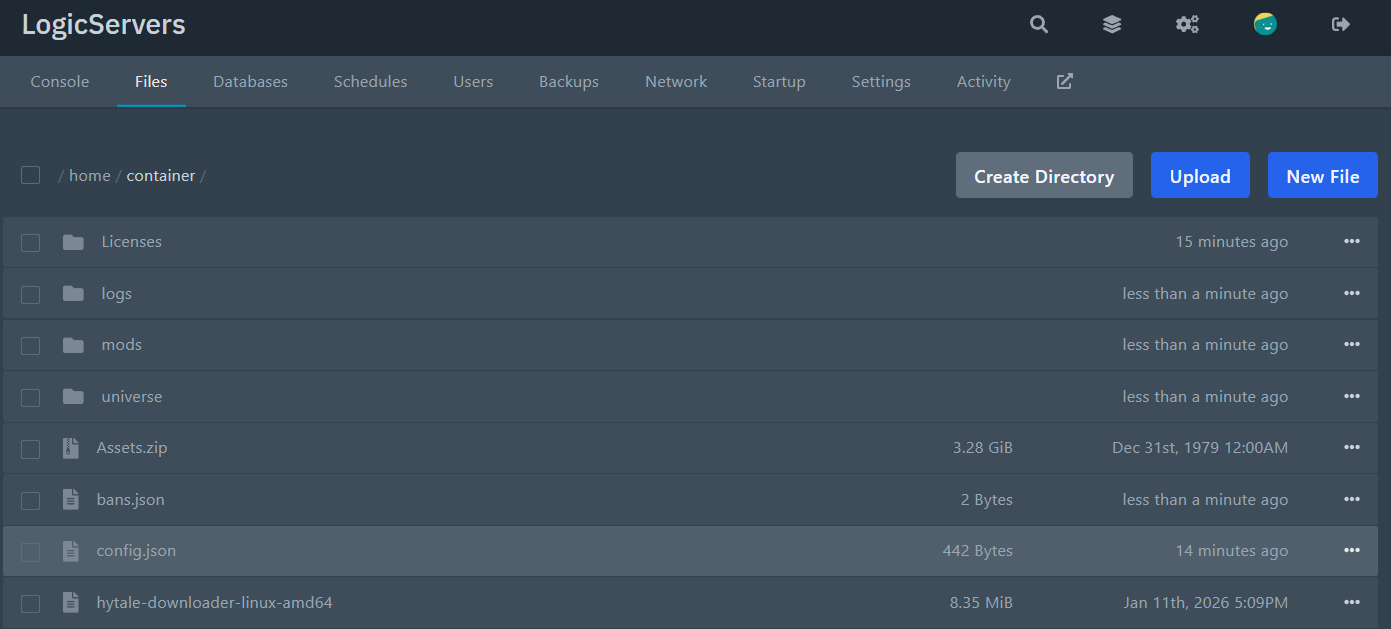
- Find the
Defaultssection and setWorldto the exact folder name you uploaded.For example, if your uploaded folder is called
survival, set it like this:"Defaults": { "World": "survival", "GameMode": "Adventure" } - Save the file, then start your server again.
If the server creates a new world instead, the folder name in Defaults.World probably does not match the folder you uploaded. Check spelling and capital letters carefully.
If the server will not start after editing config.json, the JSON formatting is probably broken. Check for missing commas or extra brackets, then try again.
