If you still need a server, order an Aloft server.
Aloft uses a World Code and World Region when joining a multiplayer world. Ask the server owner for both before joining. If you own the server and need to find the code first, use How to find your Aloft World Code.
- Open Aloft on your PC.
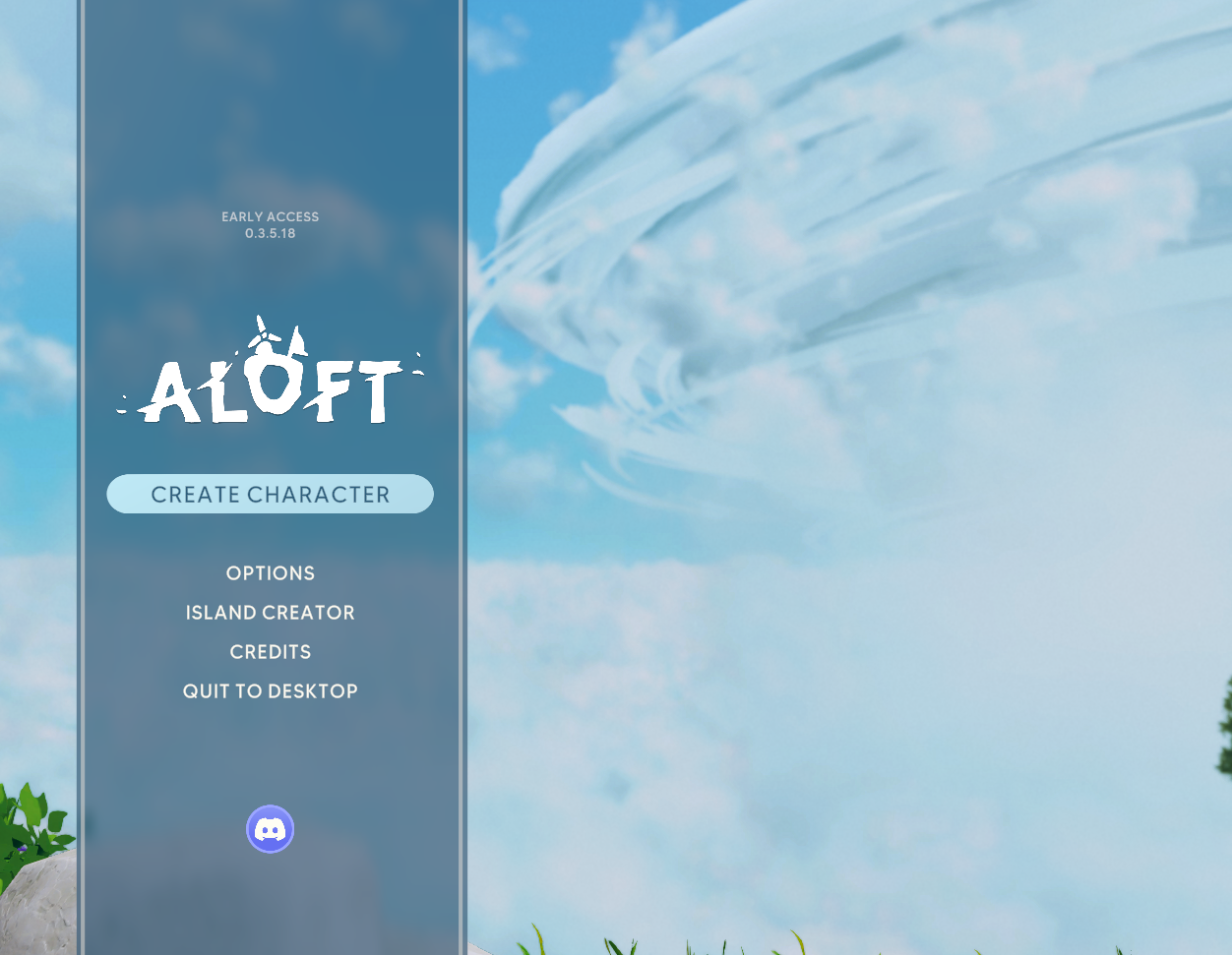
- If this is your first time playing, click Create Character and finish creating your character. Hold the confirm button when prompted so the character is accepted.
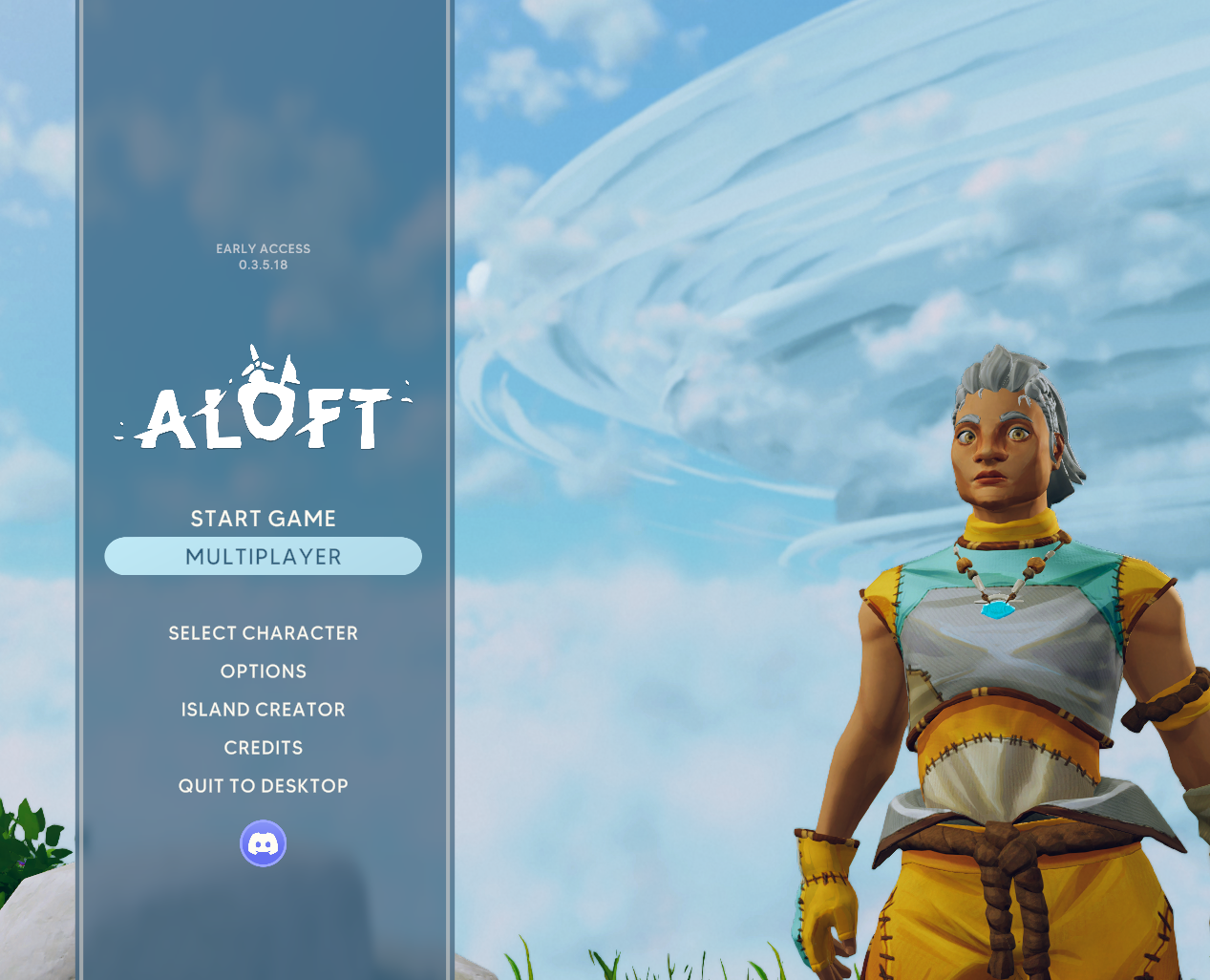
- From the main menu, click Multiplayer.
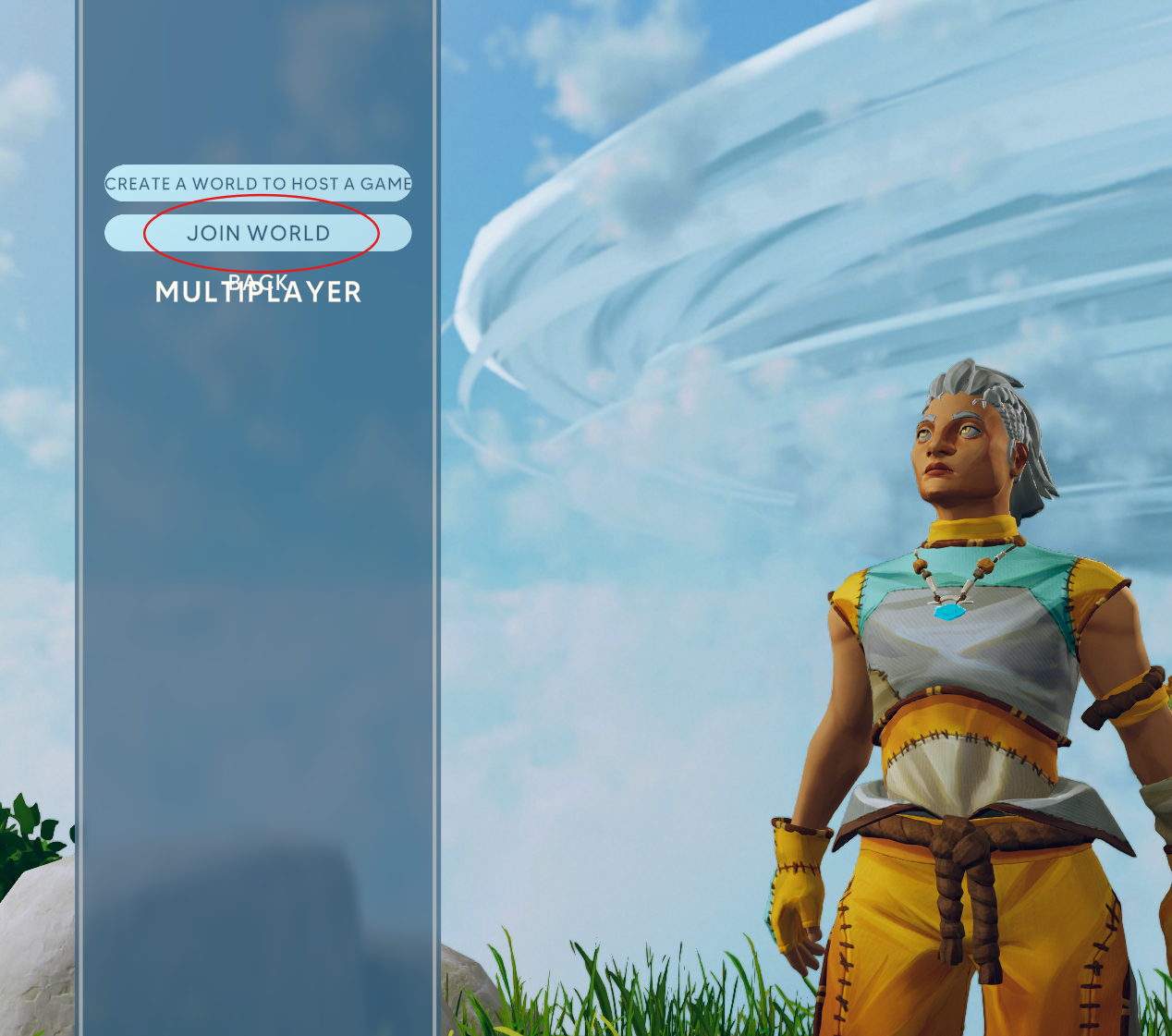
- Click Join World.
- Select the same World Region as the server. If the wrong region is selected, the World Code will not find the server.
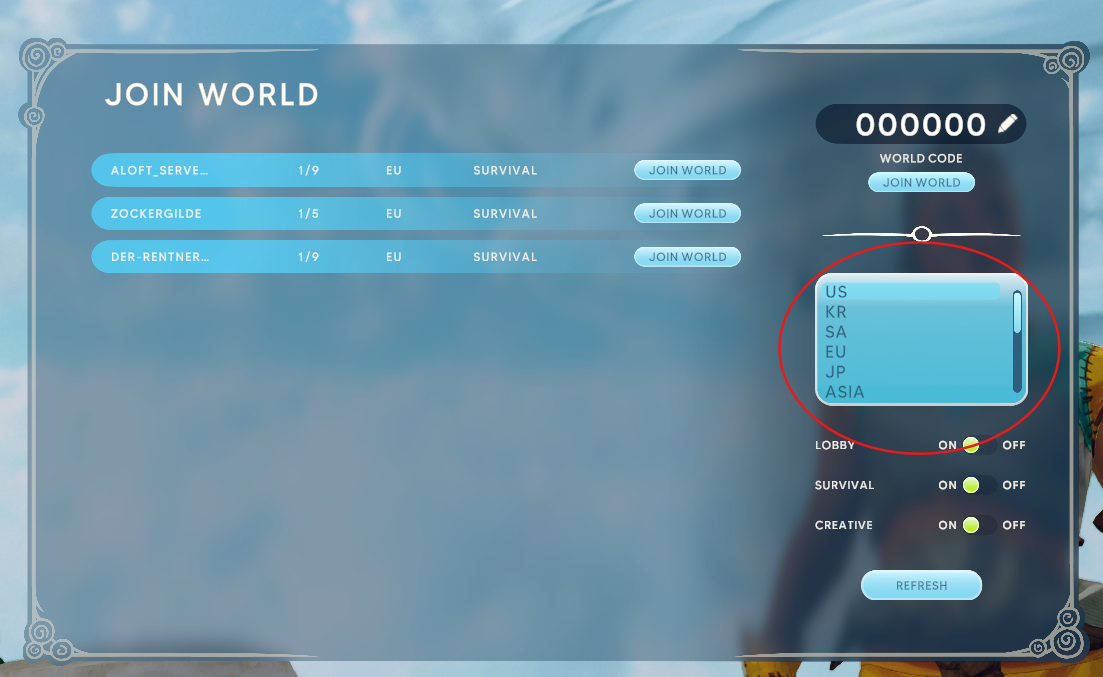
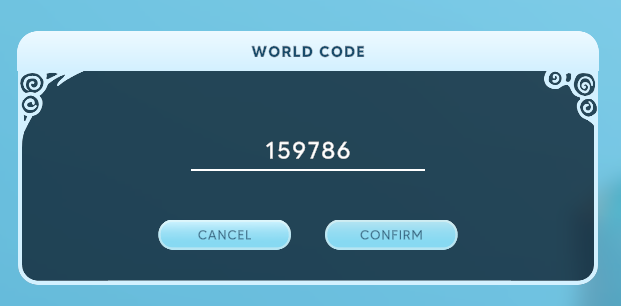
- Click the World Code field, enter the code, then click Confirm.
- If the server asks for a password, enter the server password and continue joining.
If the code does not work, check that the server is online, the World Region is correct, and the code was copied exactly. If you still cannot connect, submit a support ticket and include the World Code and World Region you are trying to join.
