Creative Mode is controlled from AloftServer.ps1 in the Config Editor. Enable it when you want the server to run with Creative Mode turned on.
- Open your Aloft server in the control panel, then click Configuration Files.
- Click Config Editor next to
AloftServer.ps1.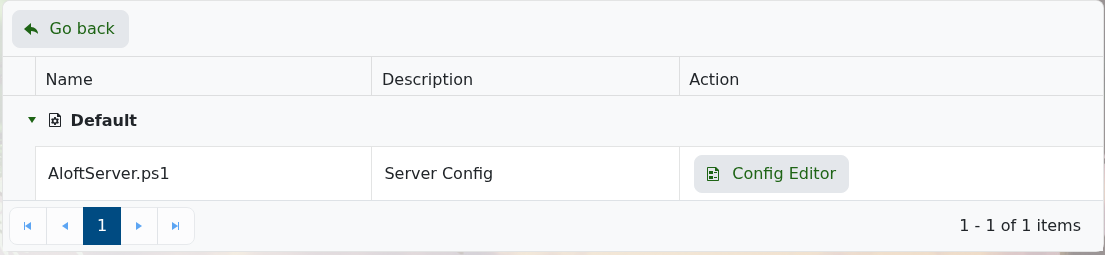
- Tick Creative Mode.
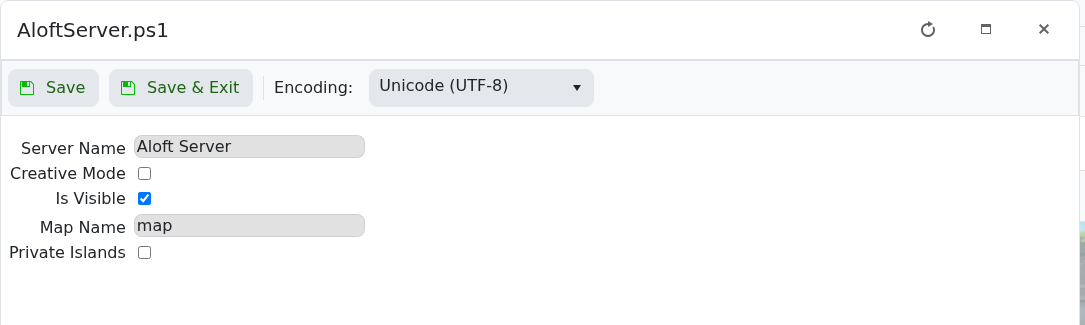
- Click Save & Exit, then restart the server.
For the other settings on this page, see Modifying the settings of your Aloft server.
Before you start
Make one change at a time and keep a note of what you changed. If the server is active, warn players before restarting or applying settings that may disconnect them.
If you get stuck
Check the control-panel console or latest log output for errors. If you submit a support ticket, include the server name, the change you made, and the exact error message.
