Workshop mods may need updating after Arma 3 updates or when a mod author releases a new version. Update the mod files from the Workshop section, then restart the server so Arma loads the new files.
- Open your Arma 3 server in the control panel.
- Take a backup first if the server is live or heavily modded.
- Click Steam Workshop (updates) to check installed Workshop items that have updates available.
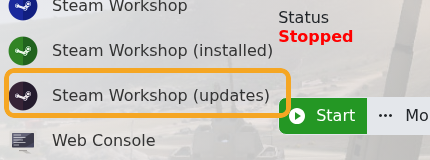
- If the update list does not show the item you need, open Steam Workshop and search for the installed mod.
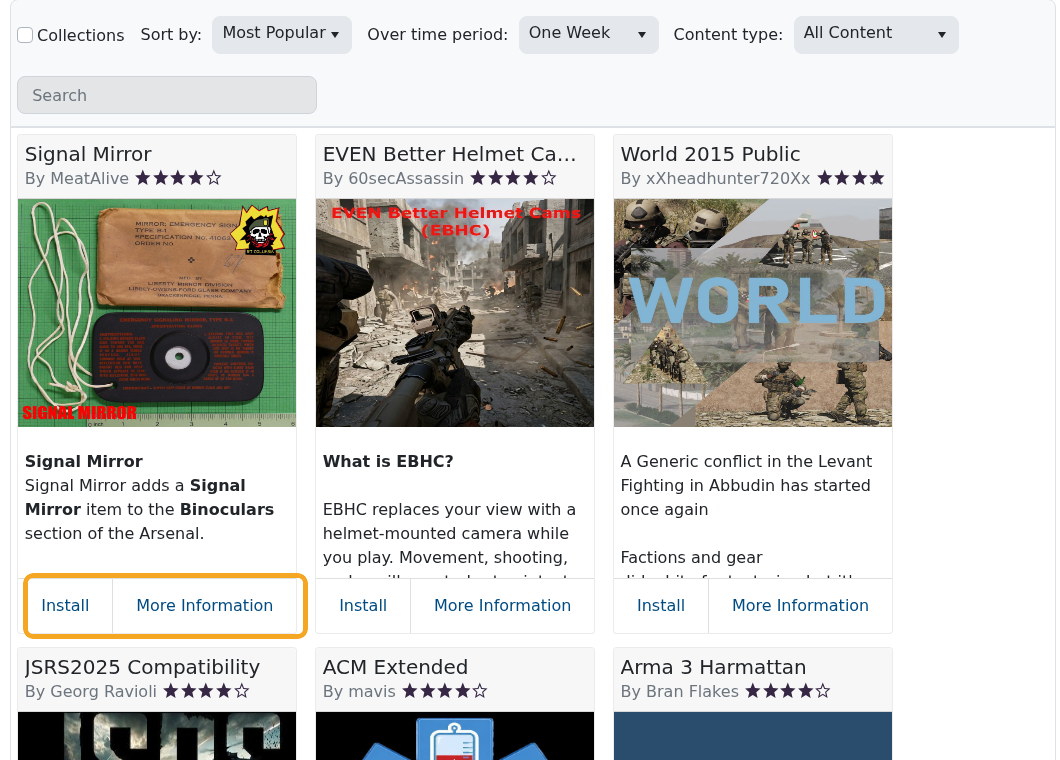
- Run the update/install action for the mod and wait for the task to finish.
- Restart the server.
- If the server fails to start, check Web Console for missing dependency or signature errors.
If a mod update changed folder names or dependencies, update the selected command line as well. The command line must still reference the correct -mod or -servermod folders.
