Arma Reforger bans should be based on a player identifier, not just a display name. The easiest method is to ban the player while they are online using in-game admin tools or BattlEye RCON, because those tools can see the connected player entry and write the correct ban details for you.
Ban A Player In-Game
- Join the server with an admin account or the configured admin password.
- Open the in-game player/admin menu.
- Select the player you want to remove.
- Use the ban option and enter a short reason.
- Restart the server or check
bans.txtif you need to confirm the saved ban entry.
This is usually the safest option because you do not need to manually type the player identity.
Ban A Player With BattlEye RCON
If you use BattlEye RCON, connect with the RCON address, port, and password from How to configure BattlEye RCON on your Arma Reforger server. Then list connected players and ban by the player number or GUID shown by your RCON client.
players
ban PLAYER_NUMBER reason
addBan PLAYER_GUID 0 reason
bans
writeBans
| Command | What it is used for |
|---|---|
players |
Lists connected players. Use this to find the player number, name, IP, and GUID/identity shown by your RCON client. |
ban PLAYER_NUMBER reason |
Bans a currently connected player by their current player number. This is useful when the player is online. |
addBan PLAYER_GUID 0 reason |
Adds a ban by identifier. Use the GUID/identity from players, logs, or admin tools. 0 is commonly used by BattlEye tools for a permanent ban. |
bans |
Lists saved bans in the RCON client. |
removeBan BAN_NUMBER |
Removes a ban by the ban number shown by bans. |
writeBans |
Writes the current ban list to disk. |
Edit bans.txt
Arma Reforger stores saved ban entries in bans.txt. This file is best for reviewing saved bans or removing an existing ban. Do not put only the player's display name in this file; names can change and are not enough to identify the player.
- Open your Arma Reforger server in the control panel.
- Click Configuration Files.
- Open
bans.txtwith Text Editor.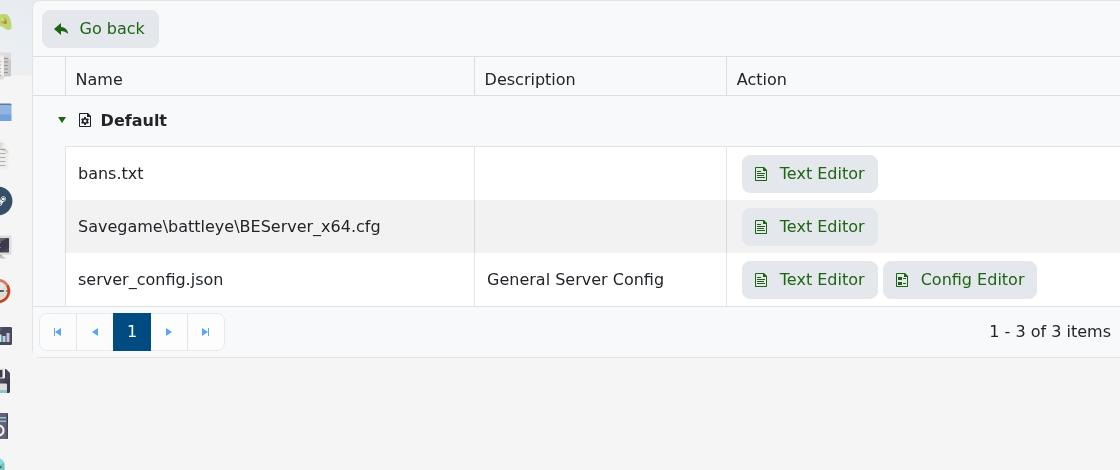
- To unban a player, remove the full existing ban line for that player from
bans.txt. - To manually add a ban, copy the identifier-based format already used by your server or add the ban through RCON so the server writes the line for you.
- Click Save & Exit.
- Restart the server if the change does not apply immediately.
A manual entry should contain the player identifier and ban details. The exact identifier must come from the server or admin tools; a Steam display name on its own will not work.
PLAYER_IDENTIFIER duration_or_permanent reason
Example structure:
0123456789abcdef0123456789abcdef permanent Cheating
| Value | What it means |
|---|---|
PLAYER_IDENTIFIER |
The player's server identity, such as a BattlEye GUID or Reforger identity from players, in-game admin tools, server logs, or an existing ban line. Do not use only their display name. |
duration_or_permanent |
The ban length, if your server/tool writes timed bans, or a permanent marker/value for permanent bans. |
reason |
A short note explaining why the player was banned. |
| Task | Best method |
|---|---|
| Ban a player who is online | Use the in-game/admin tools or RCON so Reforger writes the correct player identifier. |
| Unban a player | Remove that player's saved entry from bans.txt. |
| Check who is banned | Open bans.txt and review the saved entries. |
| Unsure which entry is correct | Check server logs or submit a support ticket before deleting entries. |
If you are not sure what the correct player identifier is, do not guess. Ask the player for their platform ID, check the server logs/admin tools, or use RCON/admin commands while the player is online so the server records the correct identity. Keep a backup before clearing large ban lists.
