Valheim can restrict access with permittedlist.txt. Add approved SteamID64 values to that file, save it, then restart the server so the permitted list is loaded.
- Find each player SteamID64: How to find your personal Steam ID64 number.
- Open your Valheim server in the control panel.
- Click Configuration Files.
- Open
permittedlist.txtwith Config Editor.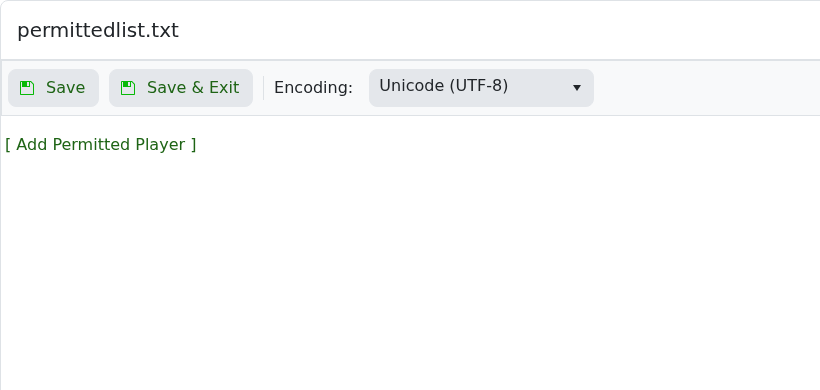
- Click [ Add Permitted Player ].
- Enter the player SteamID64 in the SteamID64 field. Use [ Add Permitted Player ] again to add more players.
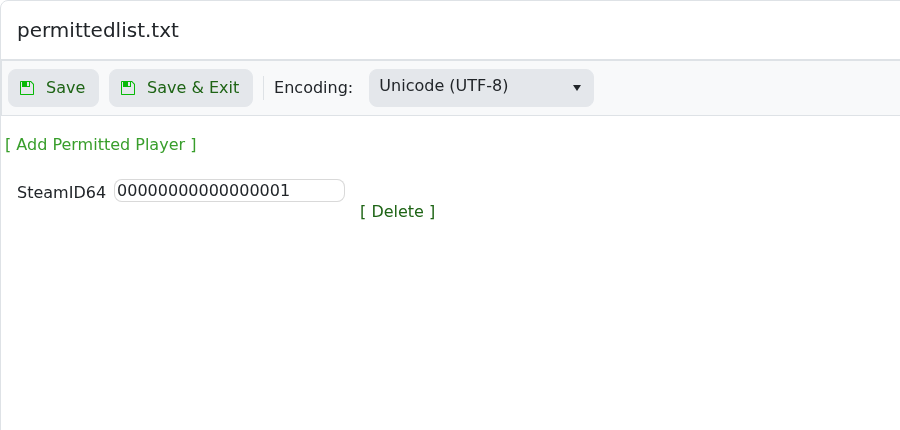
- Use [ Delete ] next to a row to remove a player.
- Click Save & Exit, then restart the server.
Please note that as of the 1.0 release you need to add V_ before the Steam ID so it looks like V_7656119XXXXXXXXXX
Keep your own SteamID64 in the permitted list before enabling a private setup, or you may lock yourself out.
Check the player identifier
Use the exact identifier the game expects, such as a username, SteamID64, UUID, or player ID. Copy it carefully, because one wrong digit or character can apply the change to the wrong player or stop it working.
After making the change
Restart the server if the game requires it, then test with the affected player. If the change does not apply, check the console or log output for permission or formatting errors.
