You can move an existing Palworld save to your server by uploading the correct save folder into Pal/Saved/SaveGames. Back up the server first, then stop it before replacing or uploading world files.
- Take a backup of the current server: How to Backup your Palworld Server.
- Stop the server.
- On your own PC, locate the Palworld save you want to upload. Keep the full save folder structure intact.
- Open File Manager, or connect with SFTP for larger uploads: How to connect to SFTP using FileZilla.
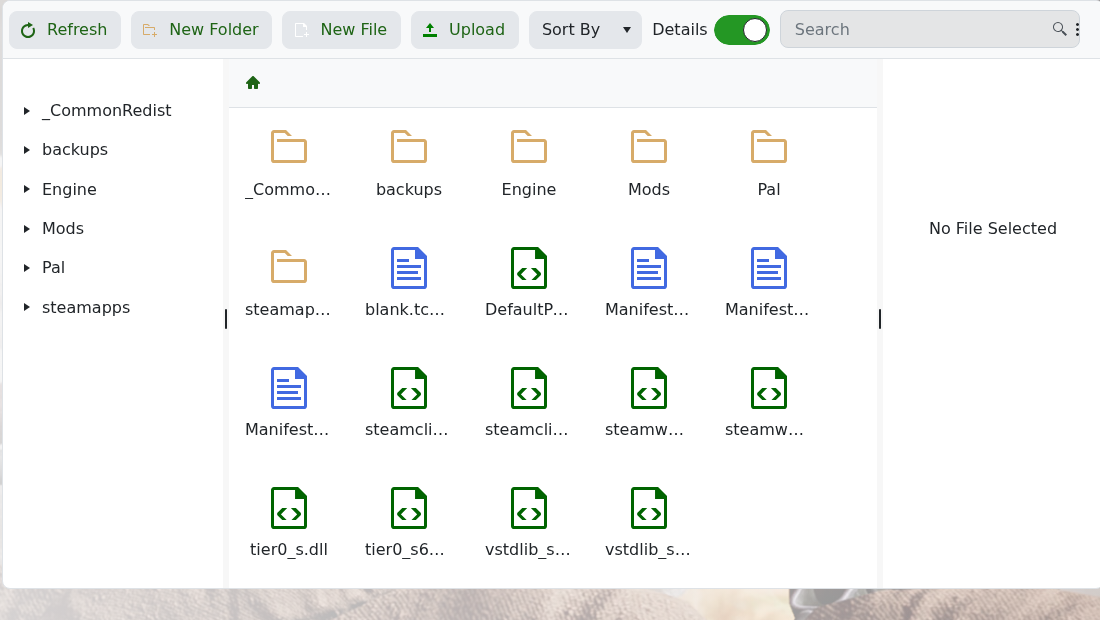
- Open the
Palfolder.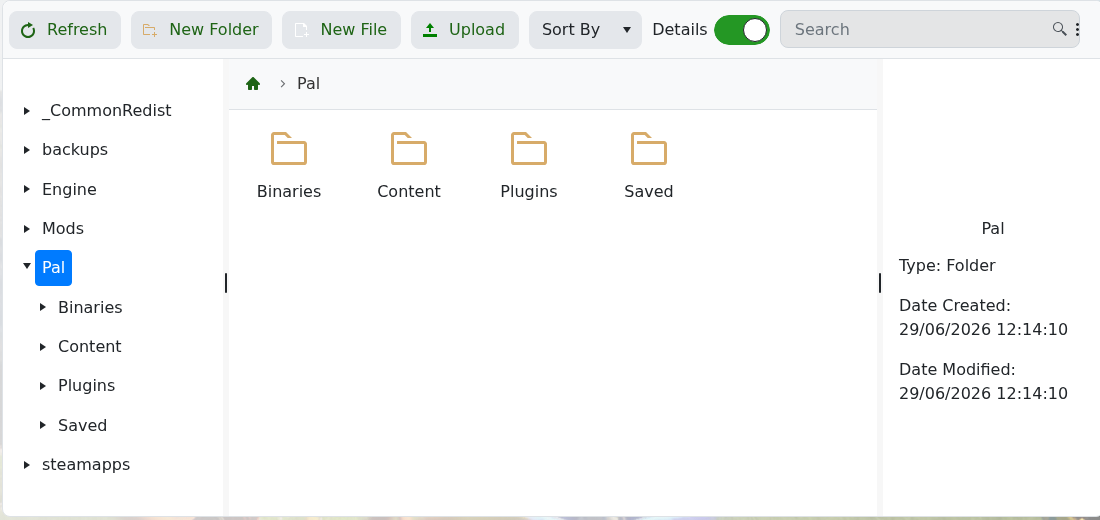
- Open
Saved, thenSaveGames.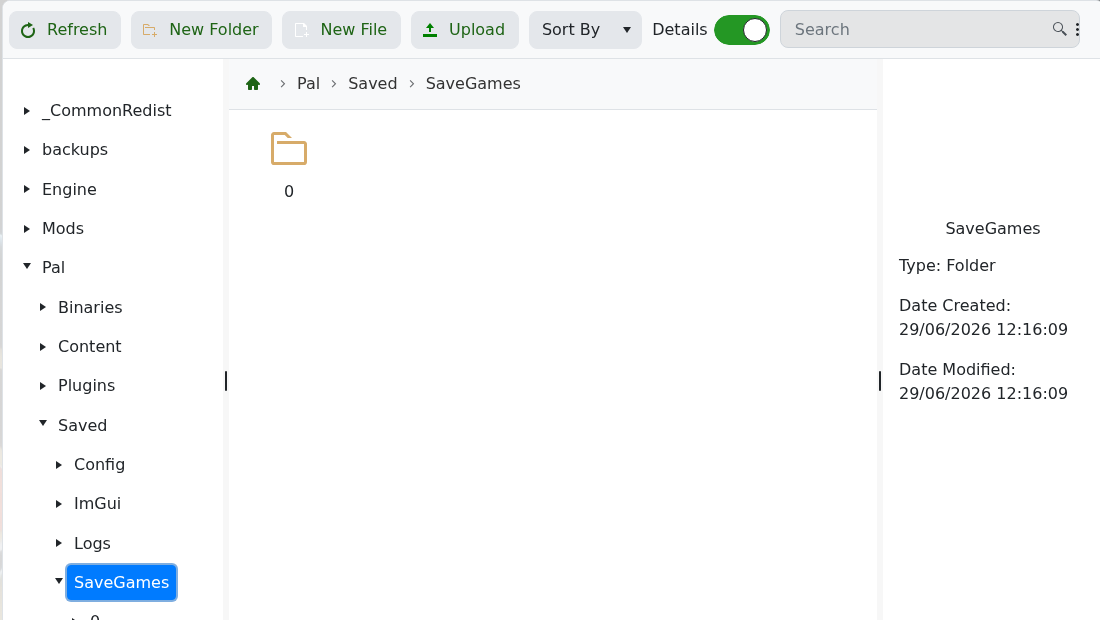
- Upload the save folder into this location. If the upload is a ZIP file, extract it so the folder structure is visible.
- Start the server and check whether the world loads correctly.
If the uploaded world does not load, confirm you uploaded the correct folder level. Do not delete your local copy until the server has started and players can join the uploaded world.
