TCAdmin's Stormforge backup includes the saves folder and settings.json. Make one before an update or changes to your world settings, and stop the server first so the save files aren't changing during the backup.
- Open your Stormforge service in TCAdmin, ask players to leave and click Stop.
- Click Backup Server in the left-hand menu.

- Click OK on the confirmation and wait for the backup task to complete.
- Check that the task completed without errors before starting the server or making the planned change.
To roll back later, follow restoring a Stormforge backup. TCAdmin may store the archive on the backup node and leave a zero-byte entry in backups. That entry is a placeholder; downloading it does not give you a usable backup.
Downloading a copy to your computer
Use File Manager with the steps below, or connect using FTP, open your service's folder and download the complete saves folder and settings.json while the server is stopped.
- With the server stopped, open File Manager in TCAdmin.
- Select
saves, then hold Ctrl and selectsettings.jsontoo. Right-click the selection and choose Compress.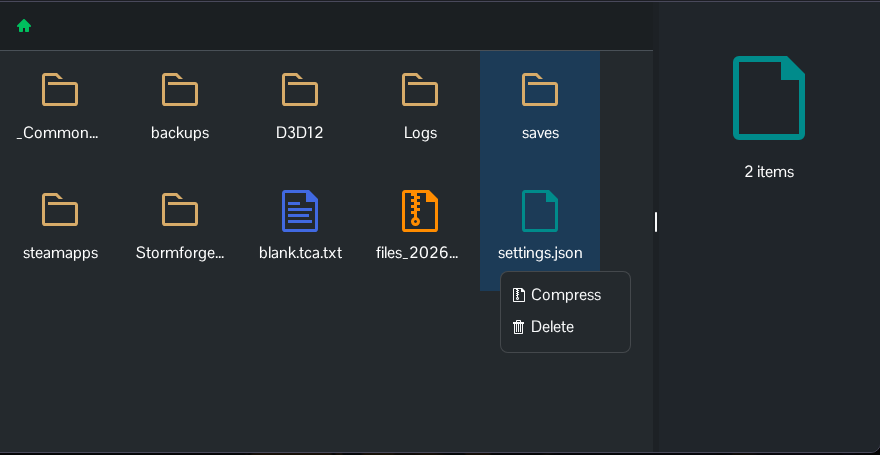
- Wait for the ZIP file to appear in the same folder. Right-click that ZIP and choose Download.
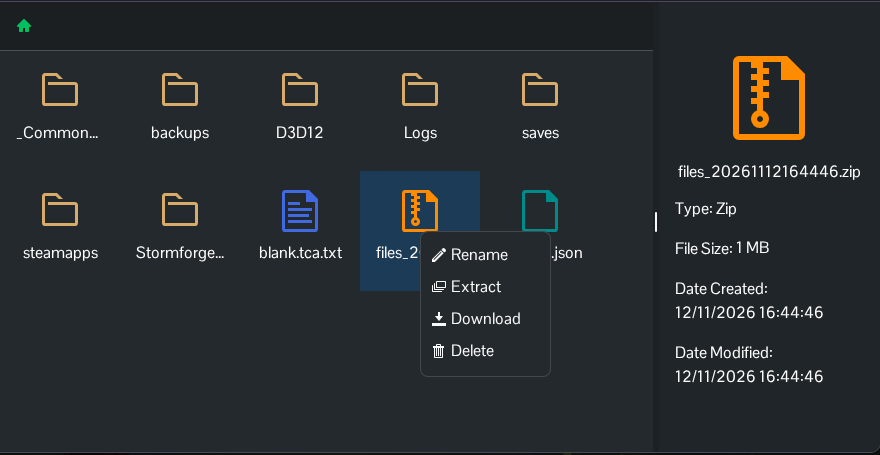
- Open the downloaded ZIP on your computer and check that it contains
savesandsettings.json. Keep this copy somewhere safe before starting the server again.
