You can move a Stormforge world to your server by uploading its complete world folder and setting worldPrefabID to match. Uploading the files without changing that ID leaves the server using its previous world.
You can use File Manager with the steps below, or connect to your server via FTP, open your service's folder and upload the same complete world folder to saves/Worlds. Then continue with the worldPrefabID step below.
- Save and close the source game, or stop the old dedicated server, before copying its files. Back up your destination server, then leave it stopped while you upload.
- Find the source world folder. On another LogicServers service, open File Manager and go to
saves/Worlds. Right-click the world folder, choose Compress, then download the ZIP and extract it on your computer. For a world hosted on your Windows PC, press Windows + R and open this location:%USERPROFILE%\AppData\LocalLow\RobotoGames\Stormforge\SavesOpen your account's numbered folder, then
Worlds. Each saved world has a folder named with a long ID. Copy the complete folder for the world you want, including itsWorld_<ID>.bytesfile and everyRegion_*.bytesfile. Keep the folder and file names unchanged. - Open File Manager on your destination service and go to
saves/Worlds. Drag your complete world folder from your computer into the file area. You can also click Upload, then Select folder... and choose the world folder. Wait until every file has finished uploading, then click Done.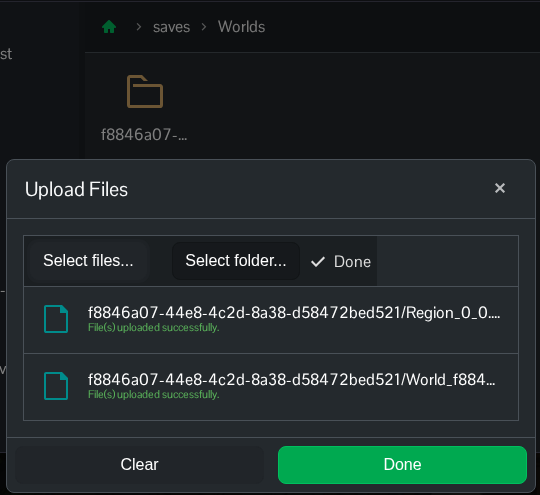
For example, a world whose ID is
cd9f53e6-d784-4853-b181-48af2c04462bshould have this layout:saves/Worlds/cd9f53e6-d784-4853-b181-48af2c04462b/ World_cd9f53e6-d784-4853-b181-48af2c04462b.bytes Region_0_0.bytesYour world may have more region files; upload all of them. Avoid adding an extra Worlds folder inside the server's existing Worlds folder.
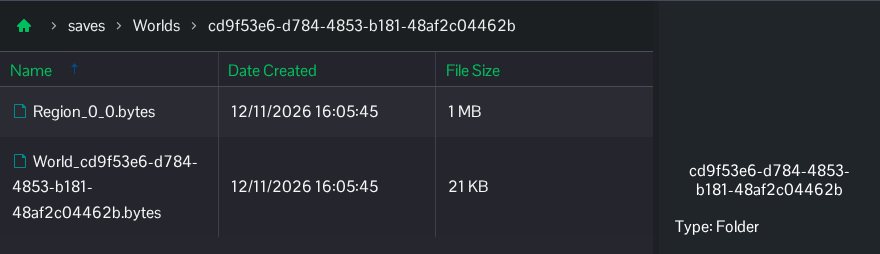
- In TCAdmin, open Configuration Files and choose Text Editor beside
settings.json. Change the top-levelworldPrefabIDto your uploaded folder's exact ID:"worldPrefabID": "cd9f53e6-d784-4853-b181-48af2c04462b"Use your own folder ID, not this example. Keep the destination server's other settings, including its port and
"savesDirectory": "saves". Config Editor does not currently expose the world ID. - Click Save & Exit. Check your world rules through Config Editor if needed; the destination server's difficulty and other world settings still apply.
- Start the server, join it and check a familiar location or build before your group continues playing. Keep your source copy until you have confirmed the right world is loaded.
If you arrive in a fresh world, stop the server and compare worldPrefabID with the uploaded folder name. Check that the World file is directly inside that folder, alongside the region files. A seed by itself cannot restore your buildings or progress; those are in the save files.
