TCAdmin can check for Stormforge server updates on a schedule. Choose a quiet time and tell the task what to do when players are connected, so an update does not interrupt your group unexpectedly.
- Back up your server before setting up automatic updates.
- Open your Stormforge service in TCAdmin, then click Scheduled Tasks.
- Click New, select Steam Update as the Task Type, then click [ New ] to open the task's settings.
- Give the task a name, such as Daily Stormforge update, and leave Enabled ticked. Set Type to Daily, choose your first run date and time under Start, and set Recur Every to
1day. Leave Repeat task unticked for one run each day.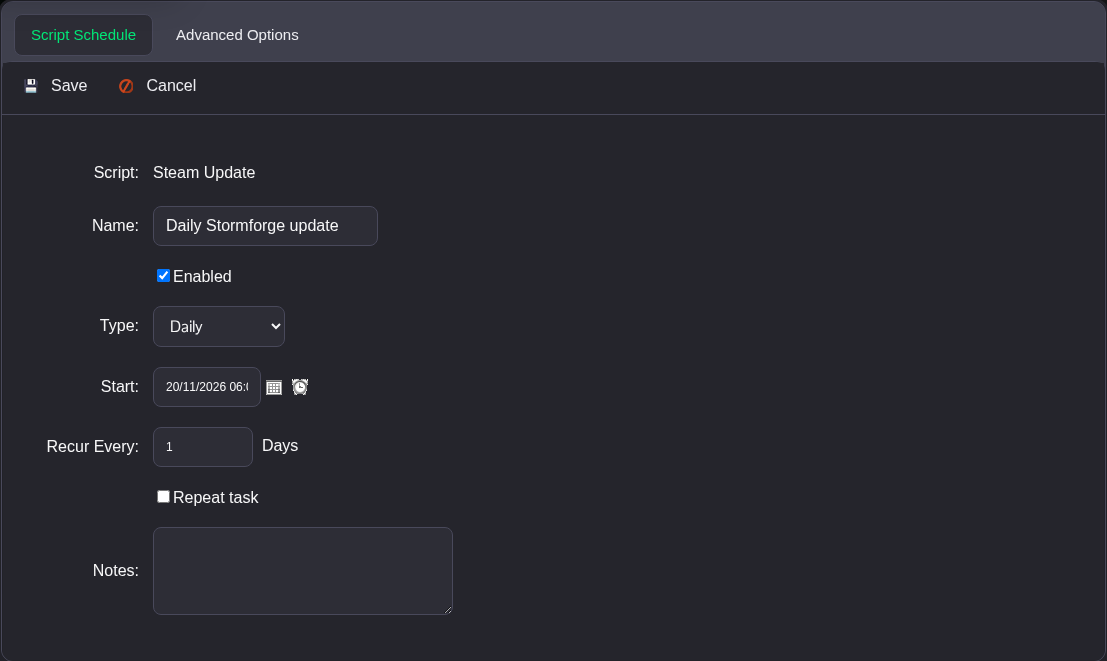
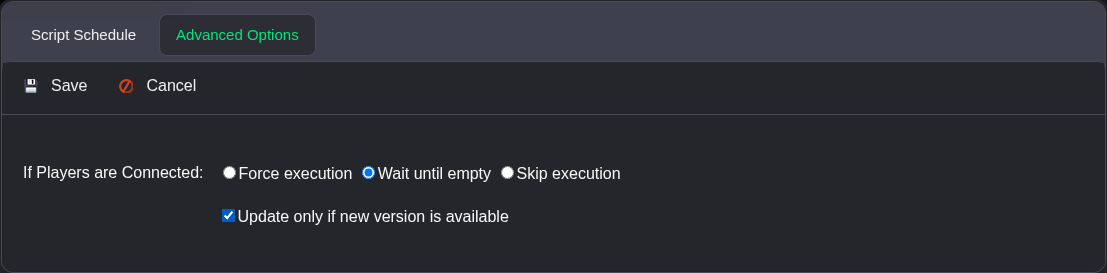
- Open Advanced Options. Under If Players are Connected, choose Wait until empty, and tick Update only if new version is available.
- Click Save. Back on Scheduled Tasks, check the task is enabled and its Next Run Time is the time you intended. Use the time displayed by your panel account when setting the schedule.
Wait until empty delays the update while players remain connected. Skip execution skips that run instead, while Force execution allows it to proceed with players online. Pick the behaviour that suits your group; the default Force execution option can interrupt a session.
The schedule updates the server. Players still need to let Steam update their own games before joining, because the client and server versions must match. Check the task's Last Status and Last Run Time after its first run. You can also run Steam Update manually when you need an update sooner.
