To start a fresh Stormforge world, clear the saved world ID in settings.json and choose a seed before starting the server. Changing the seed alone does not replace an existing world.
This starts your server on a new world. Back up the server first and keep a copy of settings.json so you can return to the previous world.
- Open your Stormforge service in TCAdmin and click Stop. Wait until its status is Stopped.
- Open Configuration Files and choose Text Editor beside
settings.json. The seed and world ID are not currently exposed in Config Editor. - Copy the existing
worldPrefabIDvalue somewhere safe. This identifies the world your server was using. - Replace that value with
00000000-0000-0000-0000-000000000000. InsideworldSettings, changeseedto the seed you want. Keep the quotation marks, including around a seed made entirely of numbers.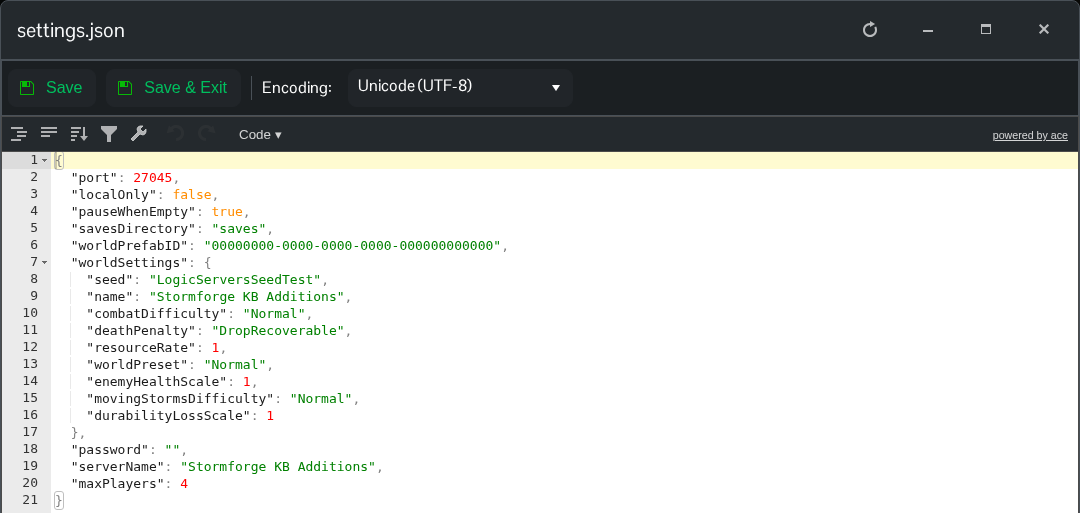
{
  "worldPrefabID": "00000000-0000-0000-0000-000000000000",
  "worldSettings": {
    "seed": "LogicServersSeedTest"
  }
}
This example shows only the entries to change. Keep the rest of your file, including the other world settings. Use
"seed": ""if you want the game to choose a seed. - Click Save & Exit, then start the server. Allow time for world generation before joining.
- Open the latest server log. A fresh world produces
GenerateWorld: worldSeedandGenerated worldmessages. Check that the first message contains your chosen seed.
The server writes a new world ID into settings.json and creates its folder under saves/Worlds. Existing world folders stay there; you do not need to delete them or change savesDirectory.
To switch back, stop the server and put the previous world ID back into worldPrefabID, leaving its original folder in place. Restore the previous world settings from your saved copy too. For an existing world from another server or PC, follow the world upload guide instead.
