
ARK Workshop mods are installed by Steam Workshop ID. The control panel can install the mod files and add the IDs to the server, but you should still read the mod author's page for load order, map, dependency, and configuration requirements.
- Open the mod page on Steam Workshop and copy the number at the end of the URL. For example, in
?id=123456789, the mod ID is123456789. - Open your ARK server in the control panel.
- Click Install Mods.
- Enter one or more Workshop IDs in Mods to install. Separate multiple IDs with commas and do not add spaces. This example uses Valhalla,
504122600.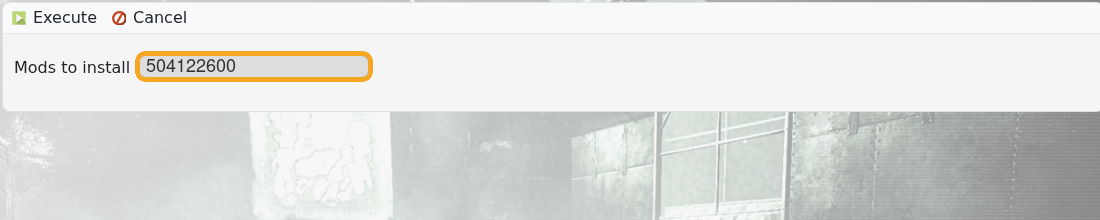
- Click Execute and wait for the install task to finish.
- Restart the server and check the server starts cleanly.
- To update installed mods later, click Update Mods. To check whether updates are available, use Check Mod Updates.
If a mod requires another mod, a specific map, or manual configuration, follow the mod author's instructions as well. If the server fails to start after adding mods, remove the newest mod first or restore a backup.


