Custom ARK maps need two pieces of information from the Steam Workshop page: the Workshop ID so the server can download the map, and the map name so the command line starts the server on that map. This example uses The Volcano, which uses Workshop ID 715028562 and map value TheVolcano.
- Open the map page on Steam Workshop and copy the Workshop ID from the URL. For this example, The Volcano uses
715028562. - Read the map author's install notes and copy the map value or launch name. For this example, The Volcano uses
TheVolcano. - Open your ARK server in the control panel and click Install Mods.
- Enter the Workshop ID in Mods to install, then click Execute. For The Volcano, enter
715028562.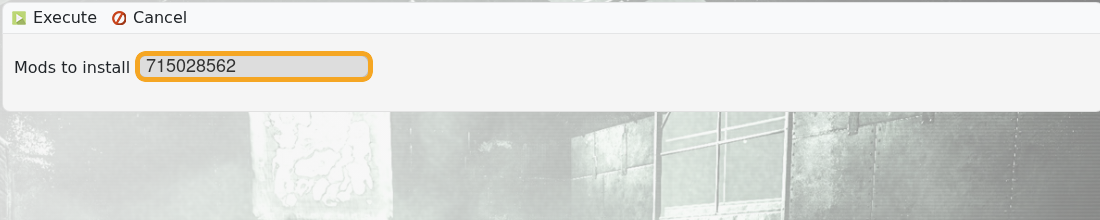
- Wait for the install task to finish before changing the command line.
- Click Commandline Manager.
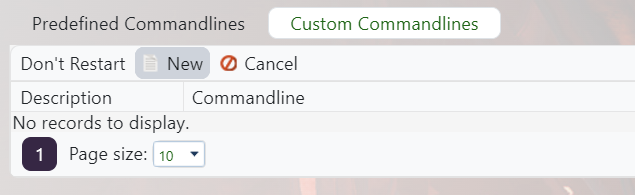
- Click New if you need a separate command line for this custom map, or edit the selected command line if this server will always run the custom map.
- Give the command line a clear description, such as
The Volcano map. - Tick the checkbox beside the map/startup map field so the value is enabled.
- Enter the map value from the Workshop page. For this example, enter
TheVolcano.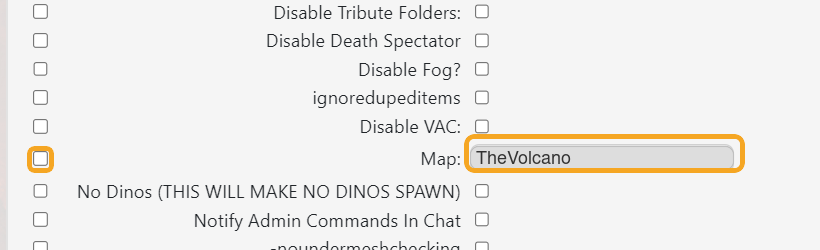
- Save the command line.
- Click Select next to the command line you want the server to use.
- Restart the server and check Web Console or the server browser to confirm it starts on the custom map.
| Setting | What it does |
|---|---|
Workshop ID | The numeric ID from the Steam Workshop URL. The panel uses this to download the map files. Example: 715028562. |
Map value | The map/startup value listed by the map author. The command line uses this to boot the correct map. Example: TheVolcano. |
Command line | The startup profile selected in Commandline Manager. The server must be using the command line that contains the custom map value. |
Custom map authors can use different map names and dependencies. If the server starts on the wrong map, re-check the Workshop page for the exact map value, required dependencies, and load order.