Smalland’s server name, password, save and gameplay options are controlled by the selected custom command line. Saving a command line does not activate it automatically, so make sure you select the new entry afterwards.
- Open your Smalland server in the control panel and stop it.
- Click Commandline Manager.
- Open Custom Commandlines, then click New.
- Enter a clear description and change only the settings you need.
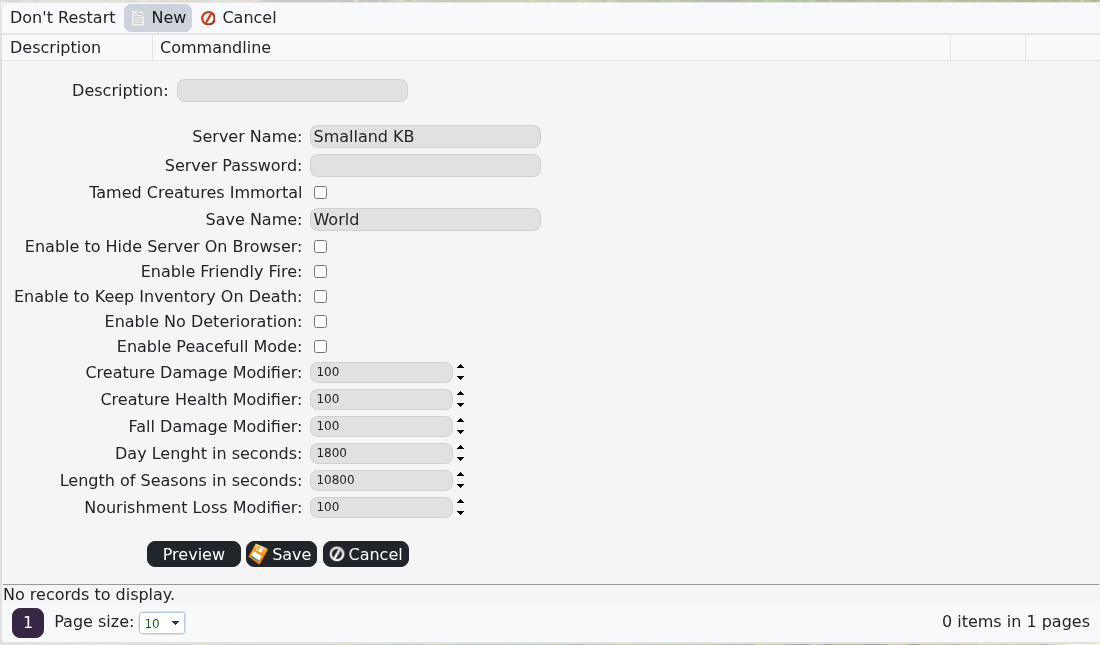
- Click Save.
- Find the new command line in the list and click Select.
- Start the server and test the changed settings.
If a change prevents the server from starting, stop it and select the previous command line. Change one group of settings at a time so it is easy to identify a bad value.
