
How to join your StarRupture Server from within the game.
To start enjoying your new StarRupture server you first need to know how to find your server from within the game and join it. Follow this guide that shows you step by step how to find and start playing on your gaming server.
Joining your server :
- Login to your TCAdmin control panel:
- When you purchased your StarRupture server with us you will have been sent your login details via email. Use those details to login to your TCAdmin control panel. When you are logged into your panel you will see various options available to you. From here you can control your server.
- If you do not have a server with us you can get one here - StarRupture Server Hosting | LogicServers
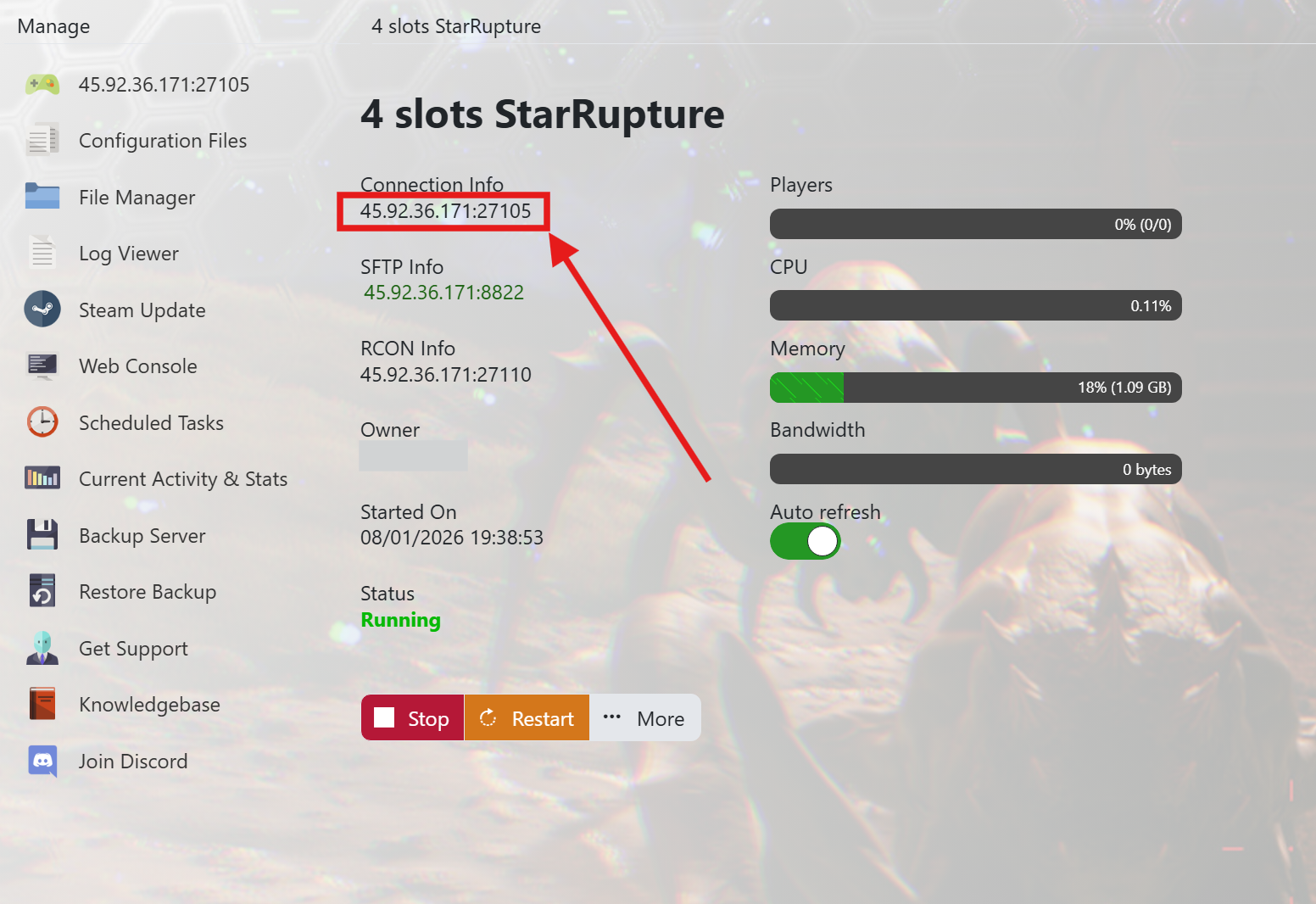
- Note down your servers IP address:
- Before you can join your server it's always a good idea to make a note of your server's IP address. On your TCAdmin panel main page locate the IP address shown in the image and make a note of this. You can copy and paste it into a notepad. You will need this to join the server.
- Make sure your server is online:
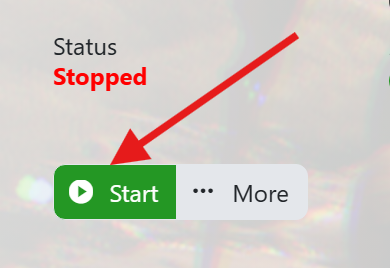
- You will need to make sure your server is running before you can join.
- If the status shows anything other than running as shown in the image then you may need to press the START button.
- Open up your Game on Steam:
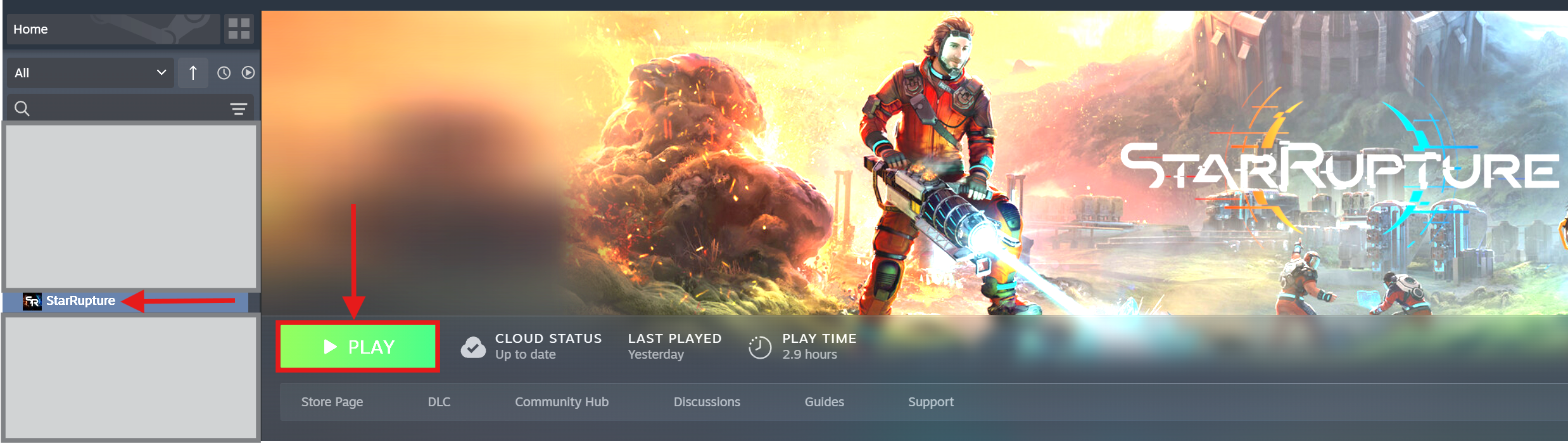
- Go to your Steam library and click to start StarRupture on your pc.
- When the game opens up you will be presented with the main menu.
- If this is the first time you are starting the game, now's a good time to click on ‘Options’ and set everything to how you want it.
- Go to the Manage Server screen:
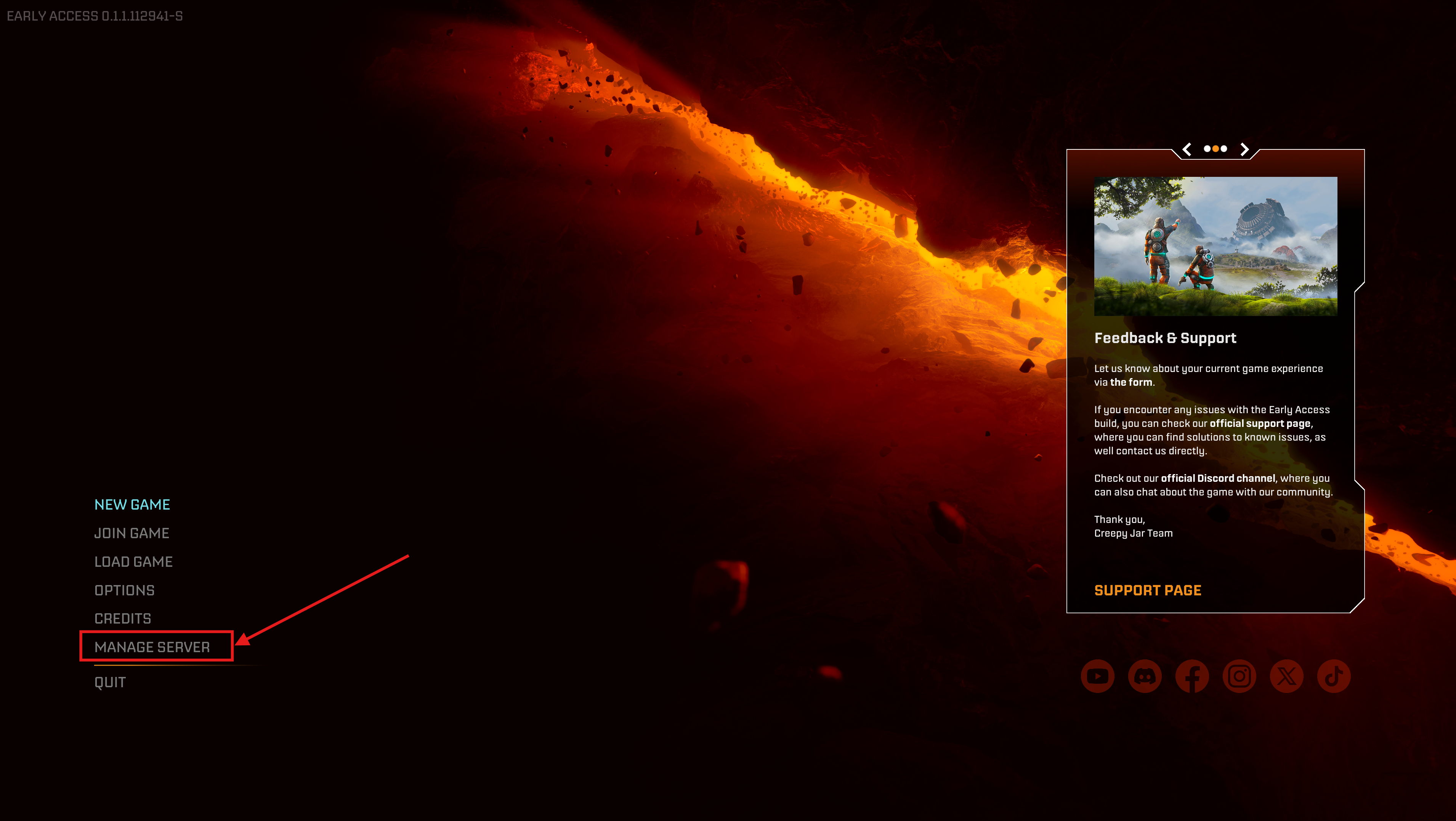
- Click on the ‘Manage Server' button on the left hand options on the main menu.
- Connect the game to your server:
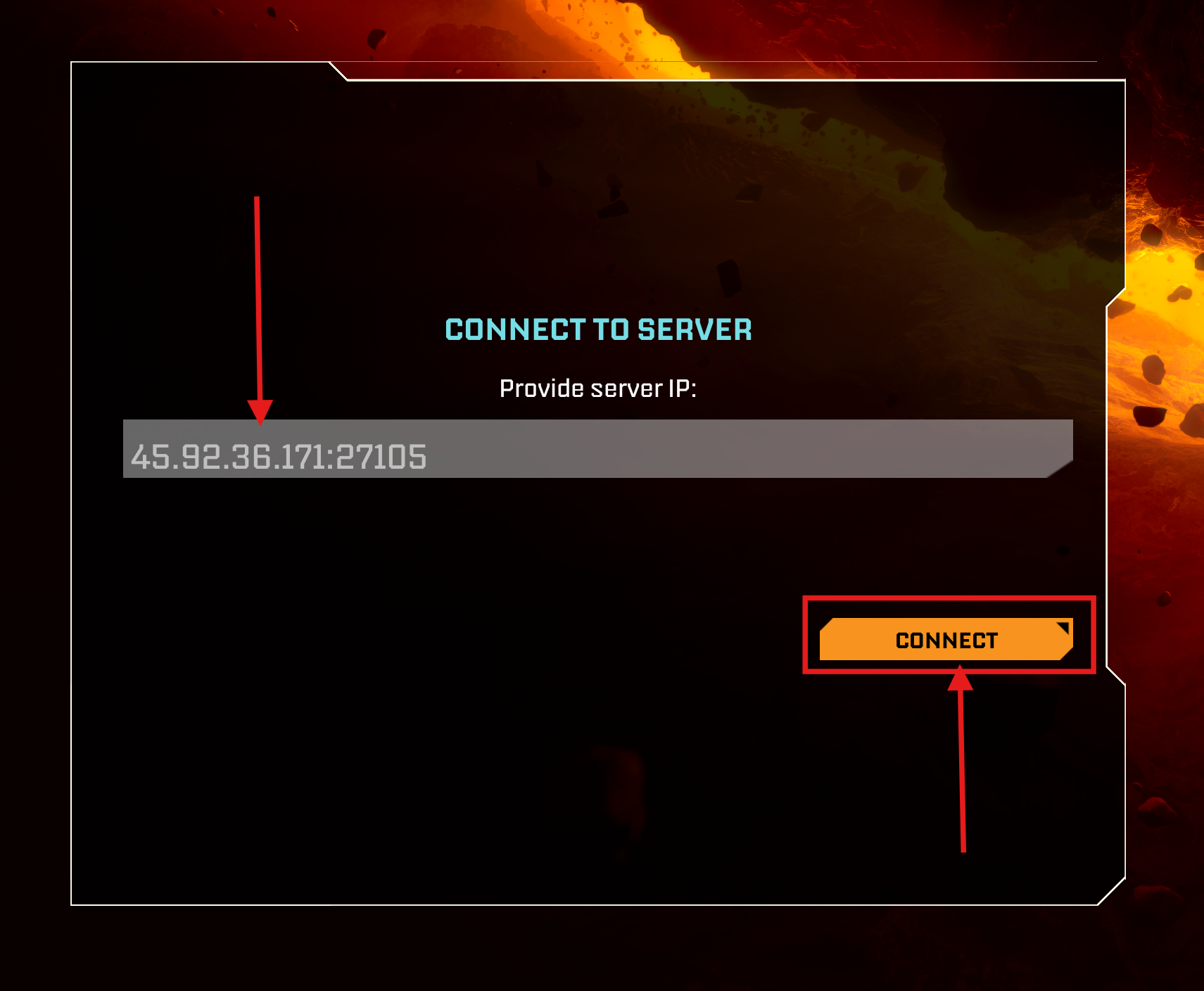
- Click on the ‘Provide Server IP’ box.
- Type in the IP address and port you got from section 2 of this guide.
- Click the ‘Connect’ button.
- Enter a Password:
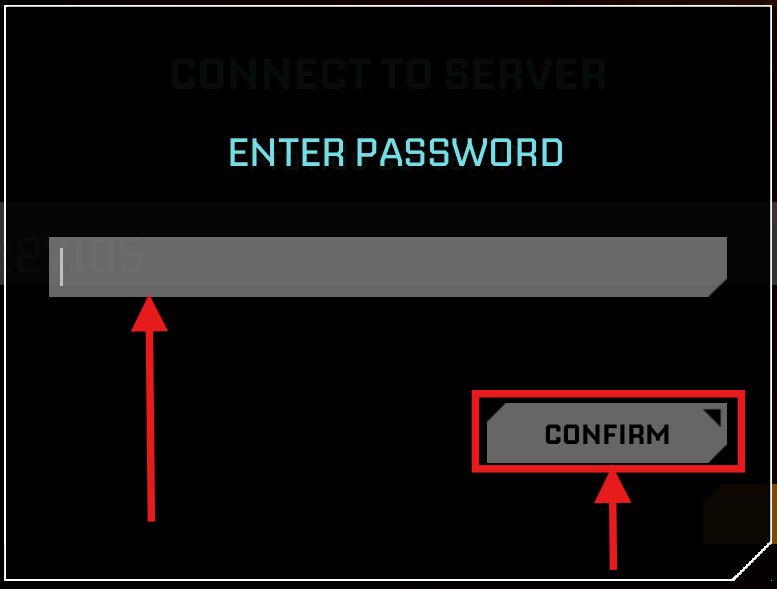
- Click on the ‘Enter Password’ box.
- Type in a password and make sure you remember this. Write it down if you need to.
- Click the ‘Confirm’ button.
- Confirm Password and Join Server:
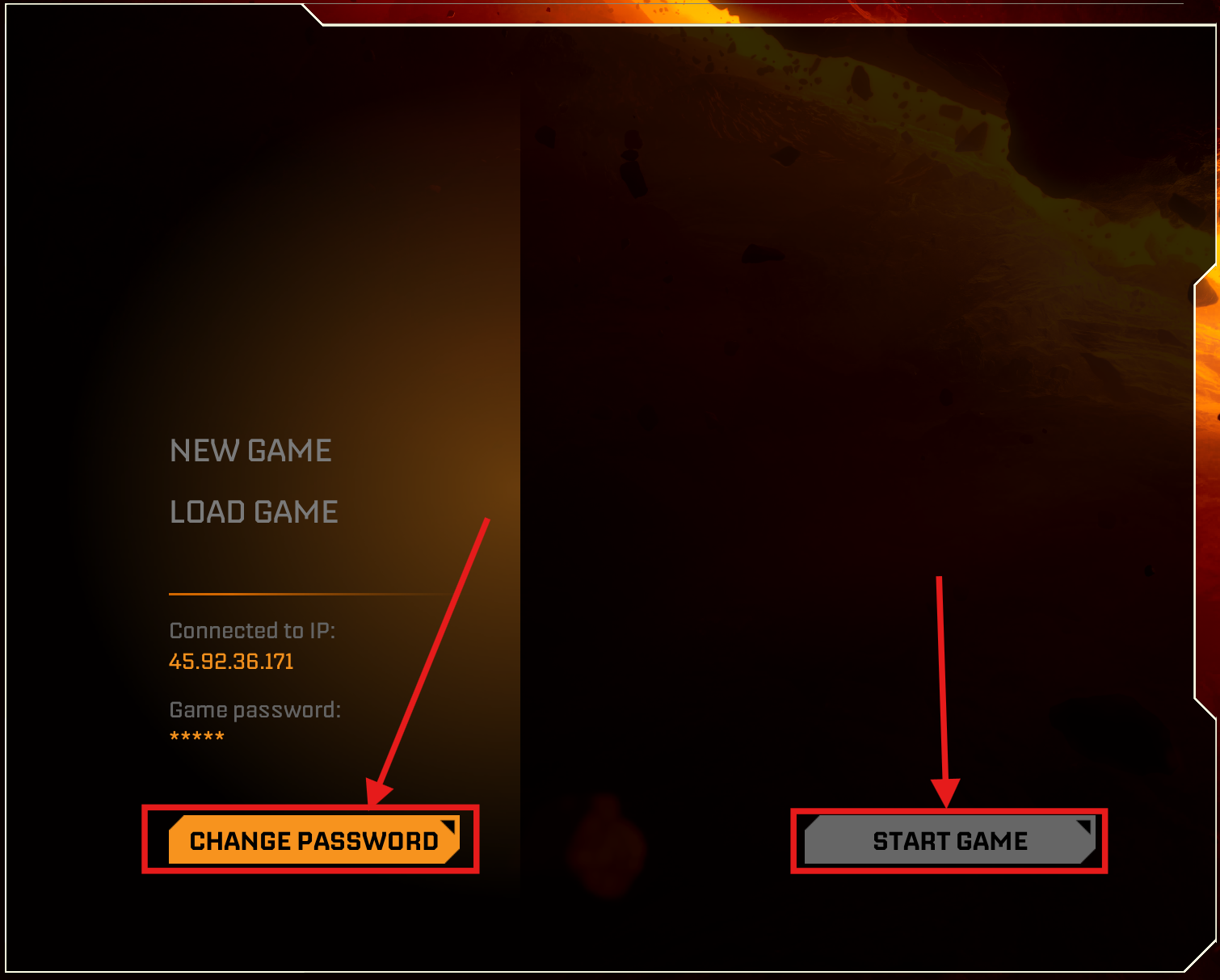
- You may find it shows that your password is not set. So you will need to set it again.
- Click on the ‘Change Password’ box.
- Type in a password and again as before make sure you remember this. Write it down if you need to.
- Click the ‘NEW GAME’ button to set a name for your new game and then click ‘Start Game’
- You can use the ‘LOAD GAME’ option to load a previously saved game in future followed by the ‘Start Game’ button..
You will now join your server so you and your friends can start playing on there. If you do get any issues joining your server for the first time then please let us know.
We offer great support for your server and in most cases we can get you going right away. Open a ticket after logging into your Client Area Here. Our support team will be able to take a look at your server and help you get it going.


