
7 Days to Die 3.0 Experimental lets you test the newest 3.0 build before it moves to the normal public release. Experimental versions can change quickly, so take a backup first and expect possible wipes, mod issues, or config changes.
Only players running the matching 7 Days to Die 3.0 Experimental client will be able to join the server.
- Login to your TCAdmin control panel, open your 7 Days to Die server, then stop it before changing version.

- Take a backup of your server files.

Experimental builds can break older worlds or mods. A backup gives you a restore point if you need to go back.
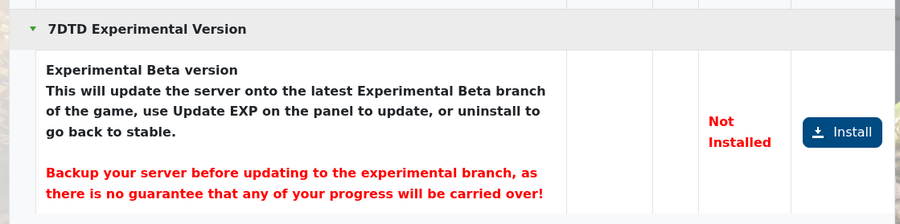
- Open Mod Manager, then install the 7DTD Experimental option.
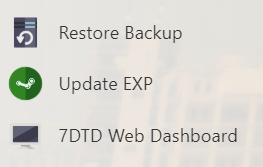
- Click Update EXP from the service sidebar. This updates the server using the experimental branch and avoids the normal Steam update action pulling the stable branch.
- Start your server once Update EXP has completed.
- Check your configuration files if the server does not start cleanly. If a new 3.0 config file is available, use that one instead of an older Alpha/1.x/2.x config editor.
Important notes
- Make sure your own Steam client is also set to the 7 Days to Die 3.0 Experimental branch before joining.
- Mods may need updates before they work on 3.0 Experimental.
- If the server fails to start after switching version, try starting with a fresh world or restore the backup you made before changing version.
- If the 7D2D Experimental option is not shown in Mod Manager, submit a support ticket and we can check your server.
If you get stuck, submit a support ticket and we can check your server.


