
Use Wipe Server when you need to remove DayZ save data from the server. The wipe tool can remove player data, the world data, or all saved data, so take a backup first and only tick the options you actually want to delete.
- Open your DayZ server in the control panel.
- Click Backup Server first if there is any chance you will need to roll back.
- Stop the server.
- Click Wipe Server.
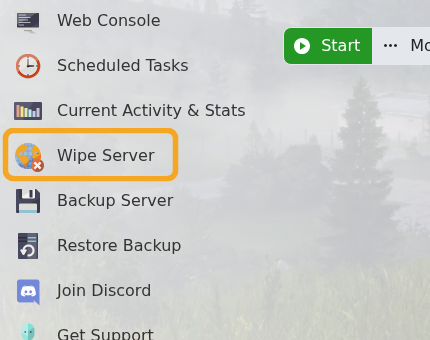
- Choose what you want to wipe.
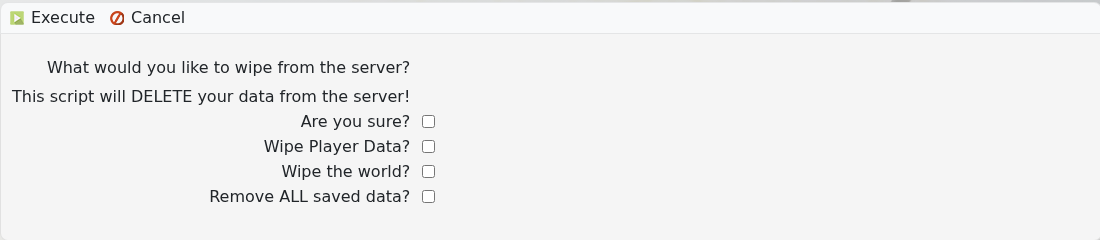
- Tick Are you sure?.
- Click Execute and wait for the wipe task to finish.
- Start the server and check that it generated or loaded the expected data.
| Option | What it removes |
|---|---|
| Wipe Player Data? | Removes saved player progress data while leaving the world option separate. |
| Wipe the world? | Removes the current world save/economy state so the server can generate fresh world data. |
| Remove ALL saved data? | Removes all saved data covered by the wipe script. Use this only when you want a full reset. |
If you are not sure which wipe option to use, submit a support ticket before running the wipe. Wipe actions are destructive once executed.


