
The map your 7 Days to Die server loads is set in serverconfig.xml. This can be Navezgane, one of the pre-generated worlds, or a random generated world.
Before changing maps, take a backup. Changing the map can make the server load a different save path, so it may look like your current world has gone if you switch settings without planning it.
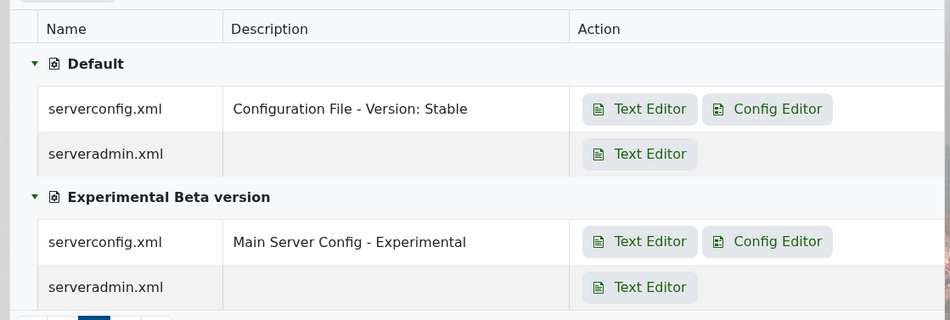
From your control panel, open Configuration Files and edit serverconfig.xml with the Text Editor.
Scroll to the world section and find GameWorld.
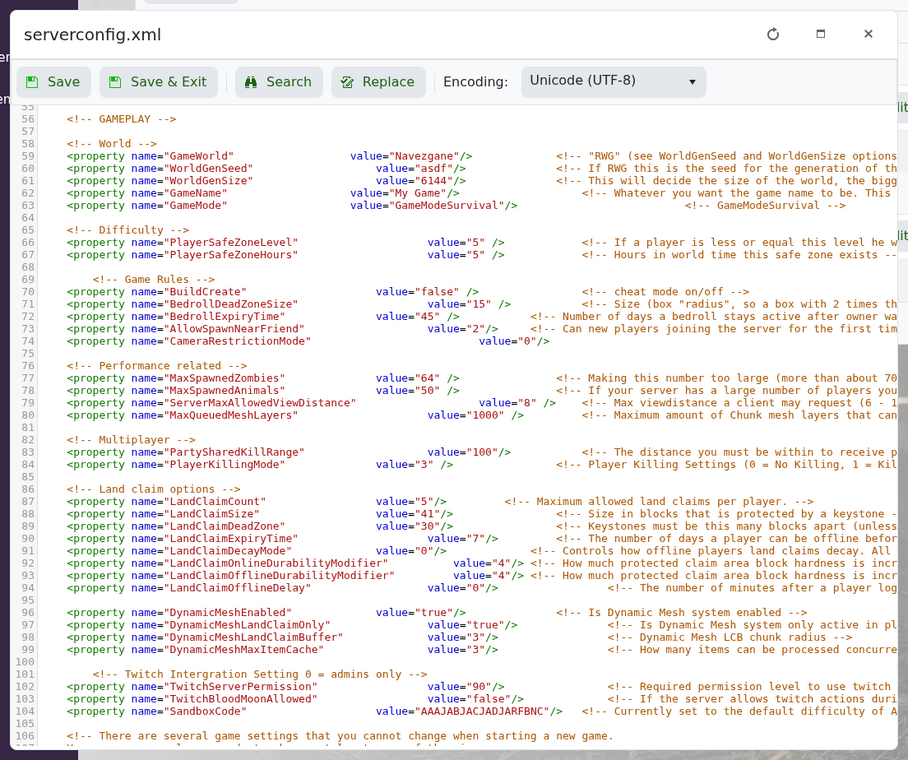
For Navezgane, use:
<property name="GameWorld" value="Navezgane"/>
For a pre-generated map, use one of the available PREGEN names:
<property name="GameWorld" value="PREGEN8k"/>
For random generation, use:
<property name="GameWorld" value="RWG"/>
Save the file and restart your server. If you want the new map to generate as a fresh save, change GameName as well or wipe the old world data after taking a backup.


