
Pixelmon updates should be done carefully, especially if the server already has an active world. The safest way is to stop the server, take a backup, update the modpack, then make sure every player updates their client to the same version.
Updating Pixelmon
- Open your Minecraft server in the control panel, stop the server, then create a backup before changing the modpack.
- Click Modpacks from the server menu.
- Find Pixelmon Mod. You can use the search box if needed.
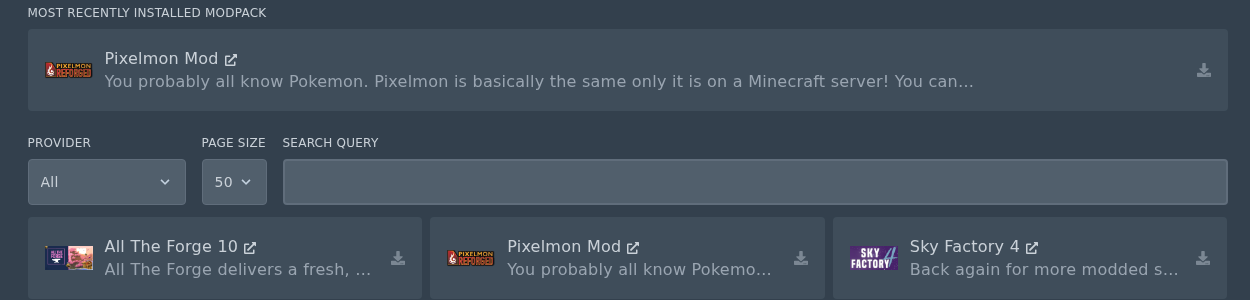
- Click the Install icon on the Pixelmon Mod pack.
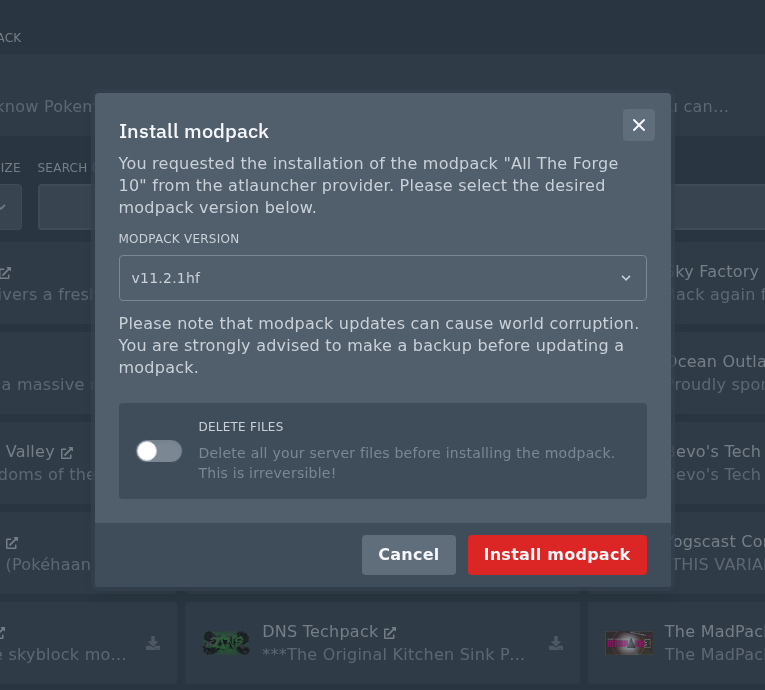
- In the install window, select the Pixelmon version you want to update to. Do not check the Delete Files box. This will wipe your server. Click Install modpack.
- Wait for the installer to finish, then start the server again.
- Ask players to update their Pixelmon client to the same pack version before joining.
If the server fails to start after the update, check the console output first. If the update is not compatible with your existing world or files, restore the backup you created before updating.
Do not update the server and leave players on an older Pixelmon client. Modded Minecraft servers are much more sensitive to version mismatches than vanilla servers.


