
You can create a Minecraft server from the LogicServers website and manage it through the control panel. This is the easiest option if you do not want to manage Java, Linux commands, ports, updates, and server files yourself.
If you already have your own VPS or dedicated server and want to install Minecraft manually, use one of these command line guides:
- How to create a Minecraft Server on Ubuntu
- How to create a Minecraft Server on Debian
- How to create a Minecraft Server on AlmaLinux
Creating a server from the website
- Go to Minecraft Server Hosting.
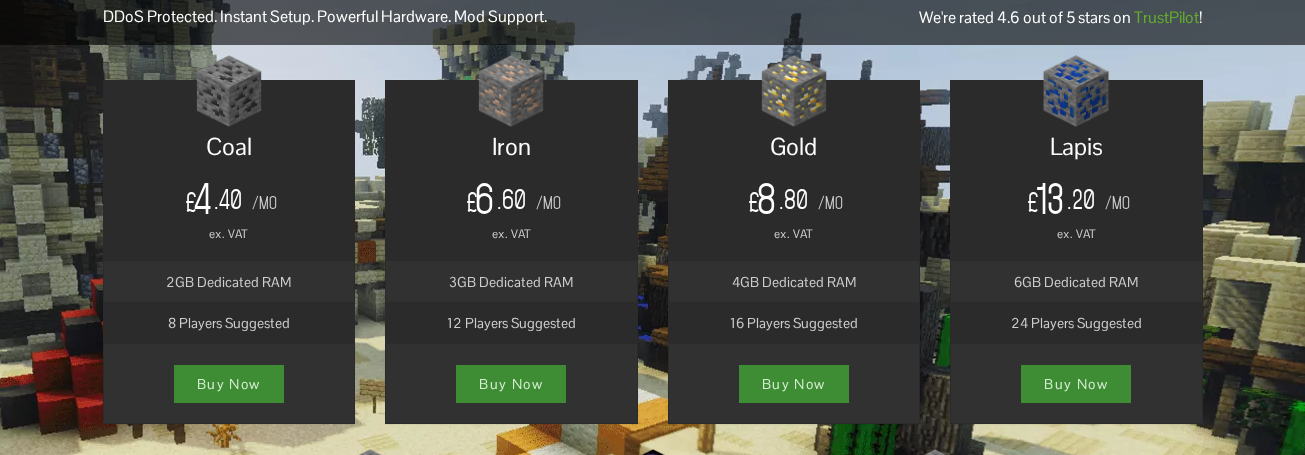
- Choose the package you want, then click Buy Now.
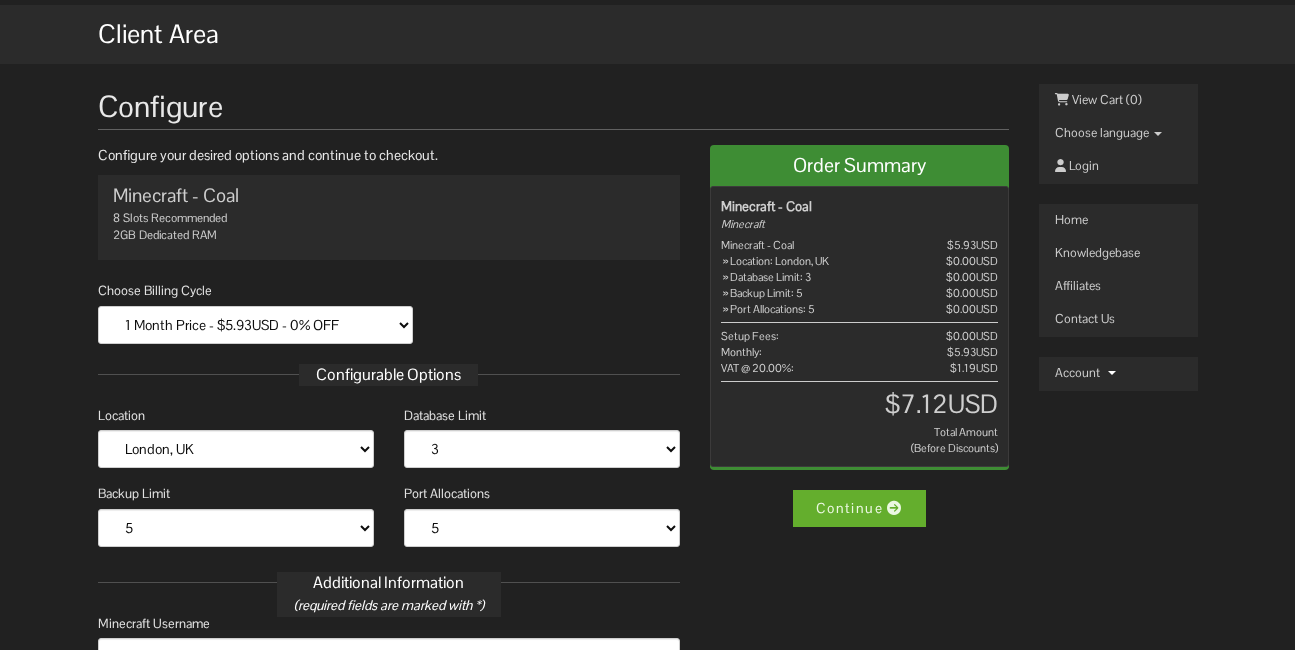
- Choose your billing cycle, location, and server options on the configure page.
- Continue through checkout and either log in or create an account.
- After the order is active, open the server from your client area/control panel.
- Use the Versions page to choose the server software you want, such as Vanilla, Paper, Forge, Fabric, or another supported option.
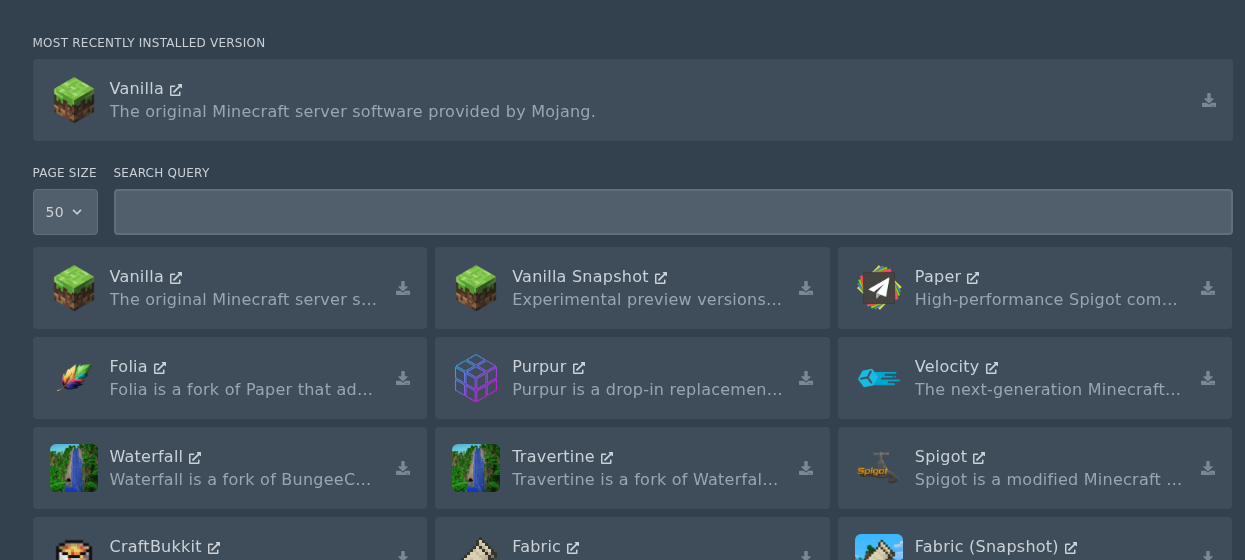
If you want a modpack, use the Modpacks page instead. For example, Pixelmon can be installed from the Modpacks page without manually uploading all of the files yourself.


